Beverage partner? Enroll a new account here →

QR menu tips
Are QR code menus annoying? When they work and when they don’t
QR code menus are annoying when they’re done badly: a PDF you pinch and zoom, an app to download, a code that doesn’t work, or no paper menu to ask for. Done right, a QR menu sits next to your menu board and printed menus, never instead of them. It opens in the phone’s browser, matches the board and helps with lines, languages and allergy questions.
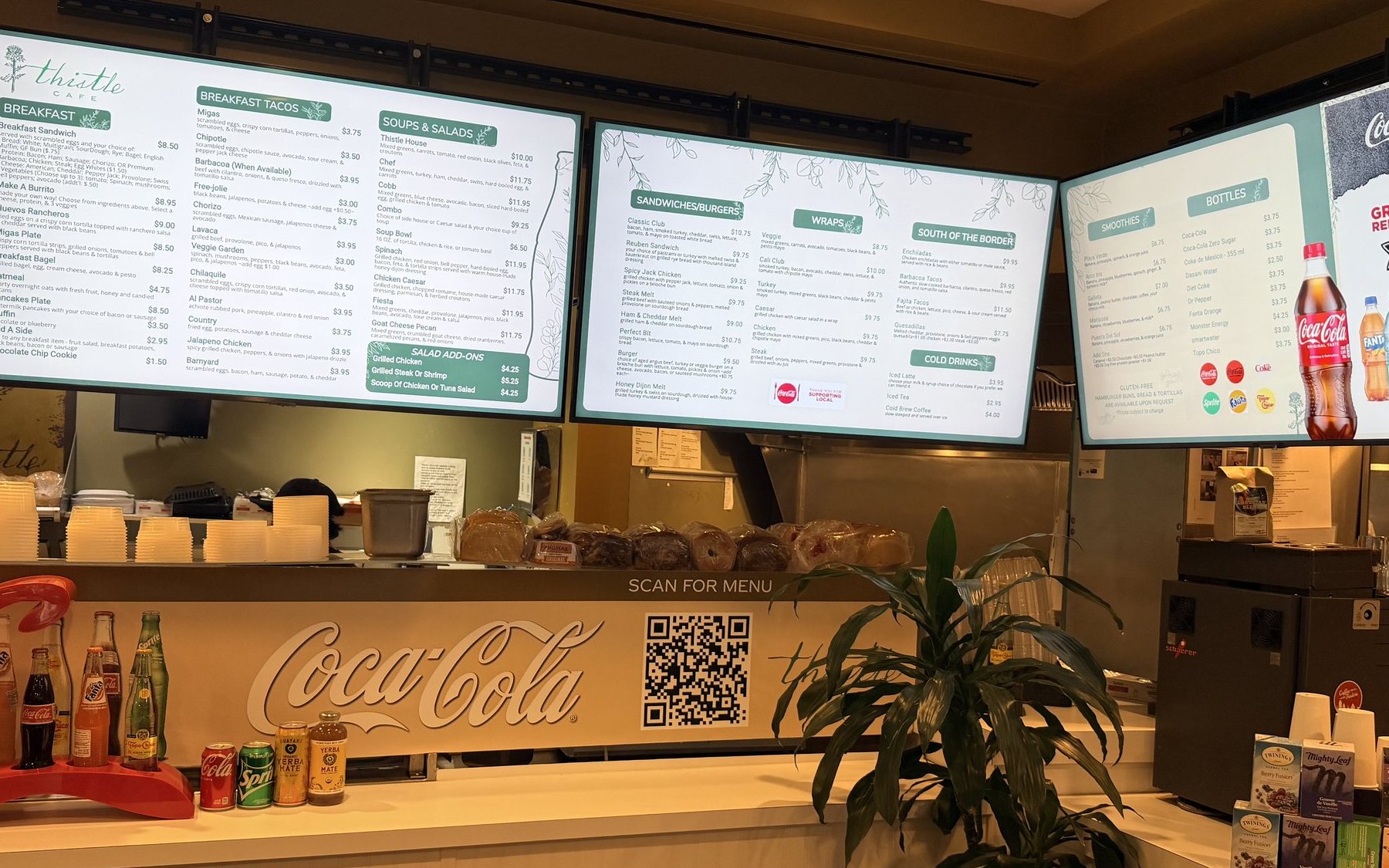
Real install: Thistle Cafe · Austin, TX
Boards overhead, the QR code on the counter: one menu, two ways to read it.
In this guide
Want a QR menu guests don’t mind? See QR menus →
The short answer
Are QR menus annoying?
Bad ones are. Guests dislike PDFs, app downloads and codes that don’t work, not the idea of scanning a code.
Should QR replace paper?
No. Keep your menu board and paper menus. QR is one more way to read the menu.
Where does it help?
Lines, patios, big venues, guests who read another language, and allergy questions.
An app?
Shouldn’t be needed. A good QR menu opens in the phone’s web browser.
Will the code stop working?
It shouldn’t. Print a code that stays the same for as long as you use it.
Sold out?
Hide it or gray it out on the phone, so guests don’t order what you’re out of.
What guests dislike about QR code menus
When someone says “I hate QR code menus” or “QR code menus are stupid,” they’re usually describing a bad one. The complaints tend to be the same few, and most are about what the code opens, not the idea of scanning one.
A PDF you have to pinch and zoom
A full-page paper menu, squeezed onto a phone screen. Guests zoom in, scroll sideways and lose their place. The prices are often old too, because a PDF only changes when someone uploads a new one.
An app to download
Guests want to see what’s on the menu, not install an app, make an account or type in an email first.
Slow pages
A menu that hangs on a weak cell signal leaves guests staring at a blank screen while the server waits to take the order.
Codes that don’t work
A faded sticker, a code too small to scan, or a code that opens an error page because the link behind it expired.
No paper option
Some guests left their phone in the car, have a dead battery, or just prefer paper. When a code on the table is the only menu, they feel pushed.
A menu that doesn’t match the board
The board says one price and the phone says another. Or the phone still lists the dish you ran out of an hour ago. Guests notice, and it turns into an awkward moment at the register.
The pattern: the code is just a link. Guests get annoyed by what it opens, or by having no other choice. Fix those two things and most of the annoyance goes away.
When a QR code menu works
A QR menu helps most where a phone is easier than walking up to the board or waiting for a paper menu: in a line, on a patio, at a big venue, in another language or with an allergy question. Guests there tend to reach for it on their own.
- ✓Lines. Guests scan and browse while they wait, so they know what they want by the time they reach the counter.
- ✓Patios and big rooms. When the board is inside or far away, a code on the table brings the menu to the guest.
- ✓Venues. At stadiums, campuses, airports and resorts, one code can open a dining directory that lists every place to eat on site, with hours and menus.
- ✓Other languages. A guest can read the menu in their own language on their own phone, instead of guessing.
- ✓Allergy and nutrition questions. Guests can check an item’s allergens and nutrition themselves before they order, instead of waiting to ask.
- ✓Takeout and the window. A code on a takeout bag or in the window lets people read your menu later, or before they walk in.
“I see customers come down the steps and scan the QR code... so they know what they want before they even get to the counter”
Owner, Thistle Cafe · Austin, TX
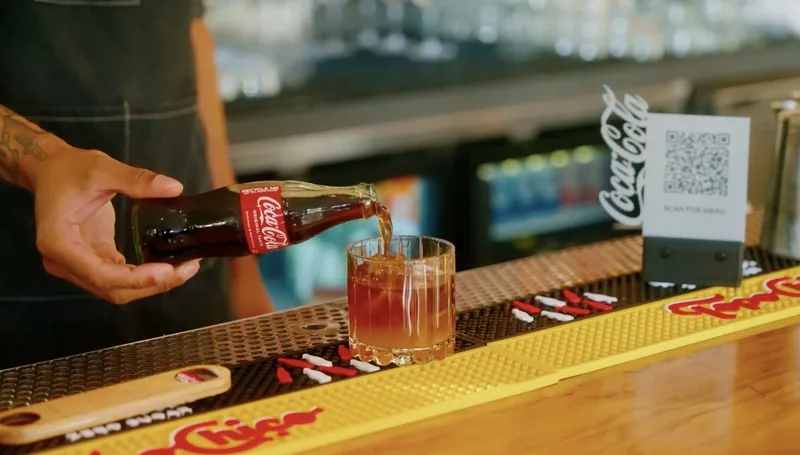
Real install: Verbena · Austin, TX
A printed code on the bar. Guests scan it and your menu opens on their phone.
Notice what these have in common. The QR code adds a way to read the menu. It never takes one away.
How to do a QR menu right
Four things separate a QR menu guests use from one they complain about: it sits next to your other menus, it’s a real phone menu, the code never changes, and it knows what’s sold out.
1. Keep the board and paper too
QR should be an extra, never the only way to read the menu. Keep your menu board where the line looks, and keep printed menus for anyone who asks. A small “Scan for menu” sign by the counter gives guests the choice without pushing them.
Paper only works if it’s current. With Just a Menu, print-ready menus come from the same menu as your QR code, so a fresh PDF is a download away whenever prices change.
2. A real phone menu, not a PDF
Guests should see sections they can tap to open, text sized for a phone, and photos where they help. No pinching, no zooming, no sideways scrolling.
3. The same code forever
You’ll print your code on table cards, stickers, window decals and takeout bags. Some QR codes stop working when a trial ends, or start costing money after they’re already printed. Then every printed code has to be found and replaced. Before you print, make sure your code stays the same no matter how often the menu or its design changes.
4. Sold out, hidden or grayed out
A QR menu should know what you’ve run out of. Hide sold-out items or gray them out, so guests don’t pick a dish you can’t serve, and so the phone matches the board.
Before you print the code
- ✓Size: big enough to scan from where guests sit or stand. On a table card, typically about an inch (2.5 cm) across or more. Go bigger on a window or a wall.
- ✓Contrast: a dark code on a light background, with a clear margin of blank space around it.
- ✓Label: a few words like “Scan for menu,” so guests know what it opens.
- ✓Place: where guests already look: the table, the counter, under the menu board, the window.
- ✓Test: scan it with a couple of different phones, on cell data, not just your Wi-Fi.
How Just a Menu does QR menus
With Just a Menu, your QR menu opens in the phone’s browser with no app. Guests pick their language, allergy info is a tap away, and it matches your TV boards because it’s the same menu. The code never changes.
- ✓No app. The code opens your menu in the phone’s web browser. Guests scan and read.
- ✓Their language. Turn on a language like Spanish and your menu is translated. Guests pick their language on their phone, and you can edit any translation.
- ✓Allergy info a tap away. Add allergy and nutrition notes to any item, and guests tap it to see them. Add dietary and spice icons too.
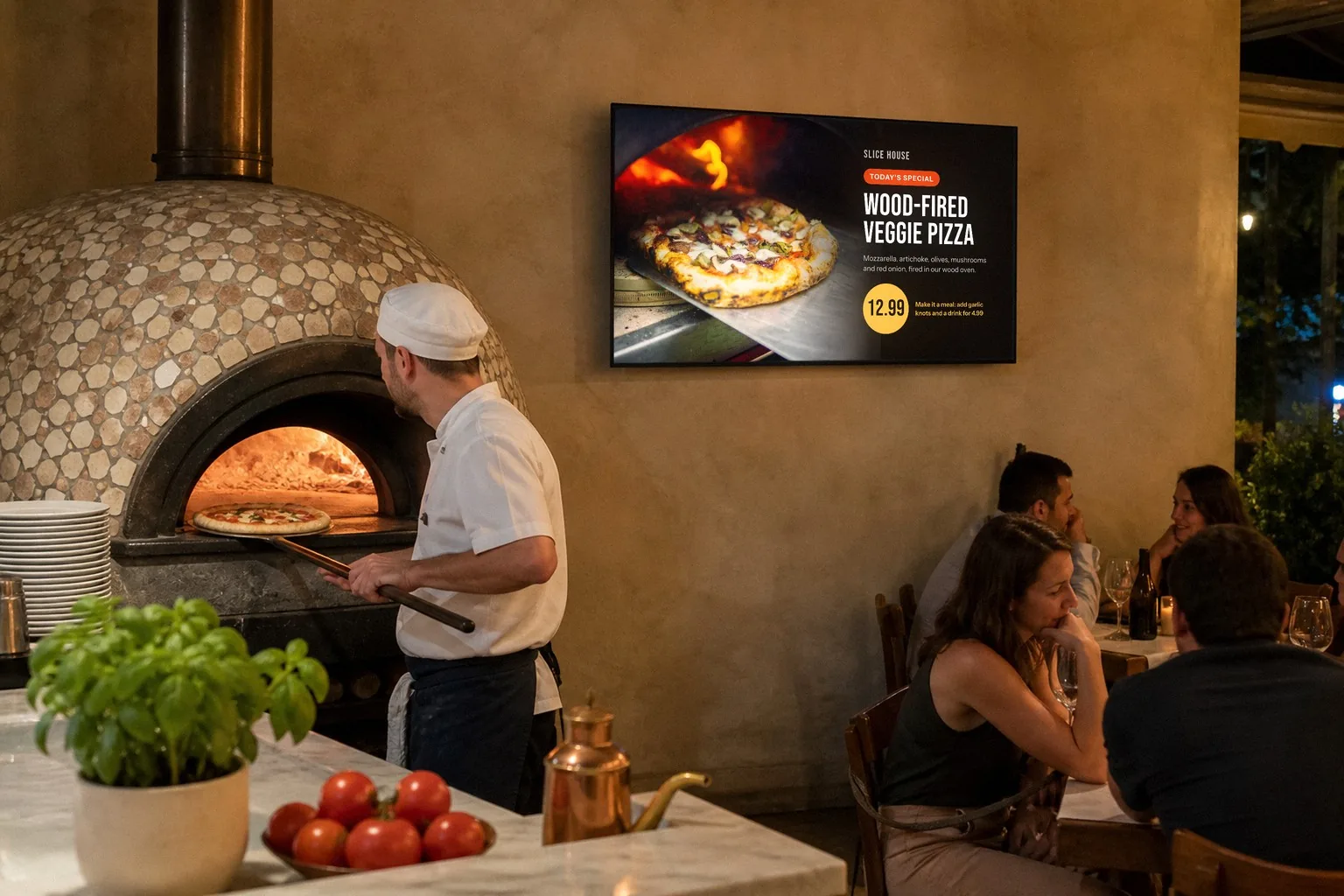
- ✓It matches the TV boards. It’s the same menu your boards are made from, so the items and prices match.
- ✓Sold out, handled. Mark an item sold out in Menu Workspace, or let your POS do it (Square, Toast, Clover or Oracle). Your QR menu hides it or grays it out, whichever you pick.
- ✓One code, for good. Print it once. Change the design or the items as often as you like; the code stays the same.
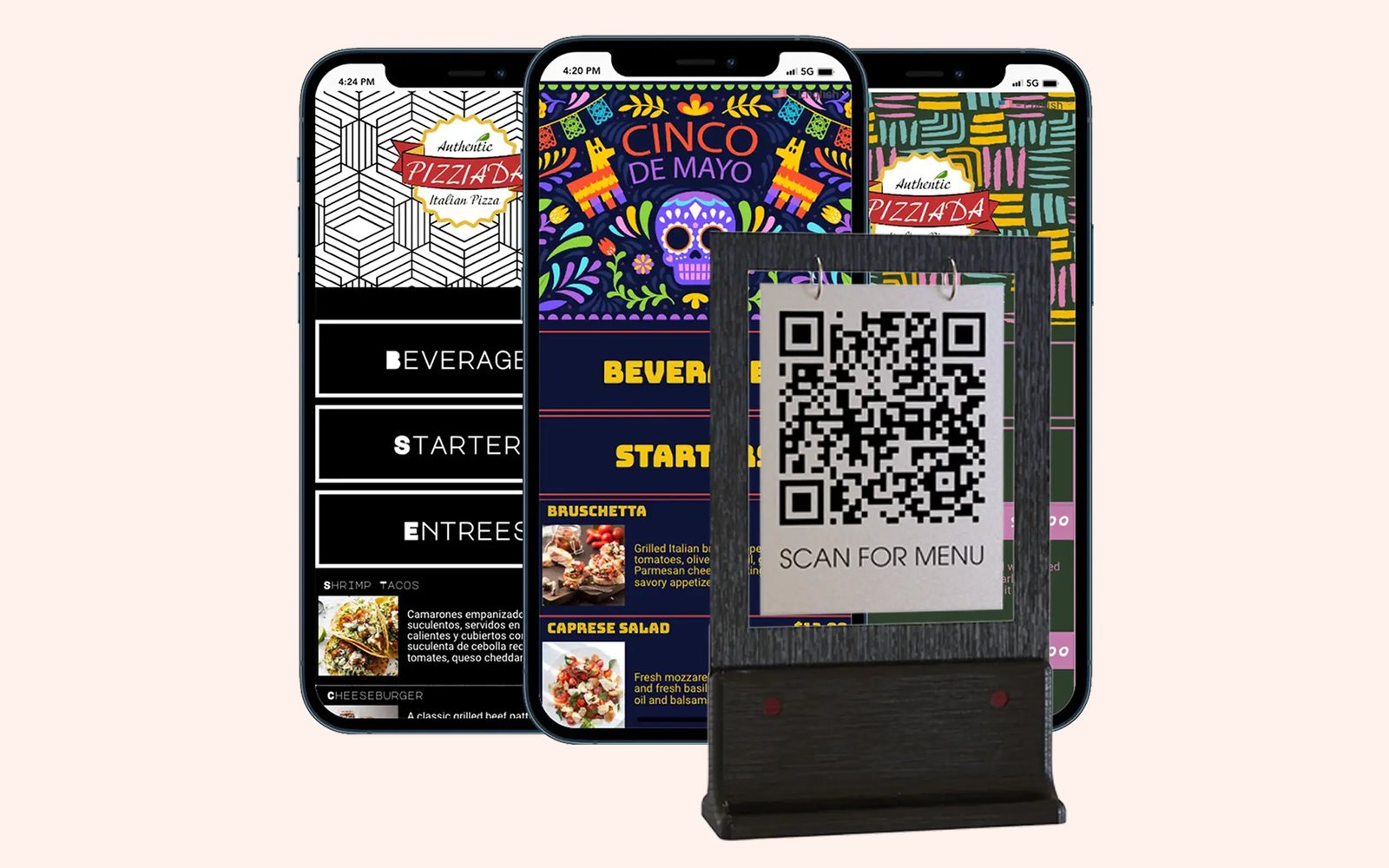
- ✓Made for phones, not a PDF. Guests tap a section to open it, with your photos and descriptions.
- ✓On Google and your website too. Paste your menu link into your Google Business Profile and your social pages, or put the same menu on your website. Hosted Just a Menu menus get found on Google. Step by step: add your menu to your Google Business Profile.
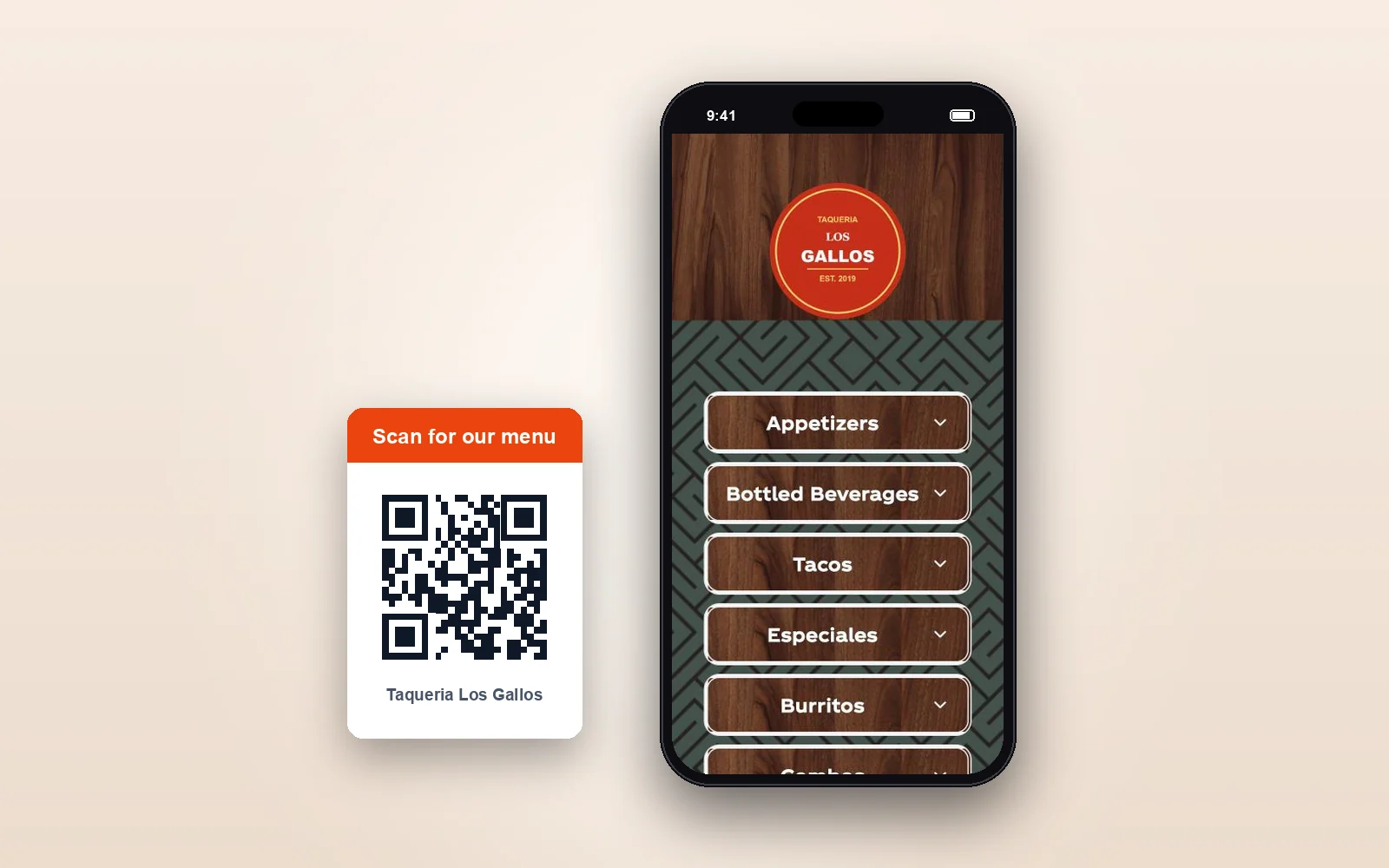
Our demo menu
One printed code, and a real phone menu behind it: guests tap a section to open it. Nothing to download, nothing to zoom.
Once your menu is in Just a Menu, it’s three steps: pick a look, make it live and print your code once. Step by step: How to make a QR code menu
Questions
Why do people hate QR code menus?
Mostly because of bad ones: a PDF they have to pinch and zoom, an app to download, a slow page, a code that doesn’t work, or no paper menu to ask for. A QR menu that reads well on a phone, matches the menu board and sits next to paper menus is simply one more way to read the menu.
Do restaurants still use QR menus?
Yes. Many restaurants keep a QR code on the table or the counter, next to their menu board and printed menus. It’s most useful for lines, patios, big venues, guests who read another language and allergy questions.
Should I keep paper menus with a QR code?
Yes. Keep paper for guests who prefer it or don’t have their phone handy, and keep your menu board where the line can see it. With Just a Menu, print-ready menus come from the same menu as your QR code, so your paper menus are easy to keep current.
Do guests need an app to scan it?
No. Most phone cameras scan a QR code on their own, and a Just a Menu QR code opens your menu in the phone’s web browser. There’s nothing to download.
Will my QR code stop working?
Not with Just a Menu. Your QR code always opens your latest menu. Change the design or the items as often as you like; the code stays the same, so you print it once. That matters, because some QR codes expire or start charging after they’re printed, and then every printed code has to be replaced.
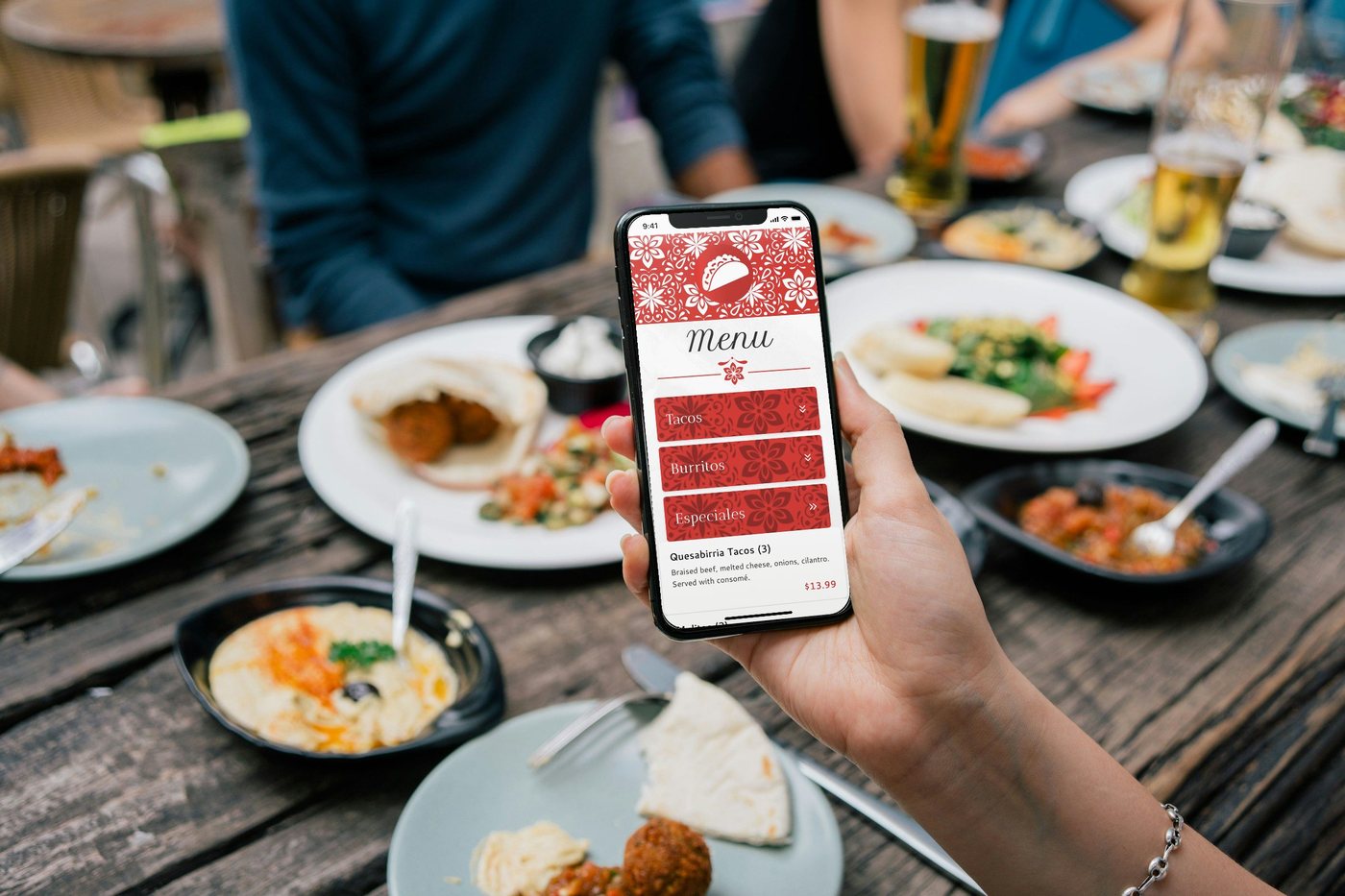
How to make a QR code menu
Pick a look, make it live and print your code once. It never changes.
Read the guide →

Print menus from the same menu
Letter, legal, tabloid, A4 or a trifold, with today’s items and prices already in.
See print menus →

Big Tony’s West Philly Steaks · Dallas, TX
Questions and answers
Quick answers on QR codes, menu boards, languages and POS sync.
Read the FAQ →
A QR menu guests are glad to use. Let’s talk.
Once you’re set up, a photo of your menu becomes your QR menu, your menu boards and your print menus, all from the same menu. Tell us a little about your restaurant to get started.
Talk to a real person. We reply within one business day.
Illustration
Questions about QR menus? Email support@justamenu.com or call (202) 886-2442.