Have a Coca-Cola rep? Some participating bottlers cover the full cost. Ask about special pricing →
Set up
Getting started with Just a Menu
With Just a Menu, you don’t have to design anything. Snap your menu, we instantly create custom boards for your restaurant, and you put them on your TV. After that, change your menu in one place and your TV boards and QR menu update on their own.
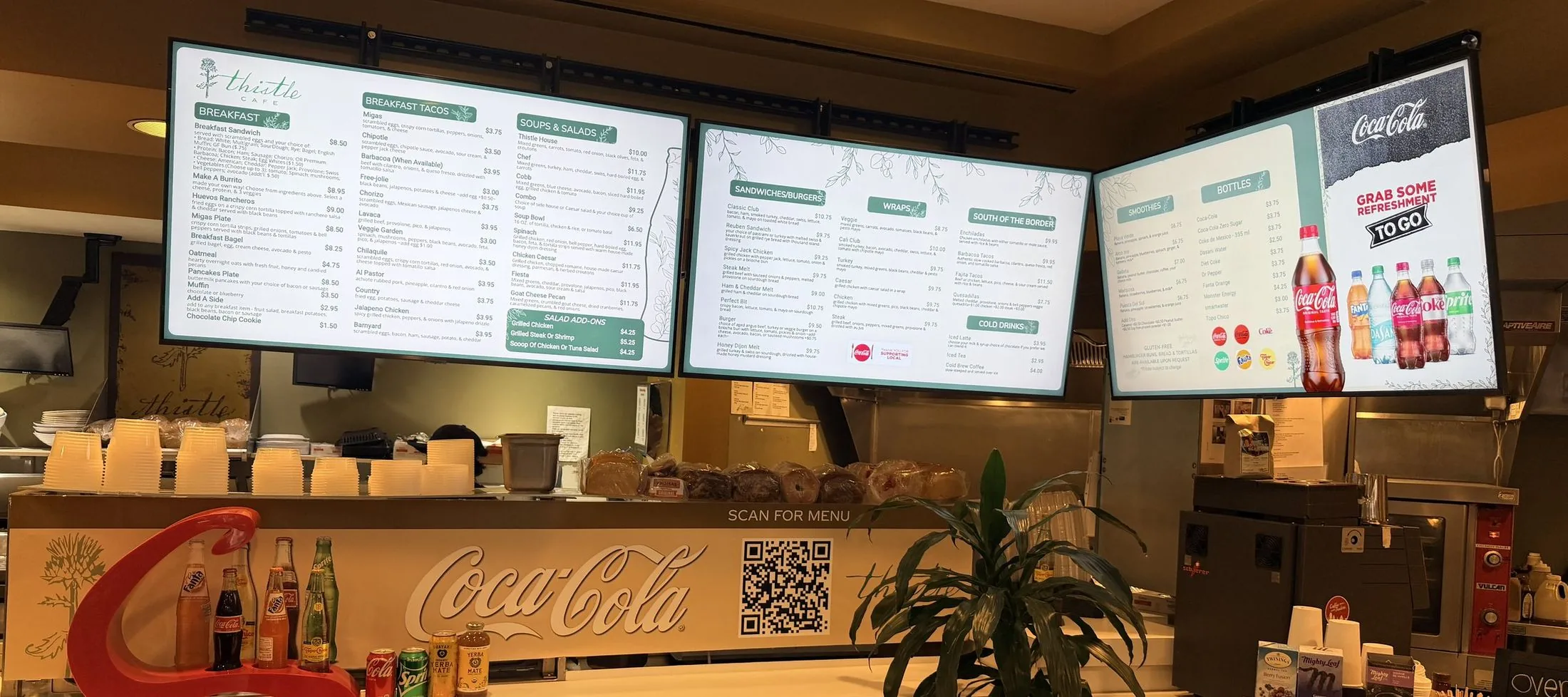
Real install: Thistle Cafe · Austin, TX
Where you’re headed: menu boards on the wall and a QR menu on the counter, all from one menu.
In this guide
Stuck? Click Instructions at the top of any page in the app, or email support@justamenu.com.
What you need
- ✓Your Just a Menu sign-in. New to Just a Menu? Tell us about your restaurant and we’ll set you up and send you an invitation.
- ✓A photo or PDF of your menu. A phone photo is fine.
- ✓A photo of your dining room or counter (optional).
- ✓A TV with a spare HDMI port, and a power outlet nearby.
- ✓Your phone, for the JAM Setup app.
Before you start
Sign in at app3.justamenu.com and open your restaurant from your Dashboard. The menu on the left has everything in this guide: Menu Workspace, Digital Signage, QR Menu and Print Menu.
In a few places the app calls your restaurant an outlet. It means the same thing. Want a manager or co-owner to have their own sign-in? On your Dashboard, click Share Outlet and send them the link or the QR code.
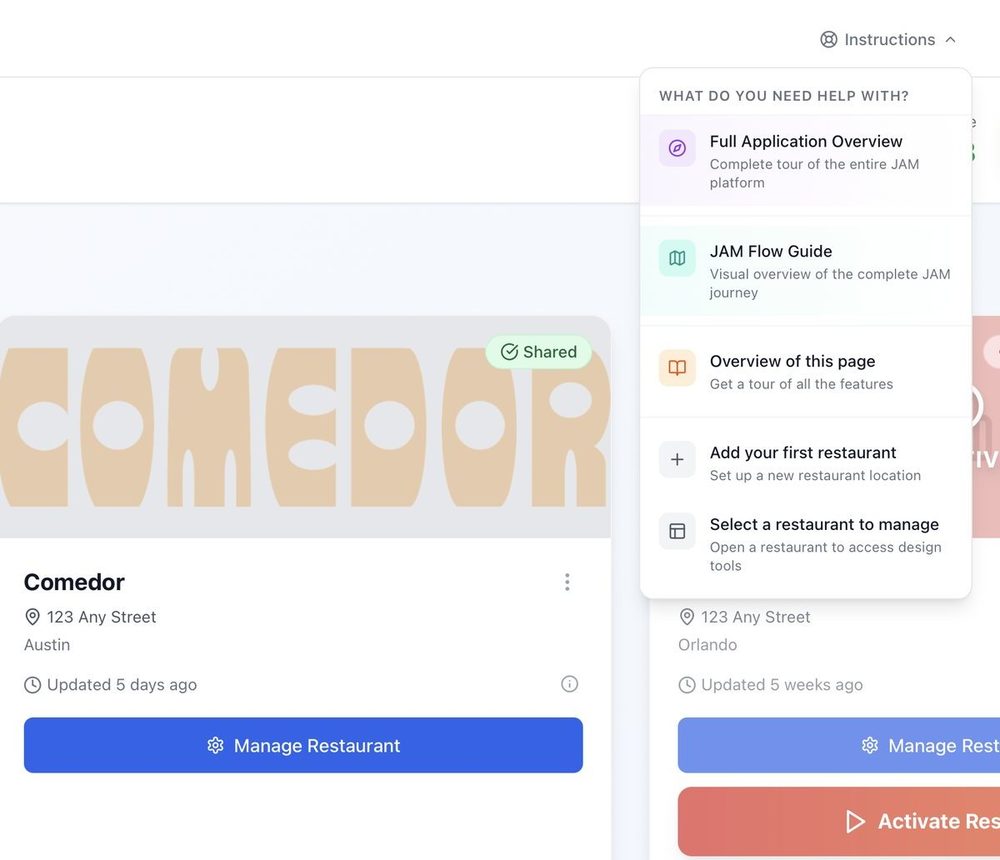
Real screen
Help is built in: click Instructions at the top right of any page and pick a tutorial for that page.
1
Snap your menu
- Open Menu Workspace. If you sent us your menu when you got started, your items may already be here. Check them, then go to step 2.
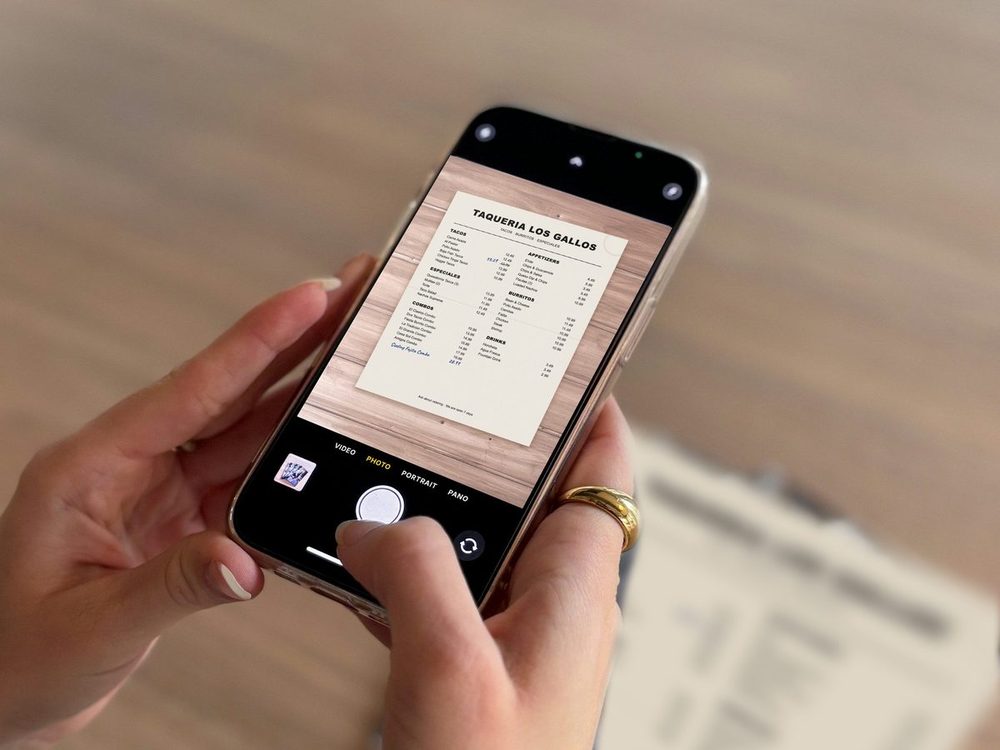
- On an empty menu page, click the Upload Menu card and choose a photo or PDF of your menu.
- Check the Imported Menu Preview, prices first, then click Accept Import.
- Fix anything small right in Menu Workspace.
✓ You’ll see: your categories, items and prices in Menu Workspace.
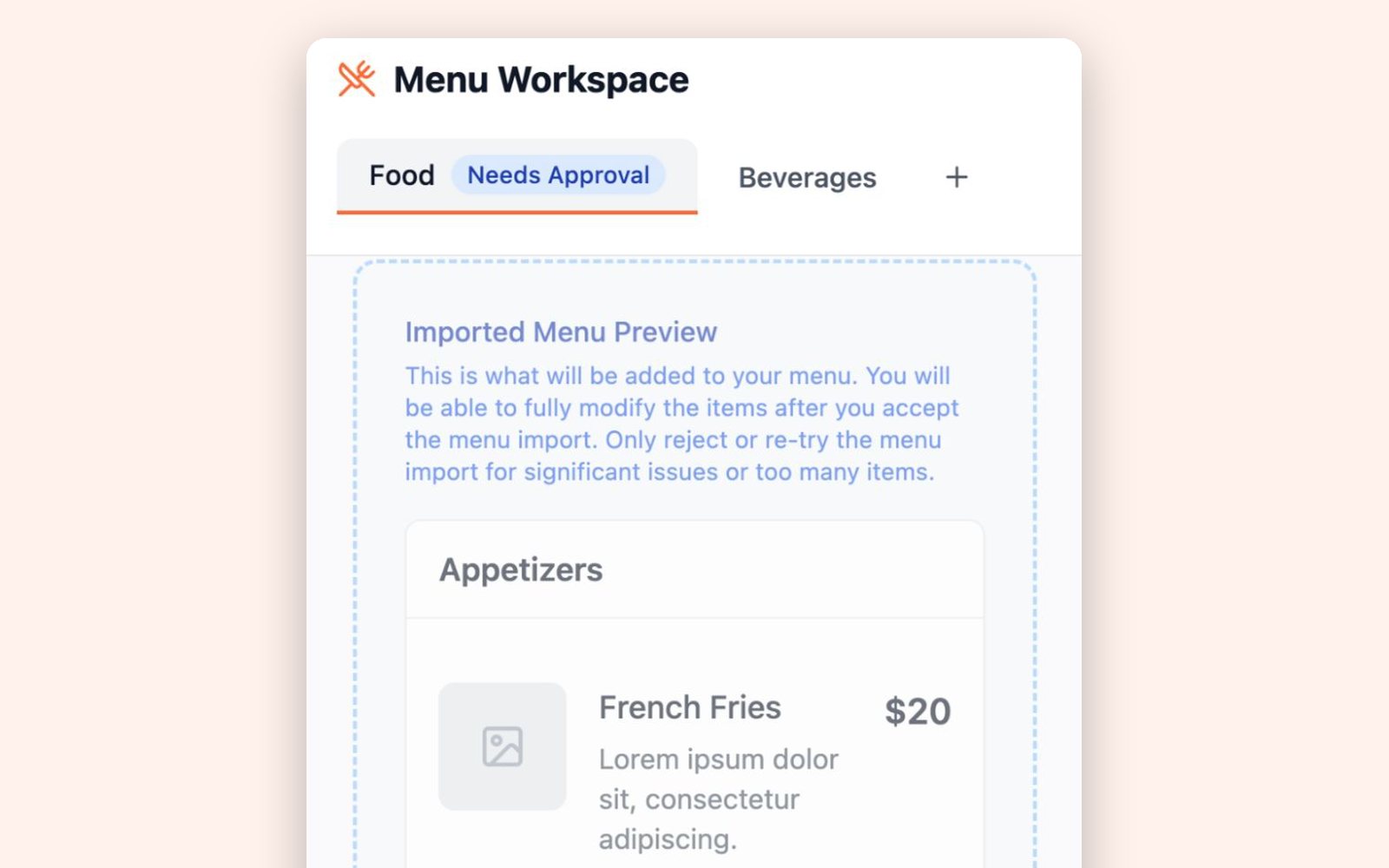
Real screen · sample menu
Full steps and photo tips: Turn a photo of your menu into a menu board
2
Get your custom boards
- Open Digital Signage and click Auto Create Playlist.
- Choose Full playlist, how many screens you have, and whether they hang wide or tall.
- Add a Photo of your space if you like. It helps us match the look of your room.
- Click Build my playlist. When it’s ready, click Use this design on your favorite.
✓ You’ll see: your new playlist in Digital Signage. Click Preview to see exactly what your screens will show.

Our demo menu
Full steps: Build your custom boards
3
Put it on your TV
- Plug a JAM Player into your TV’s HDMI port and into power.
- In the JAM Setup app on your phone, tap Set Up or Reconnect Device and follow the steps to connect the player to your Wi-Fi.
- Back in Digital Signage, find the player under Unlinked JAM Players, click Link to screen, choose your playlist and screen, then click Confirm Link.
✓ You’ll see: your menu on the TV.
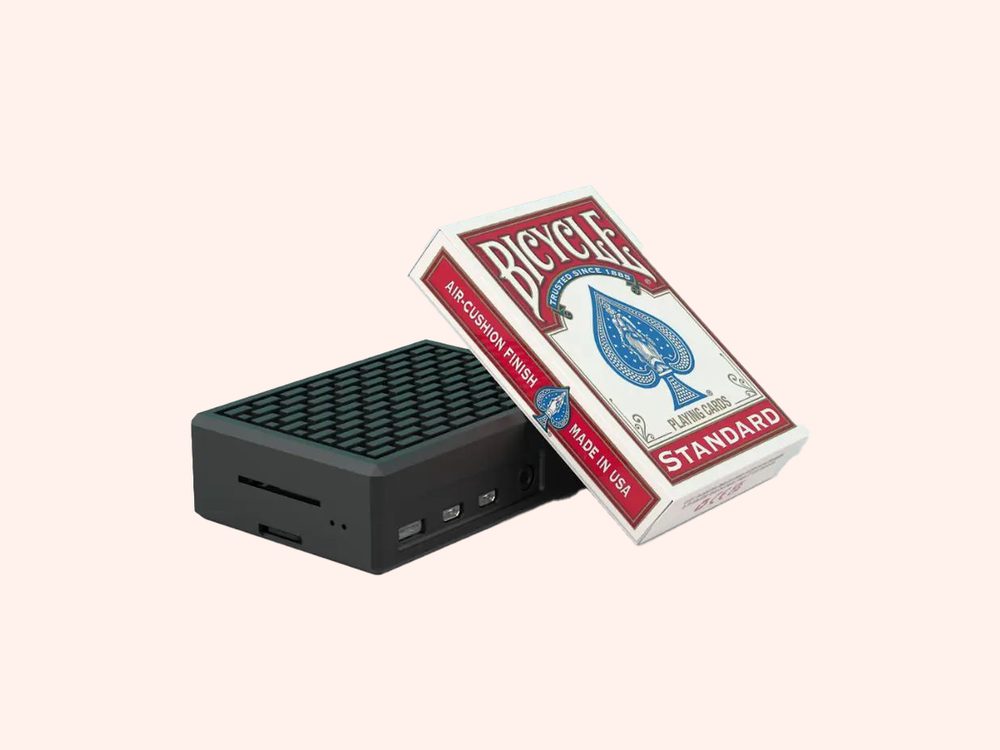
A JAM Player is about the size of a pack of playing cards. It tucks behind the TV.
Good to know: each TV needs its own JAM Player. Ask us about JAM Players when you get set up.
Full steps: Put your menu on your TV
4
Turn on your QR menu
- Open QR Menu.
- Tap a design under Pre-made designs. Your first pick goes live right away.
- Click Download QR code and print it for your tables, counter or window.
✓ You’ll see: You’re live. Guests who scan your code see your menu on their phone.
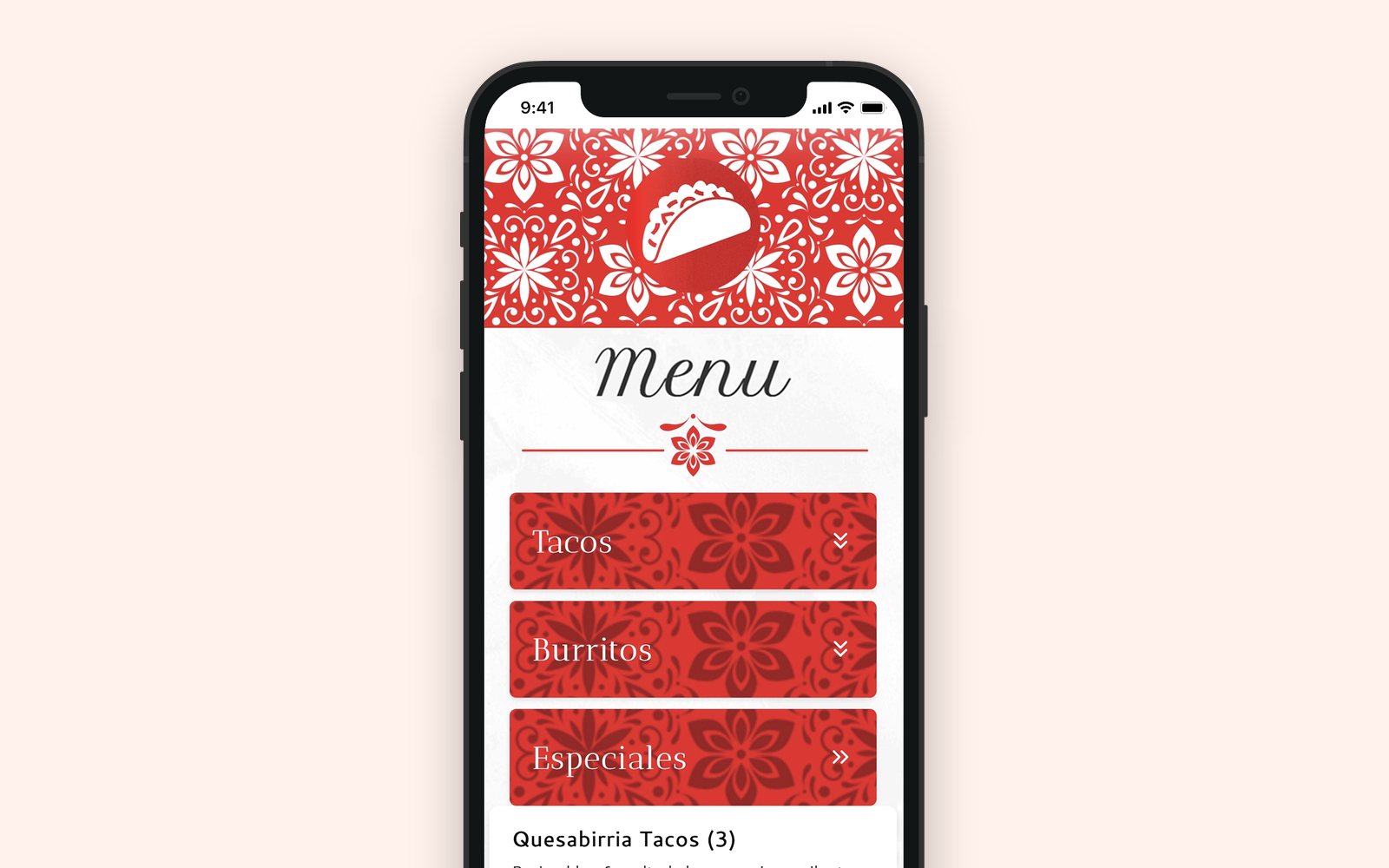
Our demo menu
Full steps: Make your QR menu live
Keep it up to date
Your menu lives in one place: Menu Workspace. Change it there, and your TV boards and QR menu update on their own.
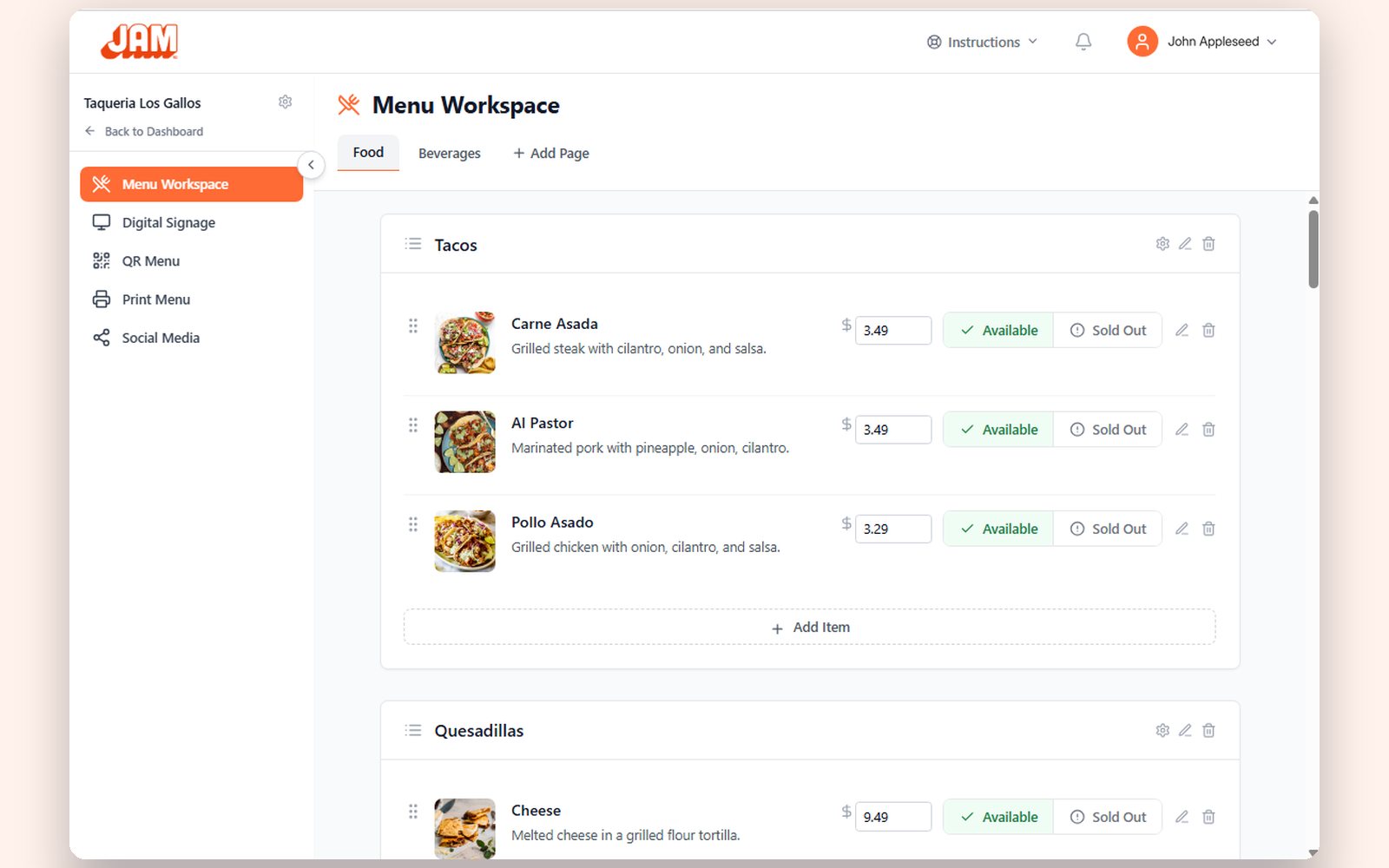
Our demo menu
When you want to…
Do this
Change a price or a description
In Menu Workspace, change the price in the item’s row, or click the pencil to edit the rest of the item.
Take something off for the day
Switch the item from Available to Sold Out. To choose how sold-out items look, go to Manage Outlet → Outlet Settings → Sold Out Item Display: Hide Item or Gray Out Item.
Show breakfast in the morning and lunch at 11
In Digital Signage, click Schedule on a slide and choose All Day, OFF or Custom for each day, then Save Schedule. More
Put a special on screen
In Digital Signage, click + Scene and choose Scene Magic. Pick a dish (or a dish and a drink for a combo), pick a look, choose the screen, then click Create my slide.
Print a menu
Open Print Menu, pick a paper size and a template, then download the PDF. Paper can’t update itself, so download a fresh PDF when your menu changes.
Use Square
The account owner connects it once in POS Integrations. Prices and sold-out items then sync on their own. Some POS systems sync instantly, others take a bit longer, depending on your POS. To sync right away, click Sync menu now.
Questions
Can any restaurant use Just a Menu?
Yes. Any restaurant can use Just a Menu, with or without a beverage partner. Tell us about your restaurant and we’ll get you set up.
Can I change the design later?
Yes. Every design opens in JAM Canvas, the full editor, where you can change text, photos and colors. Or run Auto Create Playlist again for new options.
What does it cost?
It depends on where you get your Coca-Cola. Participating Coca-Cola bottlers offer special pricing: they pay part or all of it for the accounts they choose, and can change that. Ask us or your Coca-Cola rep, and we’ll tell you your price before anything is installed. Everyone else: contact us for pricing.
Our demo menu
Put your menu on your TV
Plug in a JAM Player, connect it and choose what it shows.
Read the guide →
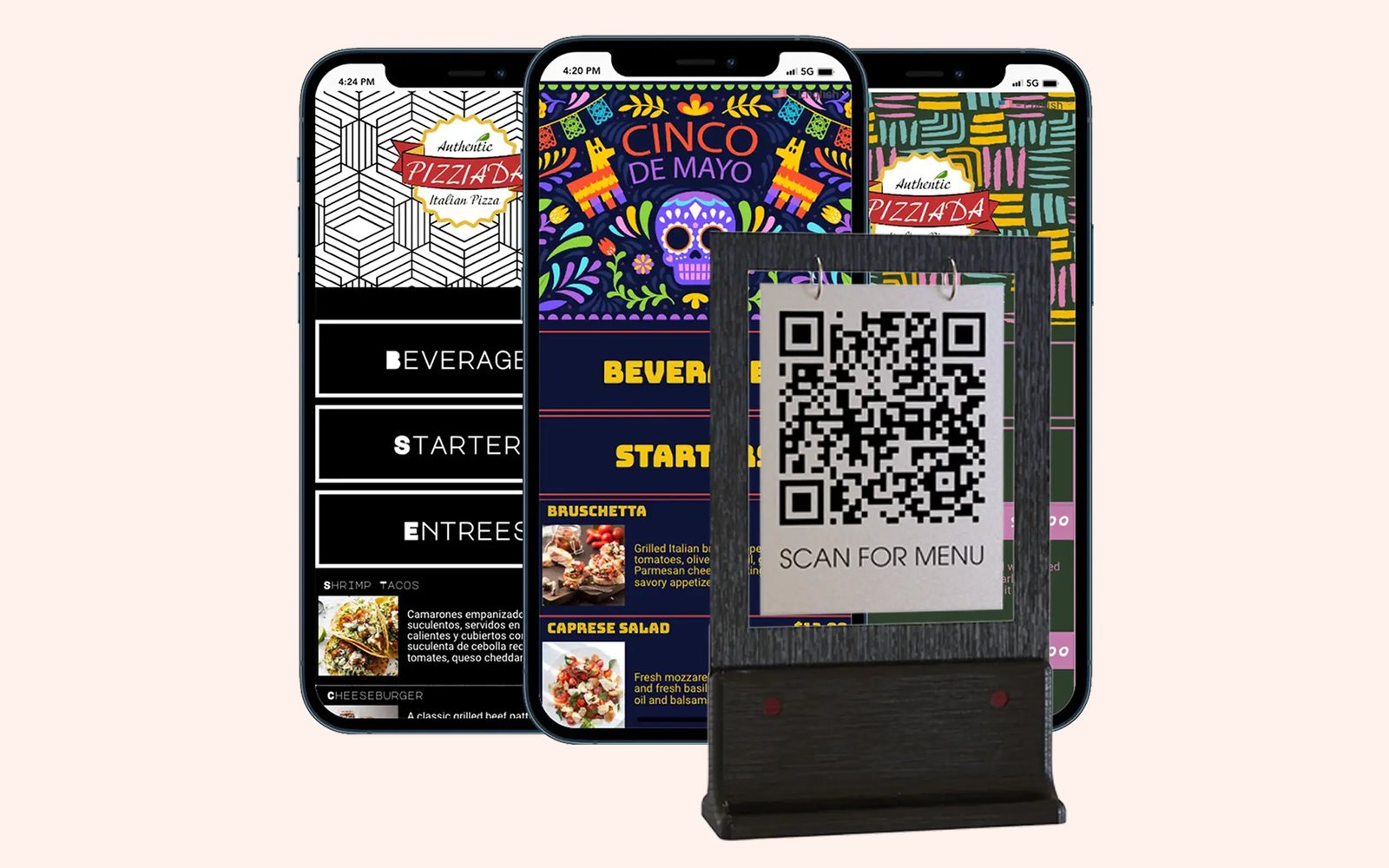
Make your QR menu live
Pick a look, go live and download your QR code.
Read the guide →
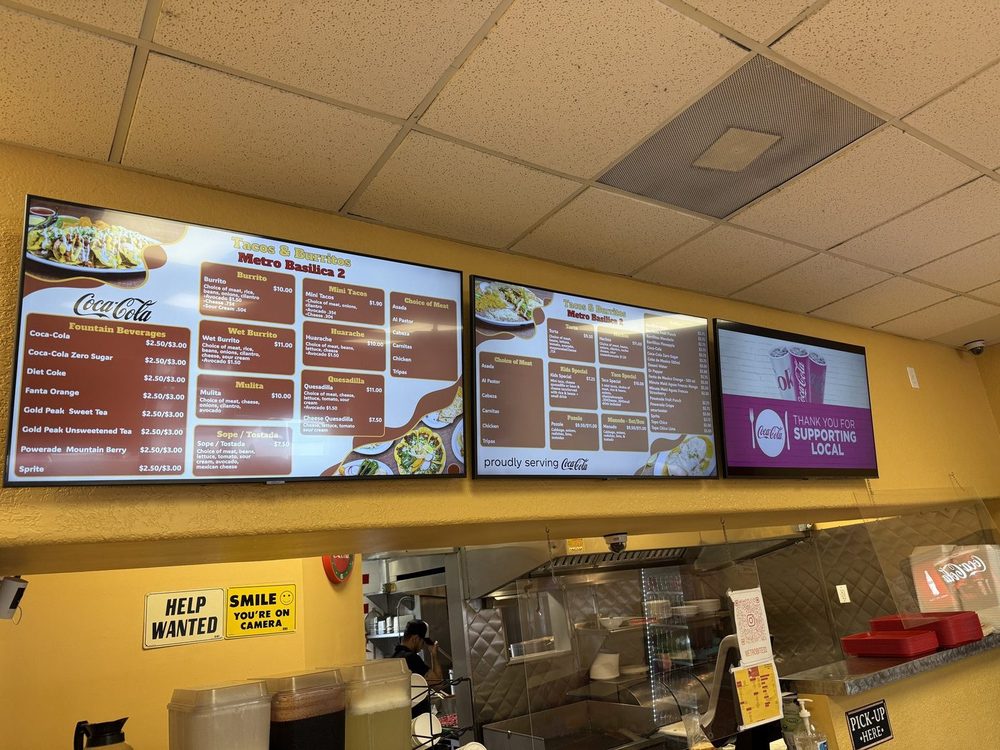
Tacos & Burritos Metro · Phoenix, AZ
Which TV should I use?
Size, brightness, a spare HDMI port and how it’s mounted.
Read the TV guide →
Ready to see your menu on a TV?
Tell us a little about your restaurant and let’s chat. Once you’re set up, a photo of your menu becomes your boards.
Talk to a real person. We reply within one business day.
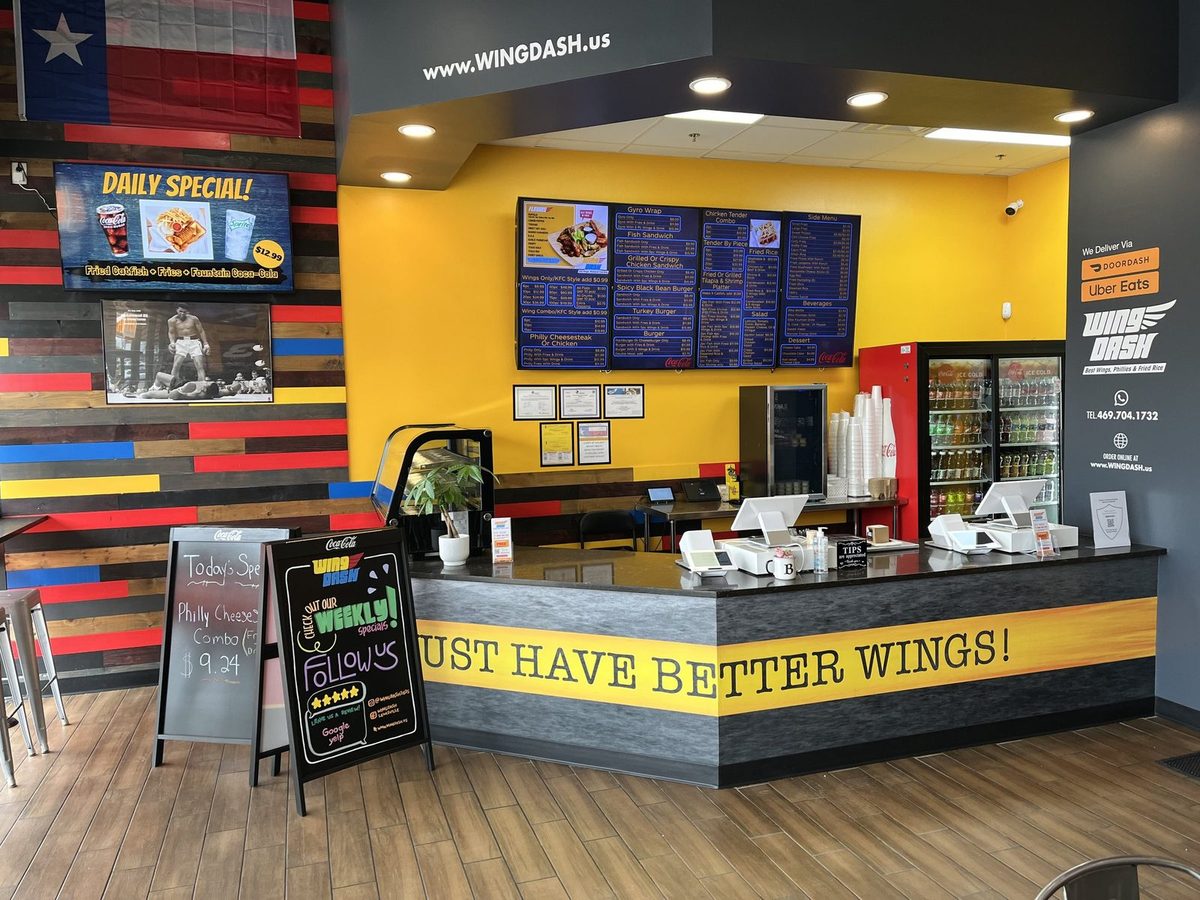
Wing Dash · Dallas, TX
Stuck on a step? Click Instructions at the top of any page in the app, or email support@justamenu.com.