Have a Coca-Cola rep? Some participating bottlers cover the full cost. Ask about special pricing →

Set up
Turn a photo of your menu into a menu board
Upload a photo or PDF of the menu you already have. Just a Menu reads your items and prices, you check them, and then we instantly build custom menu boards for your TVs, ready as is. We make up to four versions, and you keep the one that feels most like you. See how it works

Our demo menu
Photo in, finished board out. You check every item and price along the way.
In this guide
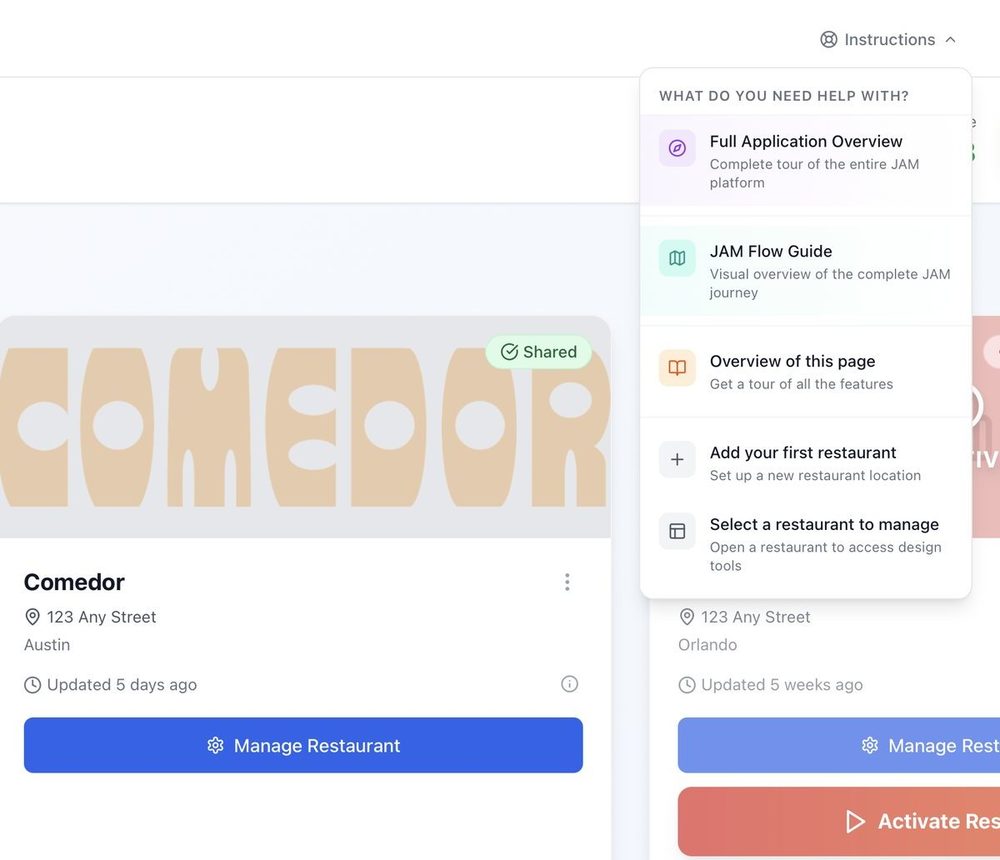
Stuck? Click Instructions at the top of any page in the app, or email support@justamenu.com.
What you need
- ✓A photo or PDF of your menu. Phone photos work. A PDF from your designer or printer reads best.
- ✓A photo of your dining room or counter (optional).
- ✓How many TVs you’ll use, and whether they hang wide or tall.
1
Take a clear photo
- Hold your phone straight over the menu, not at an angle.
- Use good, even light, and keep glare off shiny or laminated menus.
- Get the whole page in the frame, one page per photo.
- Several pages? Combine them into one PDF, or upload each page to its own menu page (step 2).
✓ You’ll see: a sharp photo where you can read every price.
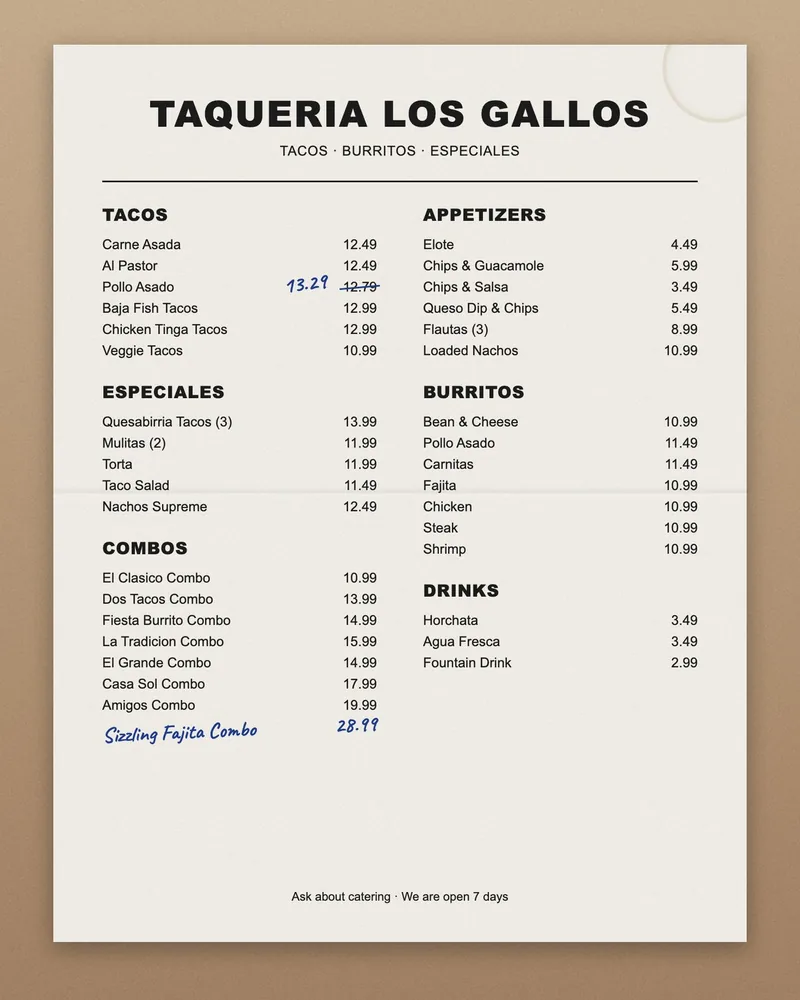
✓ Straight, bright, whole page
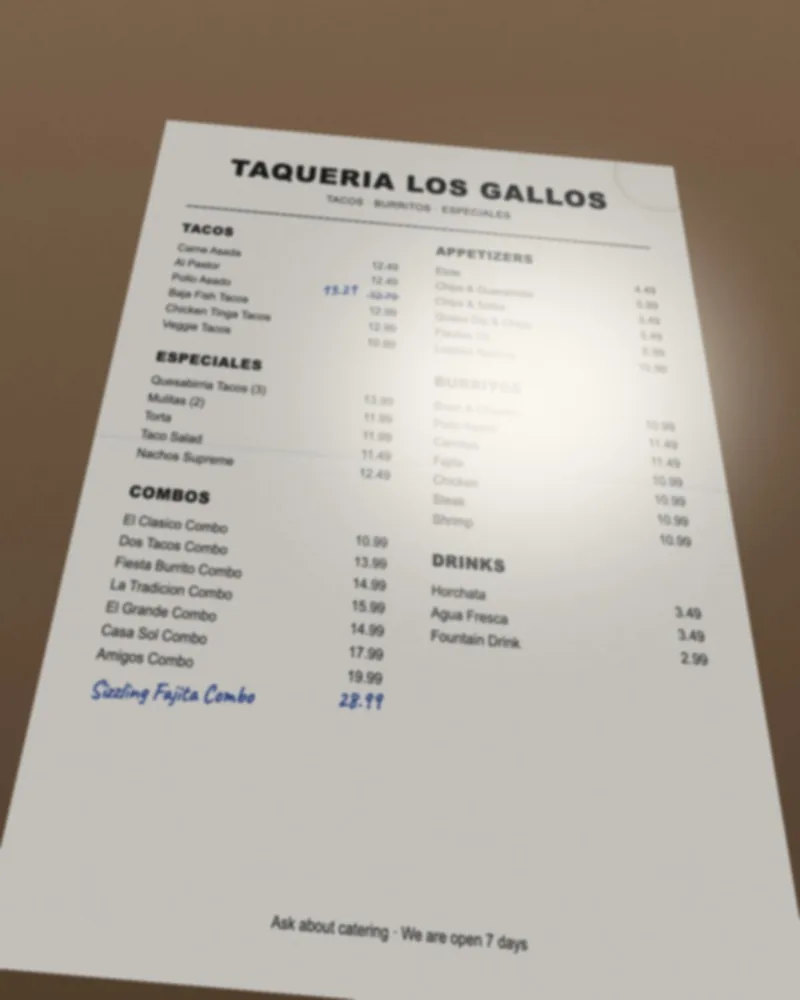
✗ Angled, glare, cut off
Our demo menu, shown two ways.
2
Upload it
- Open Menu Workspace.
- On an empty menu page, click the Upload Menu card and choose your photo or PDF. Upload one file at a time.
- Already have items on this page? Click + Add Page first. Each page is like a separate paper menu, such as Breakfast or Drinks.
✓ You’ll see: Processing Import while Just a Menu reads your menu. You can keep working.
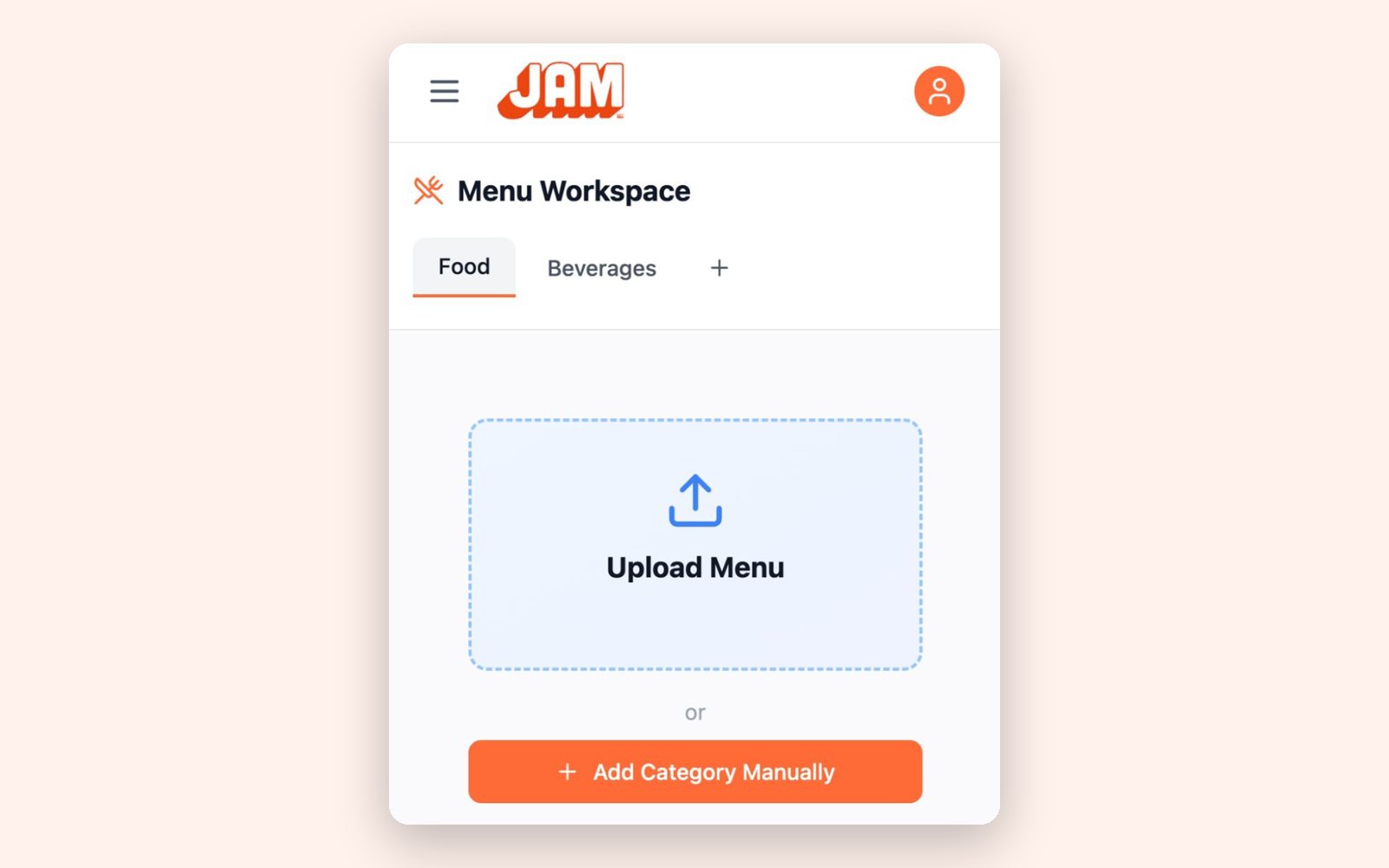
Real screen
3
Check what we read
- Open the Imported Menu Preview. It lists every category, item and price we found.
- Check the prices first. Blurry digits, like 3 and 8, are the usual slip.
- Check items with sizes (Small / Large, 6 pc / 12 pc), and that each item sits under the right heading.
- Click Accept Import. If a lot is wrong, like a blurry photo, click Retry Import with a better photo, or Reject.
- Fix small mistakes after you accept: edit the item in Menu Workspace.
✓ You’ll see: your menu in Menu Workspace. Nothing is added until you click Accept Import.
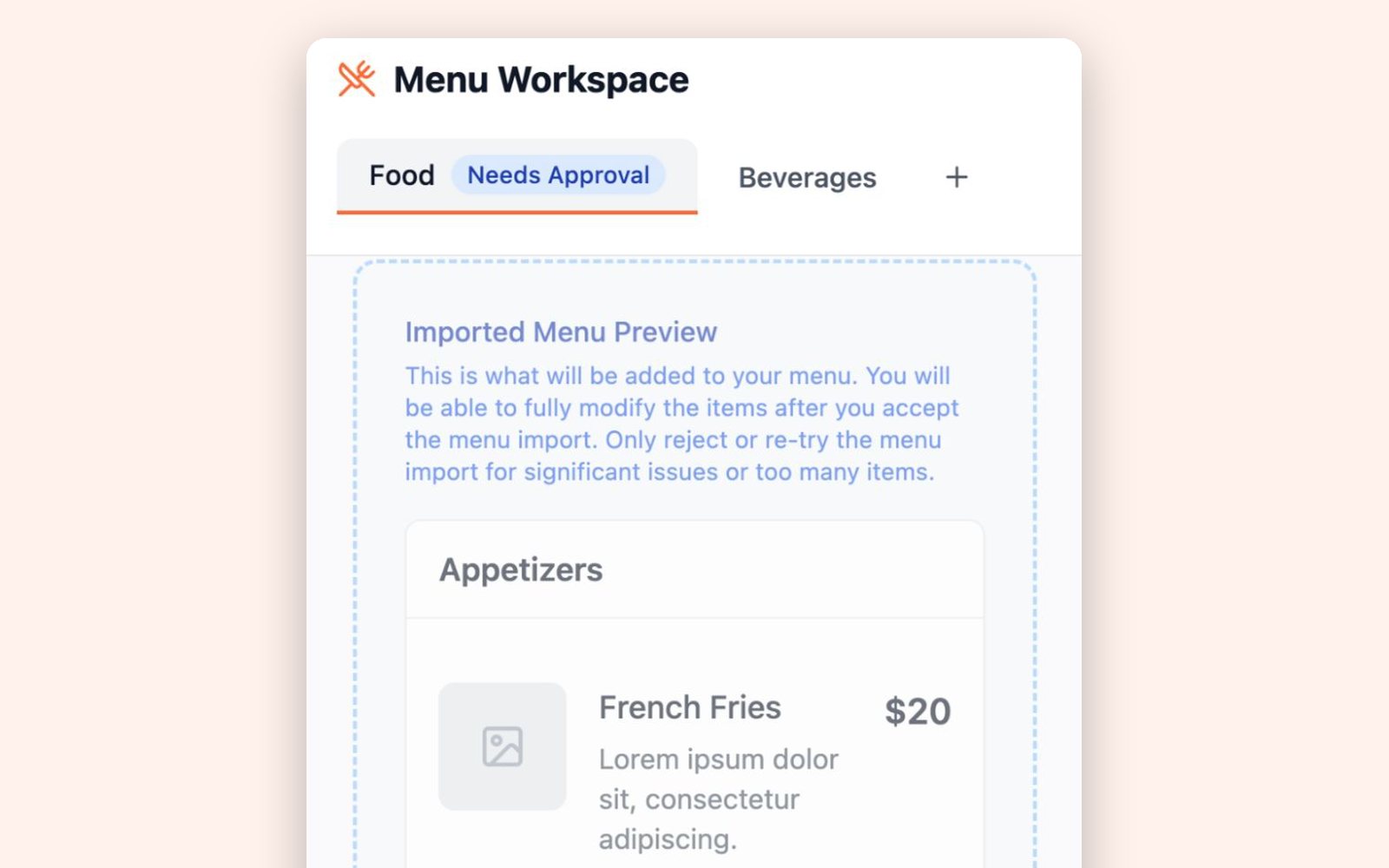
Real screen · sample menu
4
Build your designs
- Open Digital Signage and click Auto Create Playlist.
- Under What should we build?, choose Full playlist.
- Under Your screens, name the playlist (like “Counter TVs”), then choose How many screens?, the Orientation and how many Designs to compare (up to 4).
- Under Make it yours, click Add a photo to match the look and choose a photo of your dining room or counter. This is optional.
- Click Build my playlist. You can hide the window and keep working while we build.
✓ You’ll see: Pick your favorite design when your designs are ready.
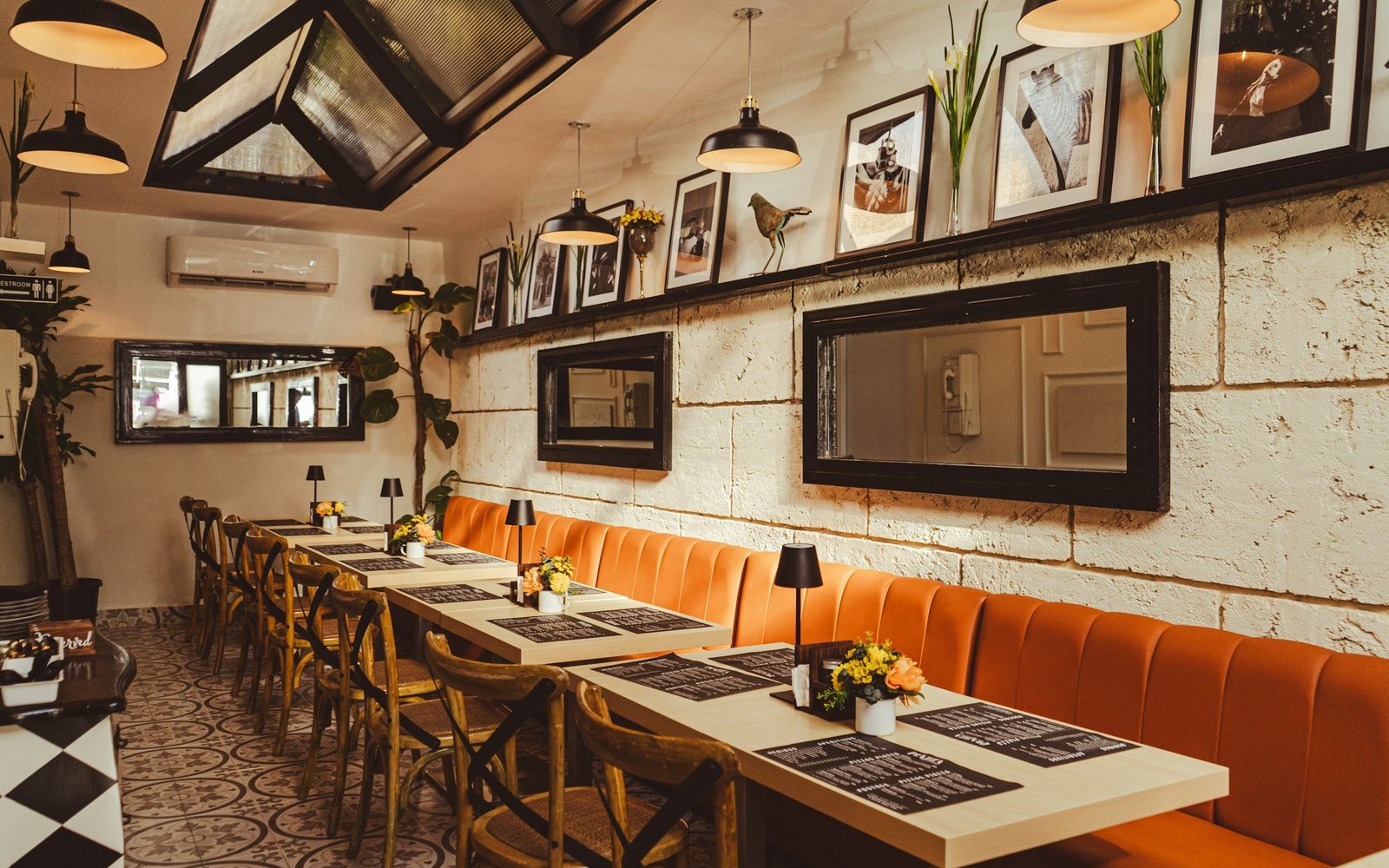
Example photo of a space
A wide photo of your counter or dining room, like this one, helps us match your boards to your room.
5
Pick your favorite
- Look through the designs on Pick your favorite design.
- Click Use this design on the one you like. The others are removed.
- None feel right? Click None of these to remove them all, then build again with different choices.
✓ You’ll see: your playlist in Digital Signage. Click Preview to see exactly what your screens will show.

Our demo menu
Good to know: every design is yours to change. Open any board in JAM Canvas, the full editor, to change text, fonts, photos and colors.
Tips
- ✓We fit as much of your menu as we can at a size people can read from across the room. If something doesn’t fit, we tell you what was left off. Long menus work best across two or three screens, or split into breakfast and lunch.
- ✓Your photo of the space helps us choose designs that match your room. It doesn’t repaint a design.
- ✓Serve Coca-Cola? If your bottler supports your restaurant, a Full playlist can include their drink promotions.
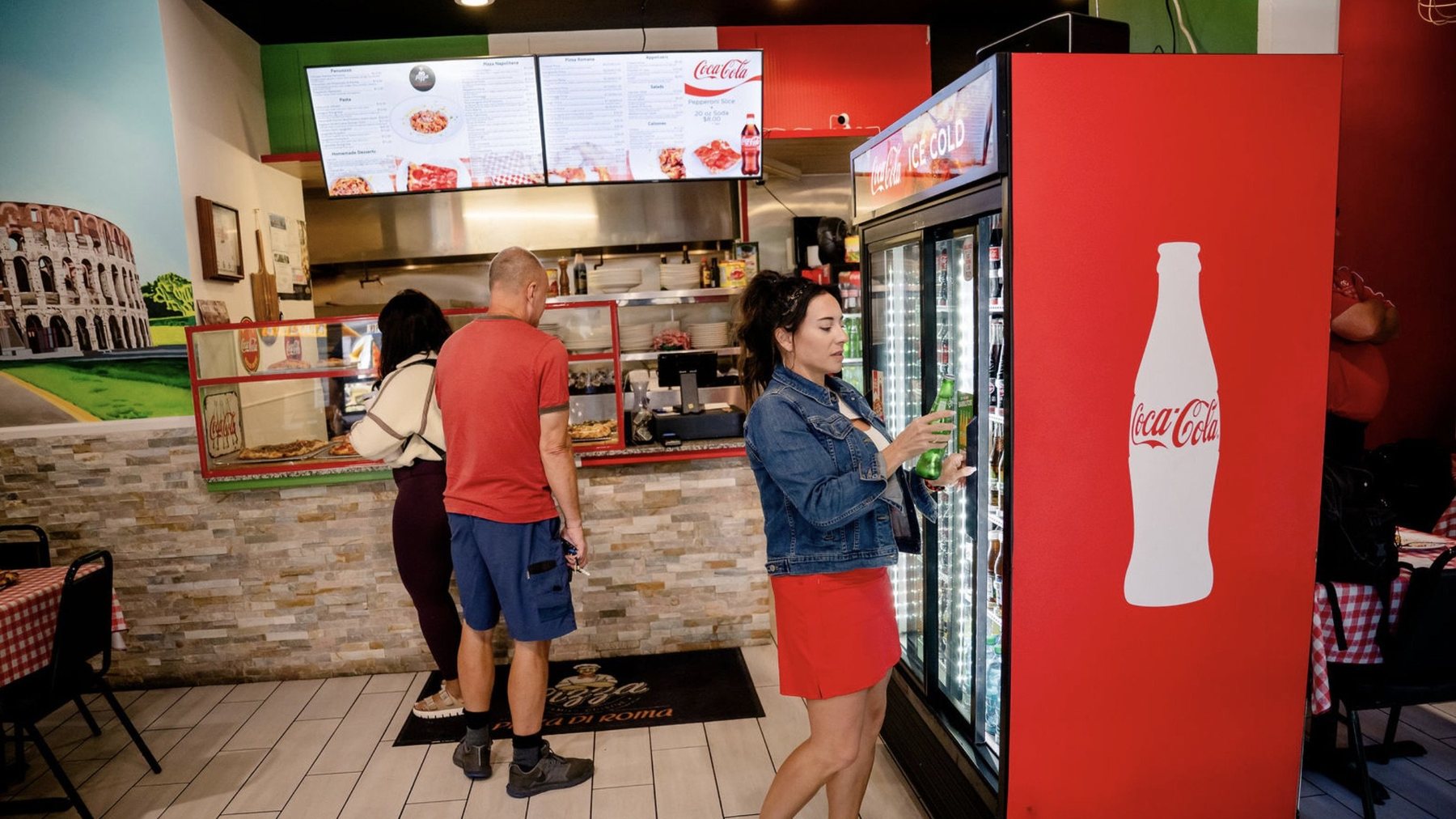
Pizza Di Roma · Austin, TX
Design a board people can read
Text size, how much fits, and where photos earn their place.
Read the design guide →
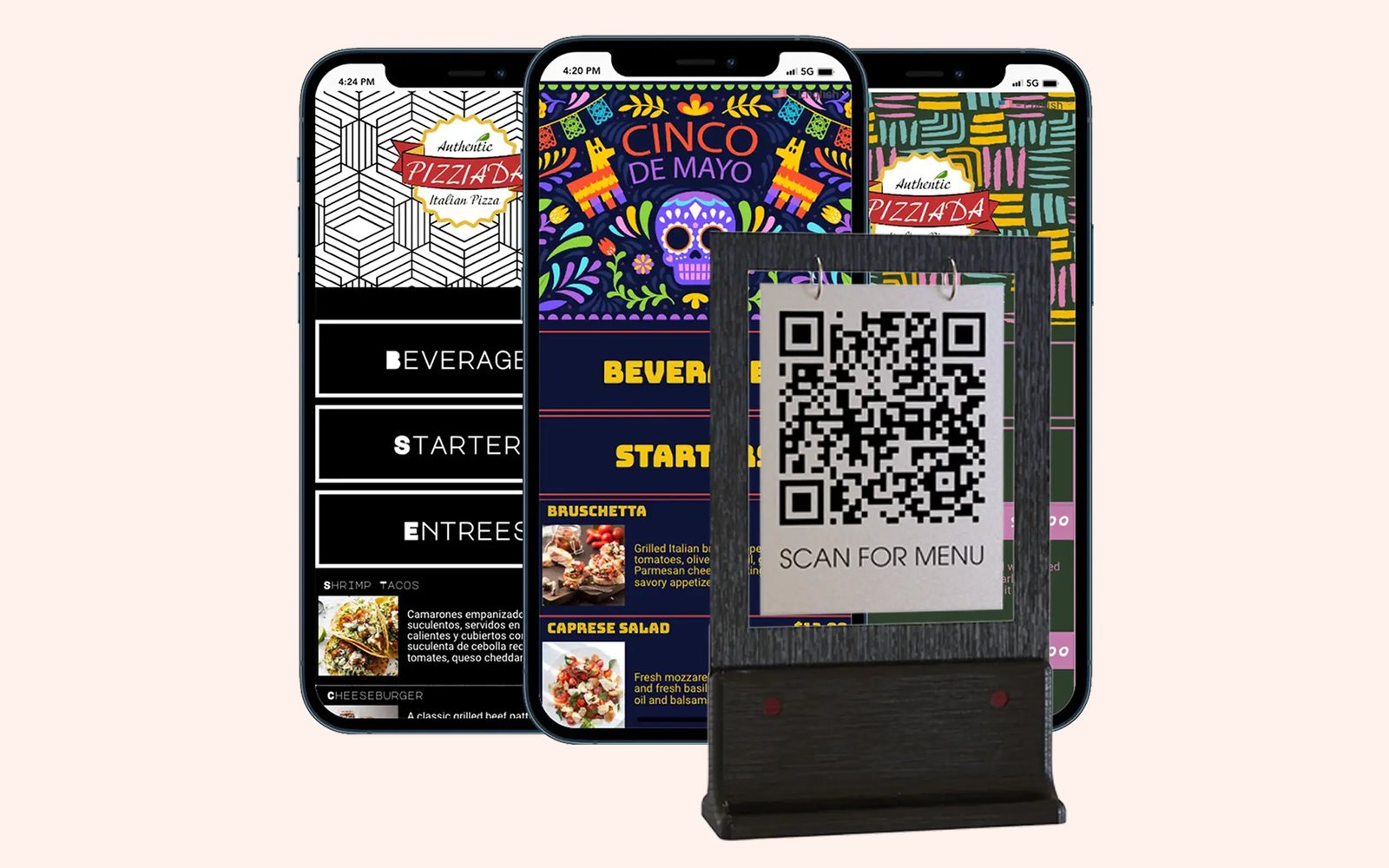
Make your QR menu live
Pick a look, go live and download your QR code.
Read the guide →
Getting started
All four steps on one page, plus how to keep it up to date.
Read the guide →
Not set up yet?
Tell us a little about your restaurant and let’s chat about your menu boards.
Talk to a real person. We reply within one business day.
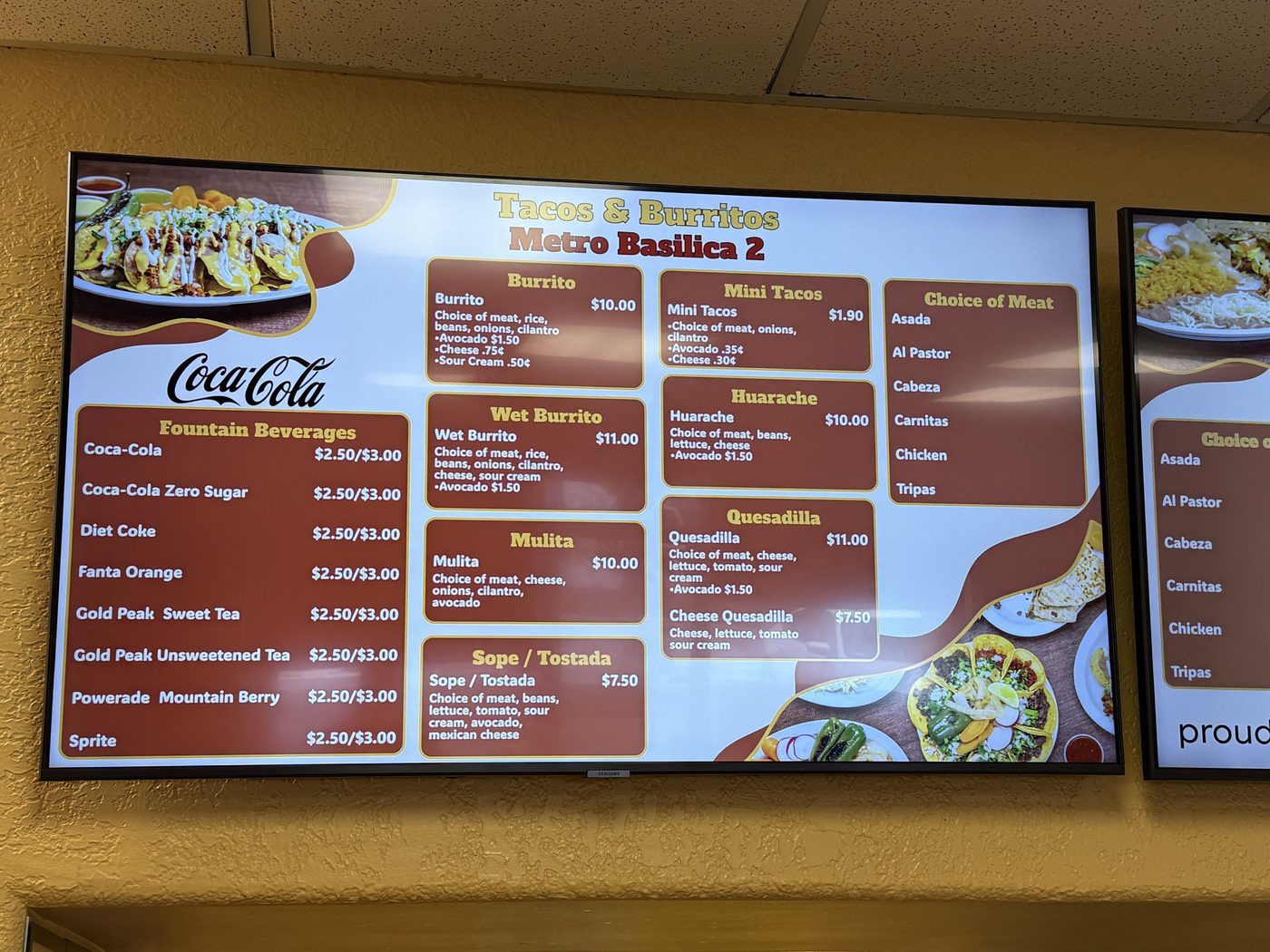
Tacos & Burritos Metro Basilica 2 · Phoenix, AZ
Stuck on a step? Click Instructions at the top of any page in the app, or email support@justamenu.com.