Beverage partner? Enroll a new account here →
Menu board tips
How to set up a digital beer menu board
List every tap with its name, style, ABV, pour size and price, in text big enough to read from across the bar. Then keep it right without touching the TV: mark a keg sold out when it kicks, let happy hour switch on by itself, and put the same list on a QR code for the tables. With Just a Menu, one menu runs your TVs, your QR menu and your printed drink list.
Illustration
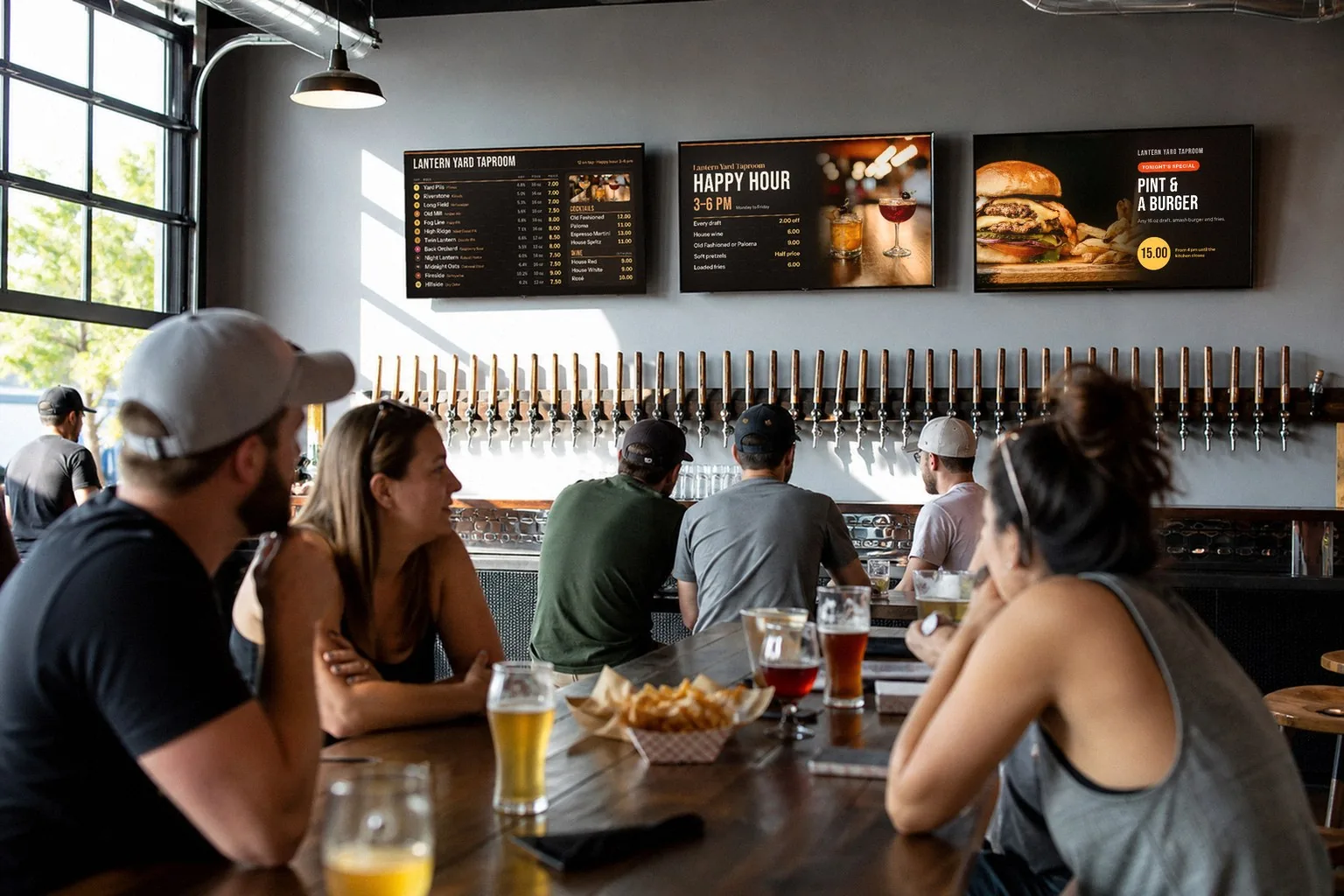
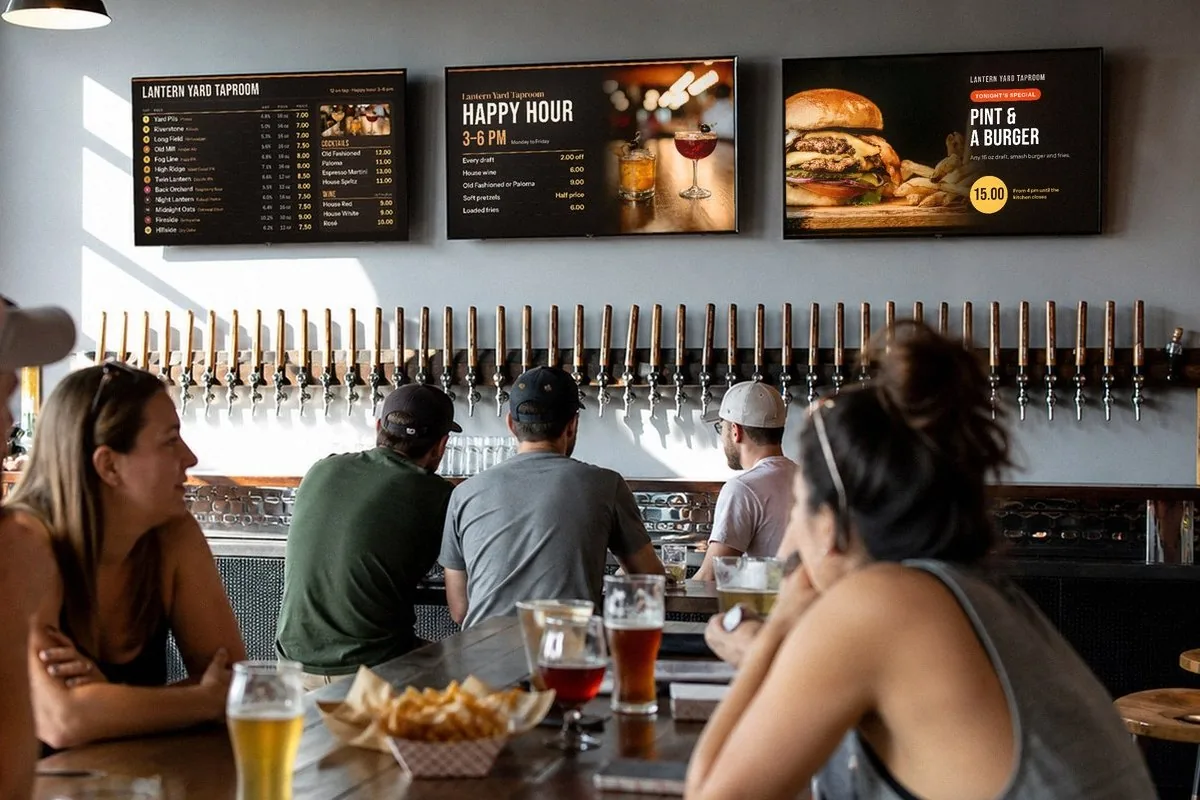
Over the taps is where guests look: the tap list, happy hour and tonight’s special, each on its own TV. The room is staged; the boards are sample Just a Menu designs.
The short list
Each line?
Name, style, ABV, pour size and price. Brewery and city on a smaller second line.
Text size?
About 1 inch of capital-letter height for every 10 feet of distance.
Wide or tall?
Wide for a row of screens. Tall for a long tap list on a narrow wall.
Keg kicked?
Mark it sold out from your phone, or 86 it in your POS.
Happy hour?
Give the slide its days and hours. Your TVs switch on their own.
At the tables?
The same list on a QR code, in your guest’s language.
What to list for each beer
Give every beer the same details, in the same order, so guests can compare at a glance.
On the board
How to show it
Name
The biggest text on the line, so guests can say it to the bartender.
Style
Pilsner, hazy IPA, stout, cider. Plain words guests know.
ABV
As a percent, like 4.8%, in the same spot on every line.
Pour size and price
16 oz · 7. Two pours? Put both on one line. In Just a Menu, each pour is a size with its own price.
Brewery and city
Smaller, on a second line. Put it in the item’s description.
Optional
IBU, glassware, nitro, gluten-free. Add only what guests ask about.
Keep it scannable. Name and price on the first line, details on one short line under it. Line the prices up on the right. Group beers by style (light and crisp, hoppy, dark, sour and cider) or by tap number.
Quarry Bell Pils · Pilsner · 4.8% · Quarry Bell Brewing, Duluth, MN
16 oz · 7
Saltmeadow Hazy IPA · Hazy IPA · 6.7% · Saltmeadow Brewing Co., Portland, ME
14 oz · 8
Quarry Bell Dark Lager · Dark lager · 5.2% · Quarry Bell Brewing, Duluth, MN
16 oz · 7
Saltmeadow Oatmeal Stout · Stout, on nitro · 6.2% · Saltmeadow Brewing Co., Portland, ME
10 oz · 7
A sample tap list. Every beer and brewery on this page is made up.
Cocktails and wine by the glass
- ✓Cocktails: the name, the base spirit, two or three key flavors and the price. House Spritz · gin, cucumber, elderflower · 11.
- ✓Wine by the glass: the grape, where it’s from, and glass and bottle prices on one line. Set glass and bottle as two sizes of the same item.
Pick a layout
Start with how many TVs you have and where they hang.
1
One tap list screen
Every draft on one TV over the taps. A wide screen fits roughly 20 to 30 single-line items, so with a details line under each beer, plan on fewer.
2
Beer, cocktails and food in rotation
One TV takes turns: drafts, then cocktails and wine, then food. You set how long each slide stays up, so give the tap list the most time.
3
A tall board for a long list
A TV hung in portrait on a narrow wall or a pillar reads top to bottom, like a chalkboard. Check the TV’s manual allows portrait first.
4
A row of screens
Drafts on one TV, cocktails and wine on the next, food or specials on the third. Just a Menu designs run across the whole row.
Sample design
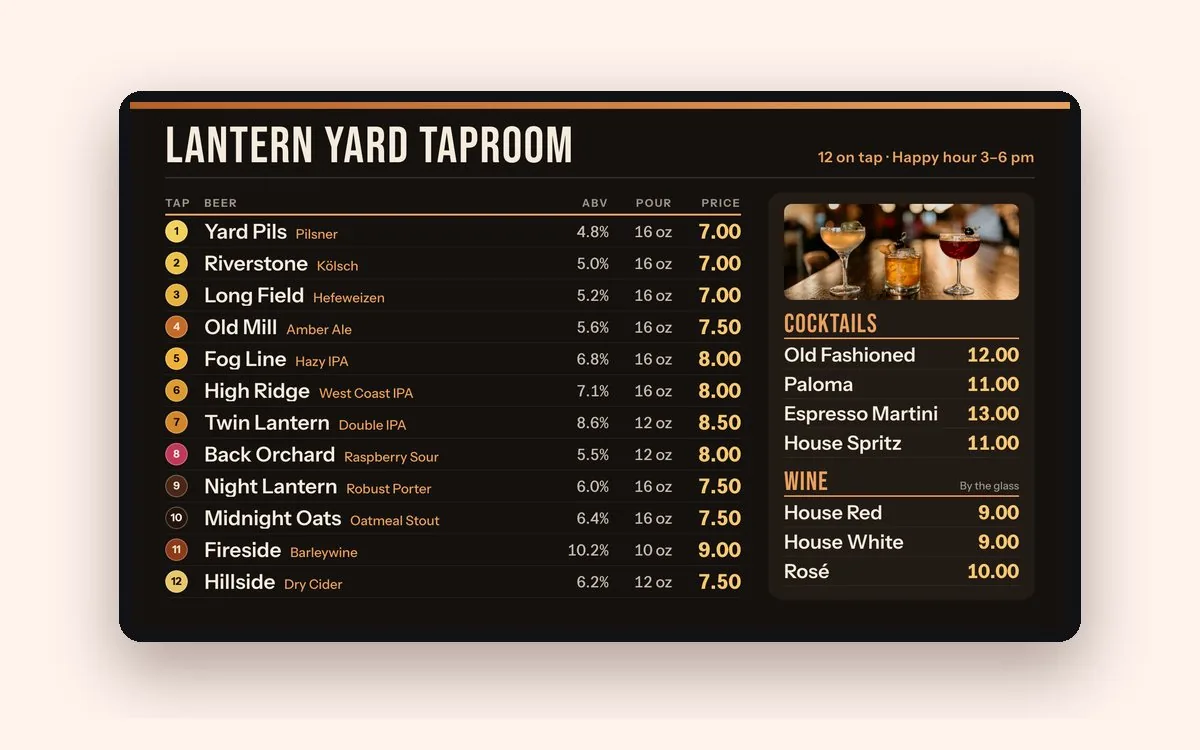
One wide screen: 12 taps with style, ABV, pour and price, plus cocktails and wine by the glass.

Sample design
A tall screen fits a long list: 16 taps and a flights line on one narrow wall.
Want to plan it first? Our free menu board templates include a 12-tap list with cocktails and wine by the glass, plus a tall drinks board with two sizes and two prices on every line. Or skip the typing: snap a photo of your drink menu, and Just a Menu reads the items, prices and sizes and builds finished boards for one TV or a whole wall.
Make it readable from across the bar
Text size matters more than TV size. A common signage rule of thumb is about 1 inch of capital-letter height for every 10 feet between the guest and the screen. Use it for beer names and prices.
Under 6 feet · a 32–43″ TV
½ inch
6 to 10 feet · a 50–55″ TV
1 inch
10 to 15 feet · a 55–65″ TV
1½ inches
15 feet or more · 65″+ or a row
2 inches
- ✓Measure from where guests decide: the far end of the bar and the tables that order from it, not the stool right under the TV.
- ✓Mind the height: TVs over the taps hang high, so guests are farther from the screen than the floor distance says. Round up.
- ✓Dim room, dark board: light text on a dark background reads well in a dim bar.
Just a Menu keeps menu text at a size people can read and tells you when something doesn’t fit, instead of shrinking it. Every distance and TV size: the menu board size guide
When a keg kicks
A beer that’s gone but still on the board means a guest orders it and hears no. Fix it from your phone before the next order.
- Open Menu Workspace and tap Sold Out on the beer. It comes off your TVs and your QR menu, or shows as sold out. You choose which.
- Tapping the next keg? Add the new beer with its style, ABV, pour sizes and price.
- When a beer comes back, tap Available.
Sample design
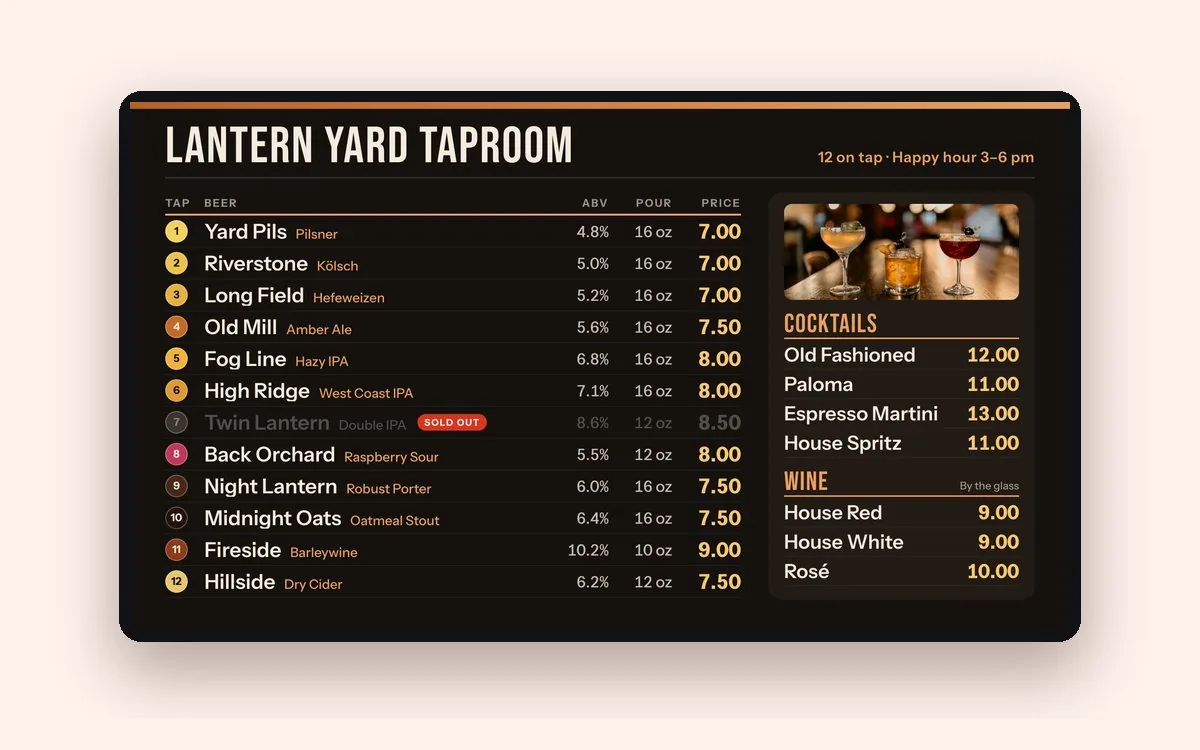
The same board after tap 7 is marked sold out. You can hide sold-out items instead, if you prefer.
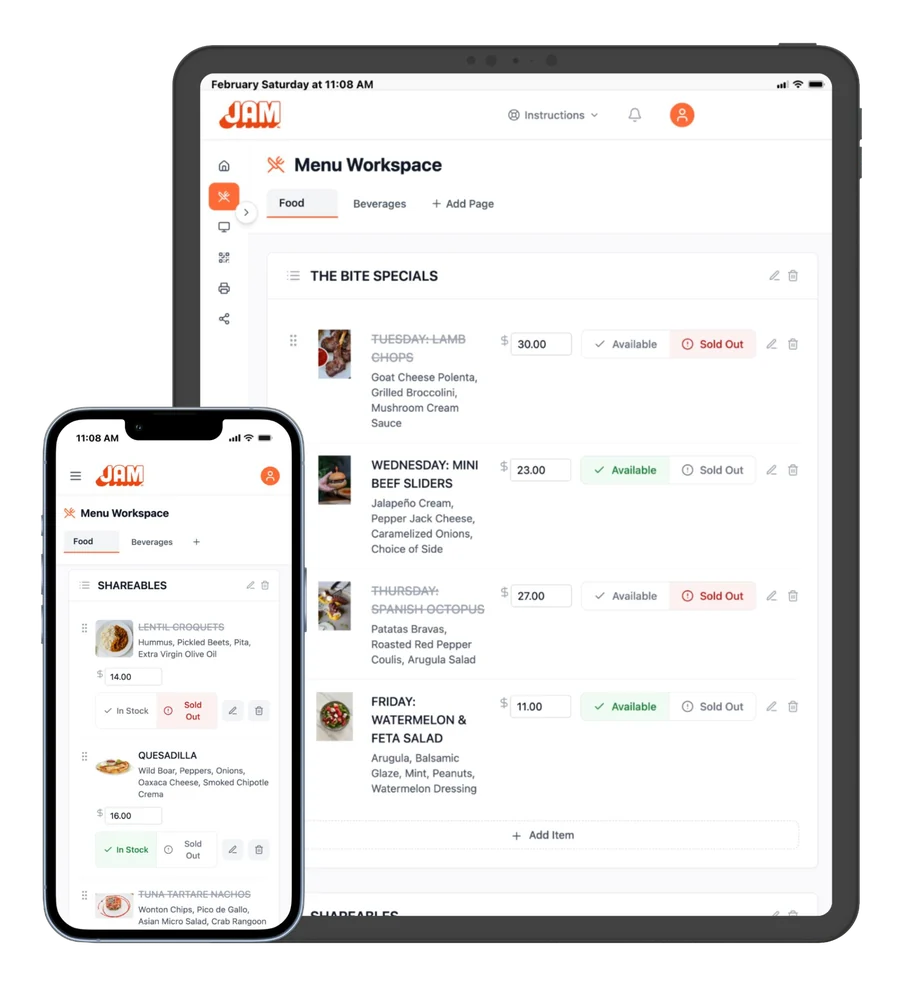
Real screen · sample menu
Menu Workspace. One tap marks an item sold out on every screen.
On Square, Toast, Oracle or Clover? 86 the beer in your POS and it’s marked sold out automatically on your boards and QR menu. Bring it back in your POS, and it comes back. POS integrations
Good to know: your beers are menu items you list and change yourself. Just a Menu doesn’t connect to keg monitors or beer-list apps.
Put happy hour on a schedule
Make a happy hour slide with your happy hour prices, then give it the days and hours it should play. Your TVs switch to happy hour and back on their own. Nobody has to remember.
- In Digital Signage, find your happy hour slide (the app calls a slide a scene) and click Schedule.
- For each day, choose All Day, OFF or Custom. With Custom, set a start and end time, like 4 to 6 PM on weekdays.
- Click Save Schedule.
Do the same for a lunch menu, late night or weekend brunch drinks. Step by step: set the times
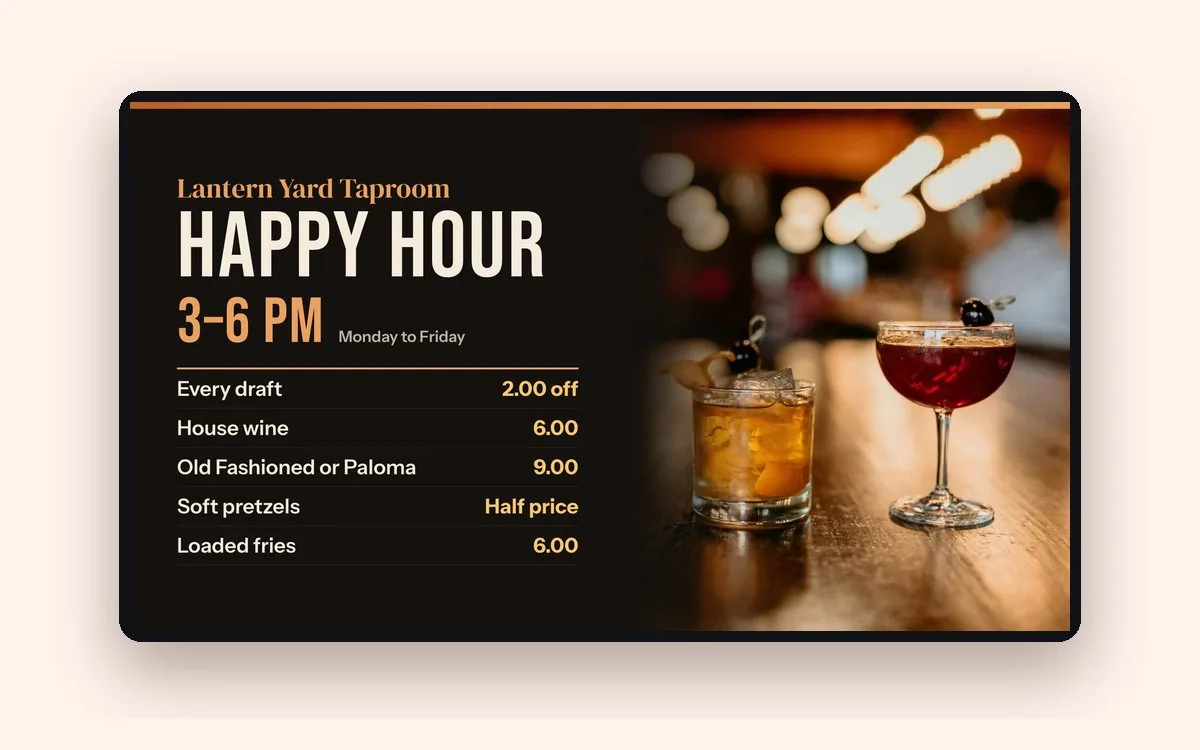
Sample design
A happy hour slide scheduled for weekdays, 3 to 6 pm. The rest of the day, your TVs show the regular board.
Add specials with Scene Magic
A special deserves its own slide, not a line squeezed into the tap list. Scene Magic builds a special or a food-and-drink combo in about a minute, with your real item and price. Pick a dish, a combo or a promo like happy hour, then a look like Game Day, Moody or Golden Hour.
- ✓Food and a pint: a burger and a draft as one combo slide.
- ✓Game day: wings and a pitcher in the Game Day look, scheduled for game days only.
Specials play in the loop with your menu, so they never cover your tap list.
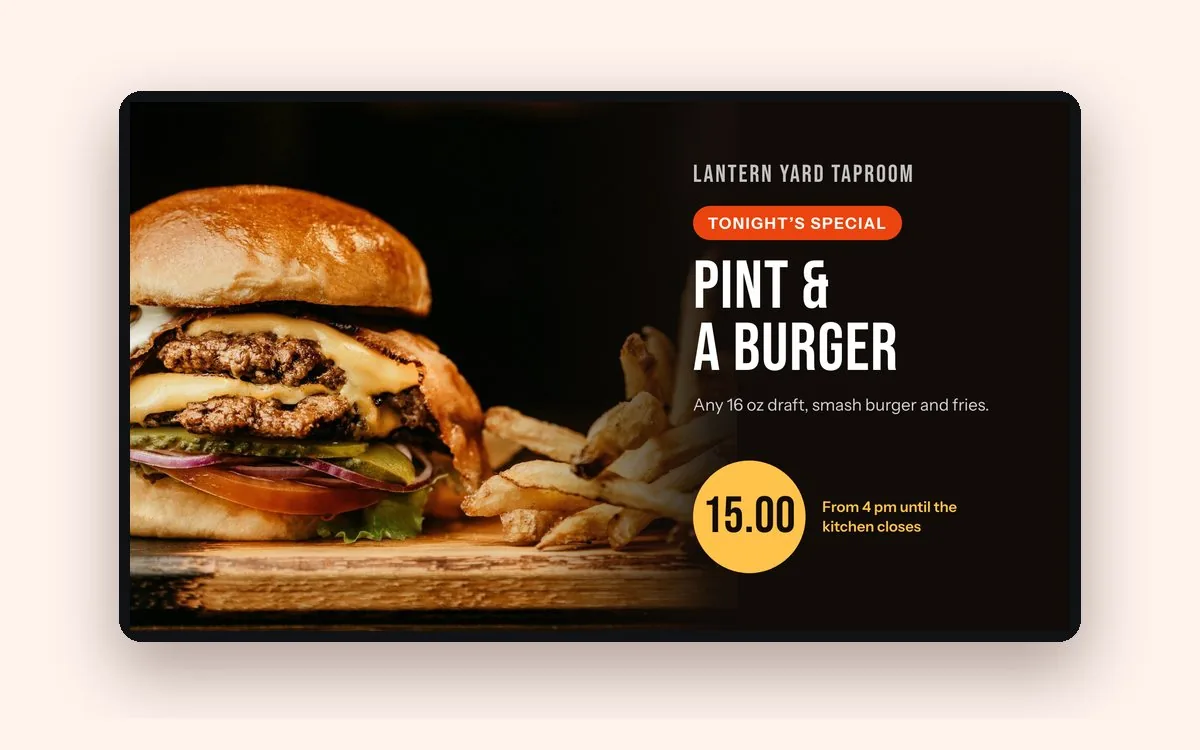
Sample design
A one-item special for the loop: one dish, one drink, one big price.
Put the same list on a QR code
Not every table can see the TV. Put your QR code on the bar and every table: guests scan it, the menu opens in their phone’s browser with no app, and they order from your staff as usual.
- ✓Same menu as your TVs. A new price or a sold-out keg shows on both.
- ✓Their language. Turn on a language like Spanish and your menu is translated. Guests tap to switch, and you can edit any translation.
- ✓Allergy notes. Add a note like gluten-free to a drink, and guests tap it to see.
- ✓Room for the long list. Keep drafts on the TV and the full bottle, can and wine list on the QR menu.
- ✓Print the code once. It never changes, even when your menu or its look does.
Step by step: Make your QR menu live
Print the drink list from the same menu
Your printed drink list comes from the same menu. Pick a paper size, pick a design and download a print-ready PDF, then print it in-house or at any print shop.
- ✓Sizes: letter, legal, tabloid, A4, a letter-size trifold with fold guides, or your own size.
- ✓After a change: download a fresh PDF. Paper you’ve already printed has to be reprinted.
- ✓Add your QR code so guests can check what’s pouring today between print runs.
Questions
What should a digital beer menu board show?
Each beer’s name, style, ABV, pour size and price, with the brewery and city on a smaller second line. Line the prices up and group beers by style.
Is there a free digital beer menu template?
Yes. Our free menu board templates include a 12-tap list with cocktails and wine by the glass, plus a tall drinks board with two sizes and two prices on every line. Or let Just a Menu fill finished designs from a photo of your drink menu.
How do I update the tap list when a keg runs out?
Tap Sold Out on the beer in Menu Workspace, from your phone. It comes off your TVs and QR menu, or shows as sold out. On Square, Toast, Oracle or Clover, 86 it in your POS and it’s marked sold out automatically.
Can happy hour prices switch on by themselves?
Yes. Make a happy hour slide, then give it the days and hours it should play. Your TVs switch to it and back on their own.
What do I need for a bar TV menu system?
A TV with a spare HDMI port, power and Wi-Fi at the TV, and one JAM Player per TV. No smart TV and no computer at the bar. If the Wi-Fi drops, your TVs keep playing. See bar menu boards
What makes a digital menu smart for a bar?
It keeps itself right: happy hour switches on by schedule, a kicked keg comes off the board with one tap or from your POS, and one menu runs your TVs, QR code and print files.
Can I have a QR code drink menu too?
Yes. It’s the same menu as your TVs, so drafts, cocktails and wine match everywhere. Guests pick their language, and the code never changes.
Do digital menu boards work in movie theaters?
Yes. Just a Menu runs at cinema concession stands, like SunChase Cinemas, with a drink menu and a food menu side by side over the counter. A theater bar follows the same steps as this guide. See venues and campuses
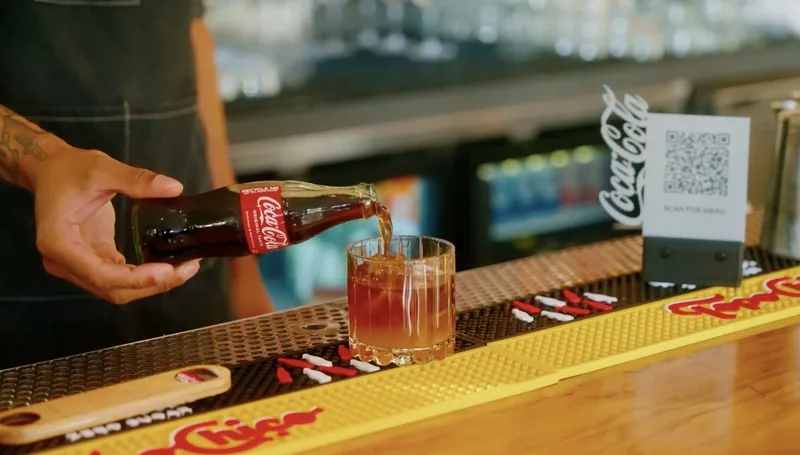
Verbena · Austin, TX
Illustration
What size should your menu board be?
TV size and letter height for every viewing distance, with a printable chart.
Read the guide →
Sample design
Design a board people can read
Text size, how much fits, and where photos earn their place.
Read the guide →
Sample template
Free menu board templates
Six layouts for one TV or a row, wide or tall, including a tall drinks board.
Read the guide →
Got a tap list? Let’s put it on your TVs.
Once you’re set up, snap a photo of your drink menu and Just a Menu builds finished boards for the TVs over your taps, plus the same menu on a QR code and in print.
Talk to a real person. We reply within one business day.
Illustration
Questions about your tap list? Email support@justamenu.com or call (202) 886-2442.