Have a Coca-Cola rep? Some participating bottlers cover the full cost. Ask about special pricing →

Learn Just a Menu
Change your menu once. Watch it update everywhere.
Your TV menu boards, your QR menu and your printouts all follow one menu. We’ll show you around, one friendly step at a time. No tech skills needed.
✓Set up in about 45 minutes
✓No designer needed
✓Real people to help if you get stuck
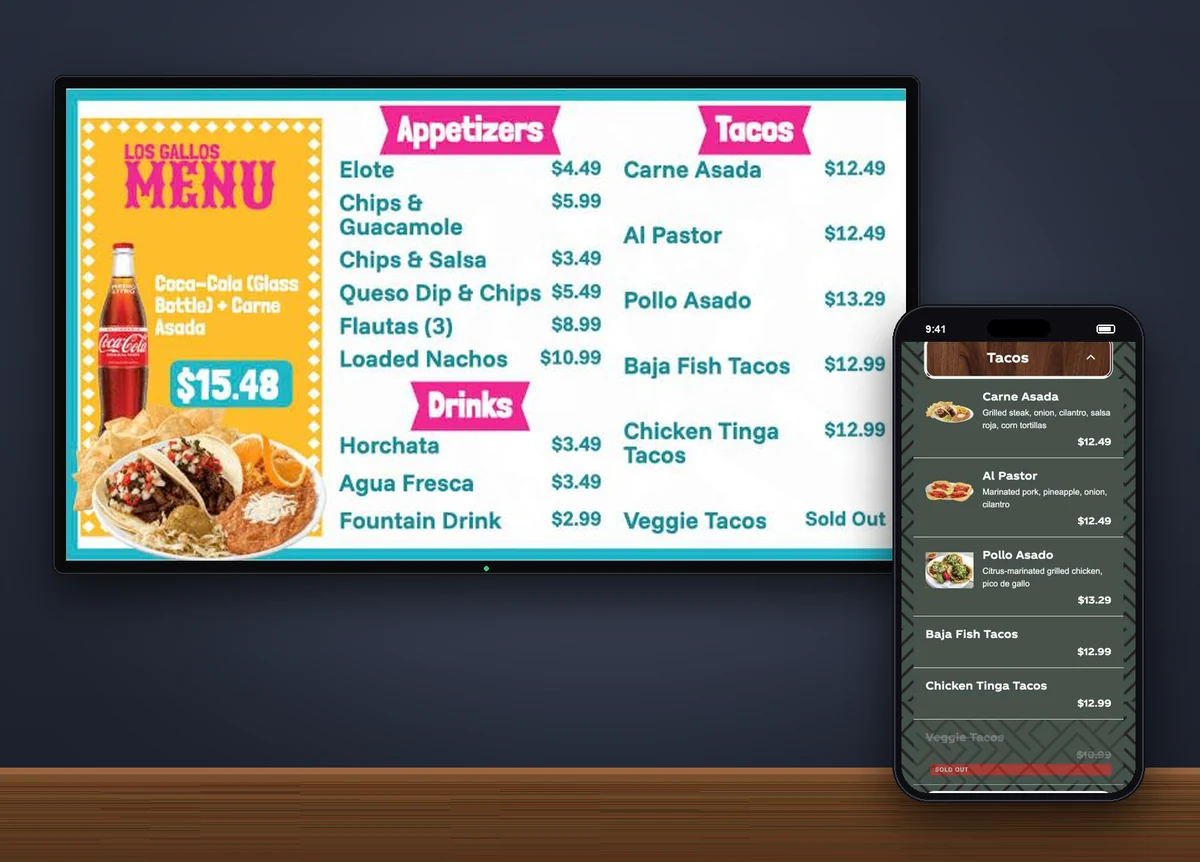
One tap on “Sold Out” and the TV and the QR menu both know.
Try it yourself
Learn it by doing it.
Hi, I’m JAM! New here? Start with Getting started, then pick any job. Click my orange circle to go on. Every screen is the real app.
Add your restaurant. Logo, name, address and time zone, then Next.
Add your restaurant. Logo, name, address and time zone, then Next.
Upload your menu. In Menu Workspace, add a photo or PDF of it.
Check it and accept. Every item and price is in. Click Accept Import.
Tell it about your TVs. Two side by side? Pick 2 Displays.
Pick a design. Choose one marked Good Match.
Let it place your menu. Tap Add all.
Publish. Click Mark Active & Publish.
Connect your TV. Plug in the JAM Player, then in the JAM Setup app on your phone tap Set Up or Reconnect Device.
Activate your location. When it’s ready to use in your store, choose Activate Location. This lets the location be used and starts billing.
Your menu is on the TV. Change anything in Menu Workspace and it updates by itself.
This is your menu. Out of veggie tacos? Tap Sold Out.
Done. It’s crossed out in your menu…
…your TV already says Sold Out…
…and so does the QR menu on your guests’ phones.
Scene Magic designs specials for you. Pick your screens.
Pick a dish and a look. The price fills in.
Or type the deal: “Happy Hour: $2 Tacos”. Click Create.
About a minute later it joins your TV playlist. Your TVs take turns: your menu, then the special, then your menu again.
Pick the days. Choose Custom to set the hours.
Weekdays, 3 to 6 PM. Save Schedule.
From 3 to 6 PM on weekdays the special joins your playlist and takes turns with your menu. At 6 it drops out on its own.
Pick a design and tap Make it live.
Your QR code is ready. Print it for your tables.
Guests scan it and your menu opens. Tap a category…
…prices, photos, even what’s sold out, straight from your menu.
Rather read it step by step? Read Getting started step by step or jump to a task.
Getting started, step by step · no experience needed · about 45 minutes
New to Just a Menu? Start here.
Nine steps from nothing to your menu on a TV, the same ones as Getting started at the top of the page. Each one says exactly what to click, with the screen you will see.
Have these ready
Your Just a Menu sign-in
Your logo as an image file
A photo or PDF of your current menu
A TV with a free HDMI port, your JAM Player, and the JAM Setup app on your phone (setup.justamenu.com)
Words you’ll see
Outlet One restaurant location.
Menu Workspace Where your items, prices and photos live.
Layout Your group of TVs, side by side.
Scene What plays on those TVs. Have several and your TVs take turns, like a playlist.
JAM Player The small box that plugs into your TV.
Add your restaurant
On the Main Dashboard click Add Restaurant. Add your logo, name, address and time zone, then click Next.
More detail →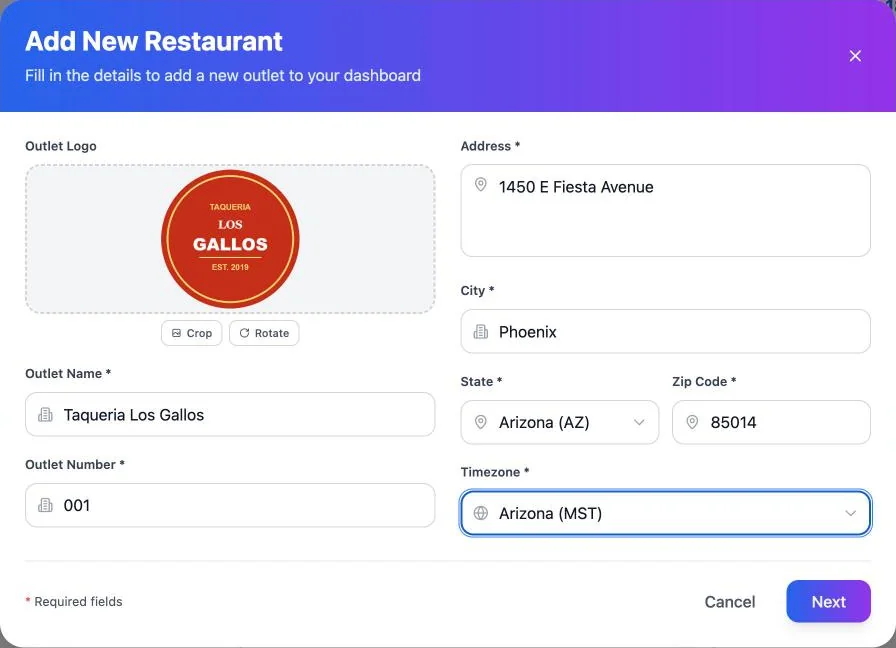
Upload your menu
Click Manage Outlet on its card, then Menu Workspace in the menu on the left (that menu is how you get around from now on). Click Upload Menu and pick a photo or PDF of your menu. It reads it in a minute or two.
More detail →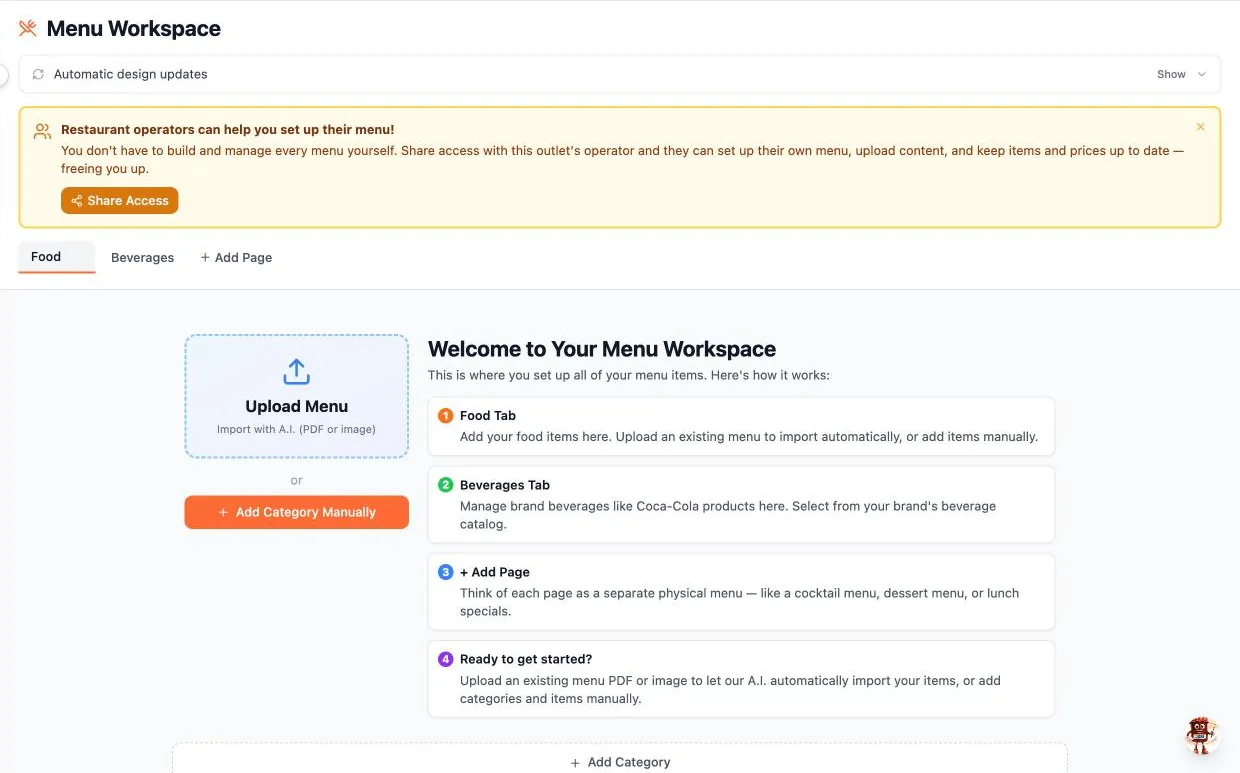
Check it and accept
When the tab says Needs Approval, open it, check the prices and click Accept Import.
More detail →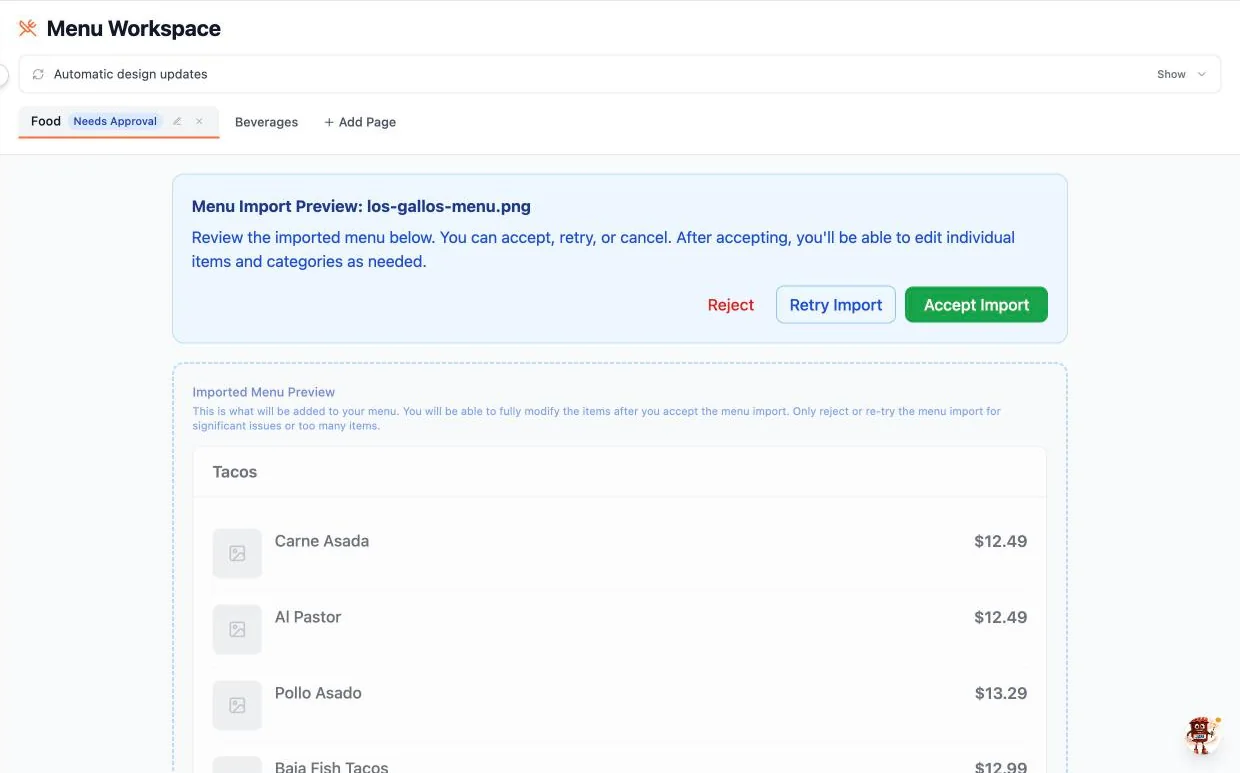
Tell it about your TVs
Click Digital Signage, then Create First Layout. Pick how many TVs you have and which way they face, name it and click Continue.
More detail →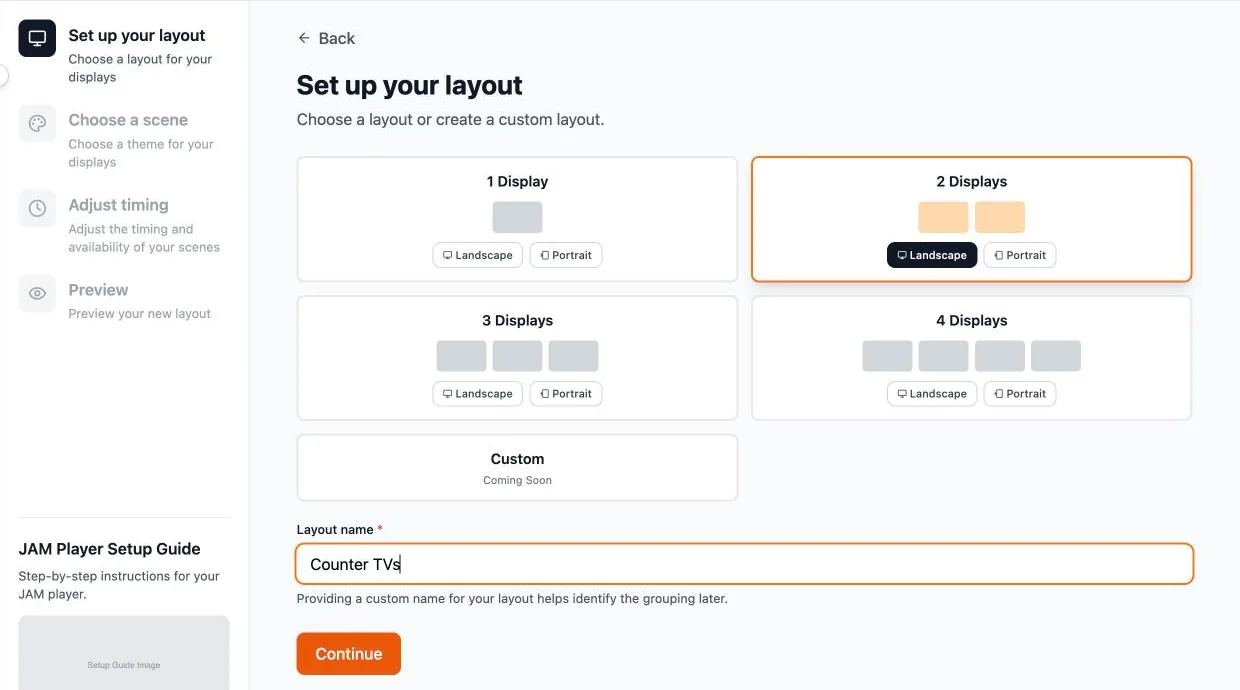
Pick a design
Click Create Your First Scene. Choose a template marked Good Match, then Start my menu board.
More detail →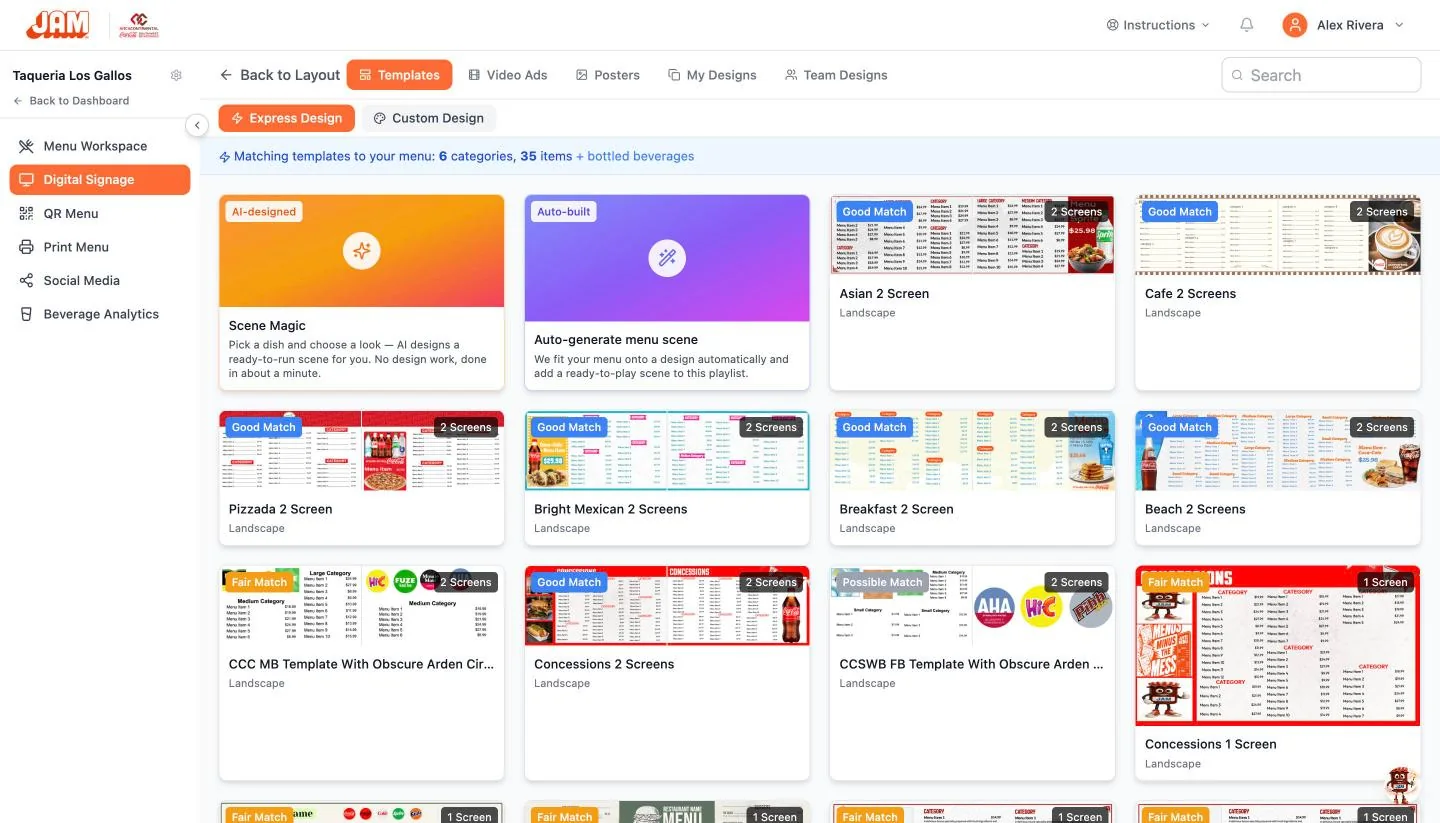
Let it place your menu
Click Add all, then Next on each screen. Your whole menu lands on the board with its prices.
More detail →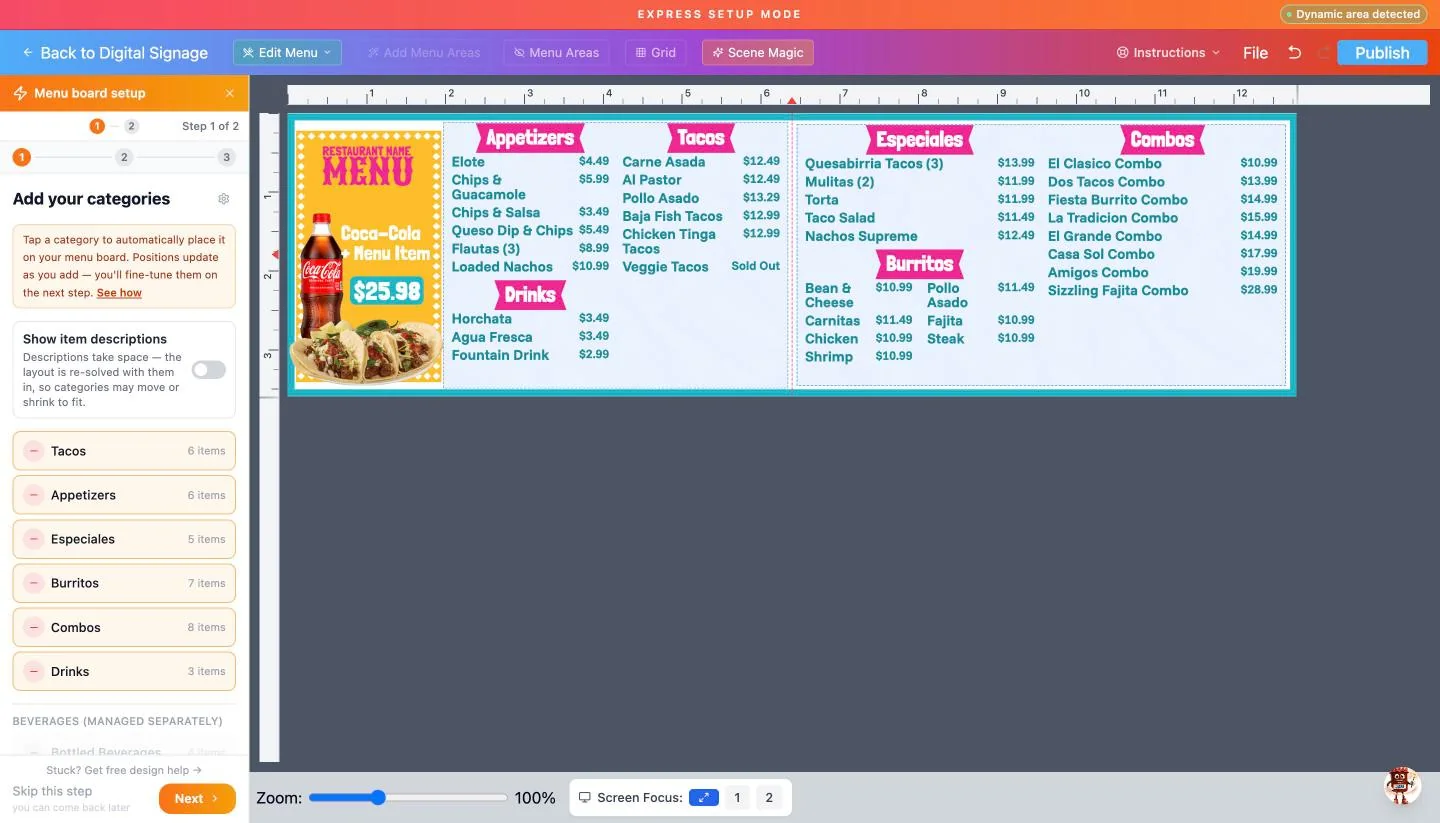
Connect your TV
Plug the JAM Player into the TV and into power. On your phone, open the JAM Setup app and tap Set Up or Reconnect Device. Pick your restaurant and your player, then your Wi-Fi and the screen it shows.
More detail →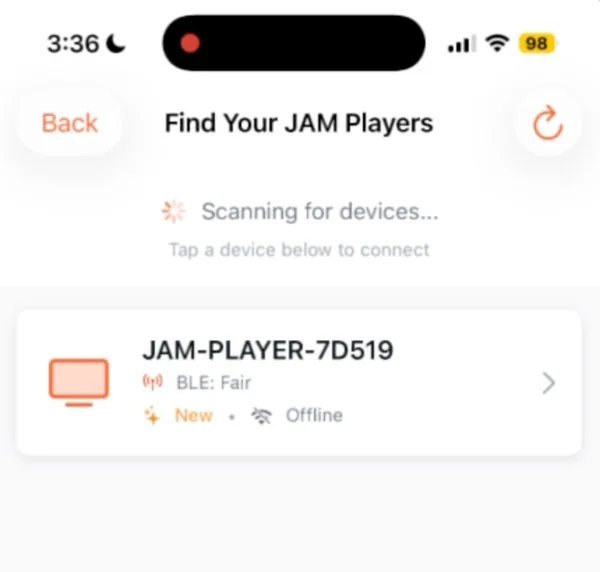
Activate your location
When it’s ready to use in your store, click Activate Outlet on its card. In Activate Location, choose Permanent Activation and click Activate. This lets the location be used and starts billing.
More detail →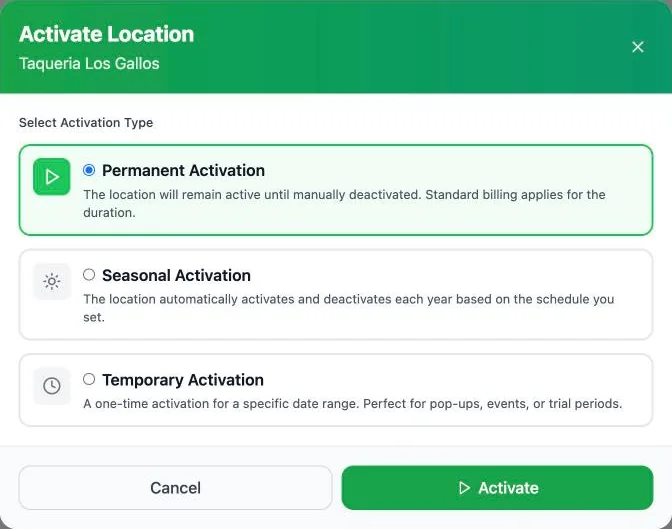
That’s it. Your menu is on your TV.
From now on, change a price or mark something sold out in Menu Workspace and your TV updates by itself. When you’re ready, add specials, schedules and a QR menu.
Keep going: Chapter 3 →Jump to a task
I want to…
Your progress
0 of 12 done
Part 1 · Get set up
1Set up your restaurant2Import your menu3Keep your menu rightPart 2 · Your TV menu boards
4Build your TV menu board5Change any design6Specials with Scene Magic7Schedule and preview8Connect your JAM PlayerPart 3 · Beyond the TV
9Your QR menu10Print and socialPart 4 · Day to day
11Share with your team12Help inside the app?Troubleshooting and FAQChapter 1 · Set up your restaurant
Get your restaurant set up.
Add your restaurant, turn it on, and give it a logo and opening hours. Ten minutes, once.
Did Getting started? You already added and turned on your restaurant. New here: logo versions and opening hours. Skip to step 5 →
Where Sign in at app3.justamenu.com
How do I get here from my dashboard?
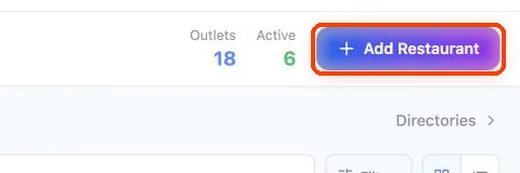
1Sign in at app3.justamenu.com. You land on your Main Dashboard. To add a restaurant, click Add Restaurant at the top right.
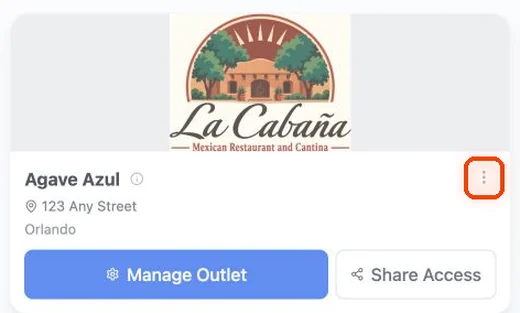
2To change one you already have (logo, address, hours), click the three dots on its card, then Settings.
Step 1.1
Sign in and find your dashboard
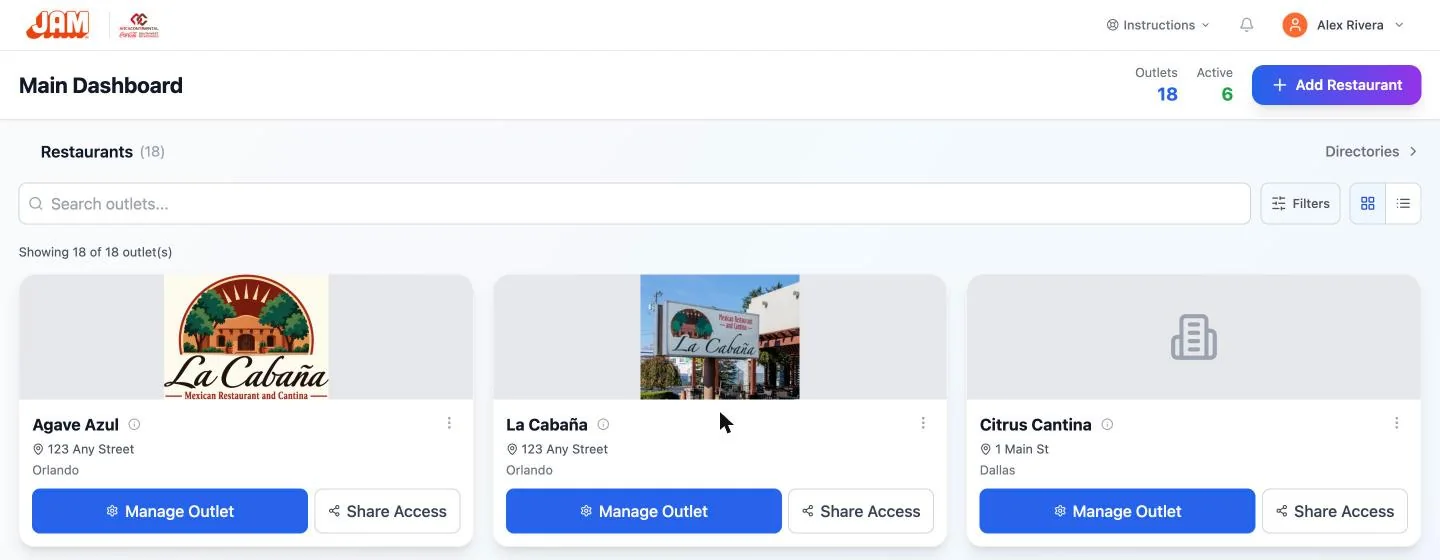
Sign in at app3.justamenu.com. The Main Dashboard shows one card for each restaurant you run, with counts of your outlets and how many are active. Use the search box, Filters or the list view when you have a lot of them.
Step 1.2
Add your restaurant
Click Add Restaurant. Upload your logo (you can Crop or Rotate it), then fill in the name, an outlet number, the address and your time zone. Click Next.
Step 1.3
Turn it on
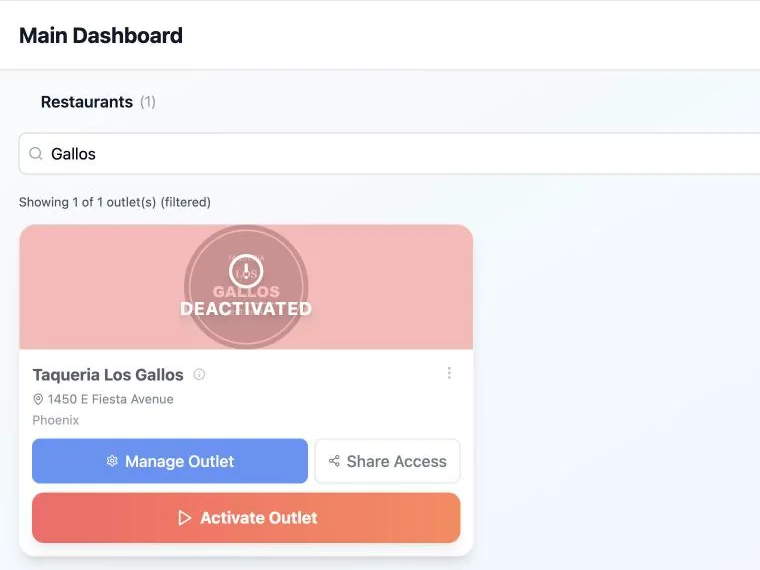
A new restaurant starts out Deactivated, so you can set everything up first. When it’s ready to use in your store, click Activate Outlet on its card. Activating lets the location be used and starts billing.
Step 1.4
Choose how it stays on
Permanent Activation keeps it on until you turn it off. Seasonal Activation switches it on and off every year on a schedule, which suits a summer stand. Temporary Activation covers one date range for a pop-up, an event or a trial. Click Activate.
Step 1.5
Logo, address and logo versions
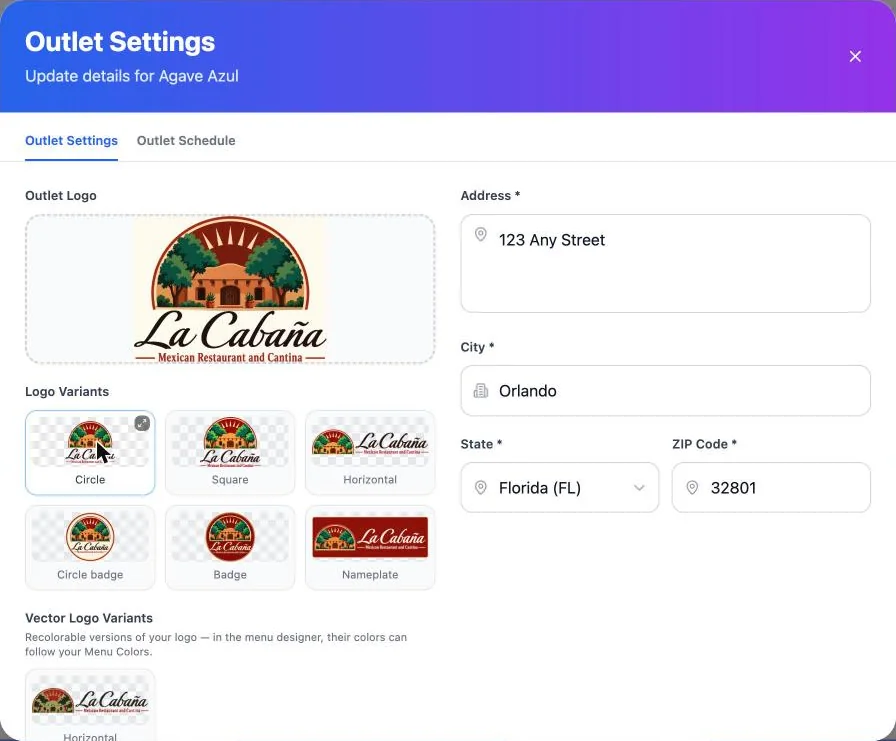
Later on, click the three dots on the card, then Settings, to change anything. Upload your logo once and the app makes circle, square, horizontal, badge and nameplate versions for your designs.
Step 1.6
Opening hours
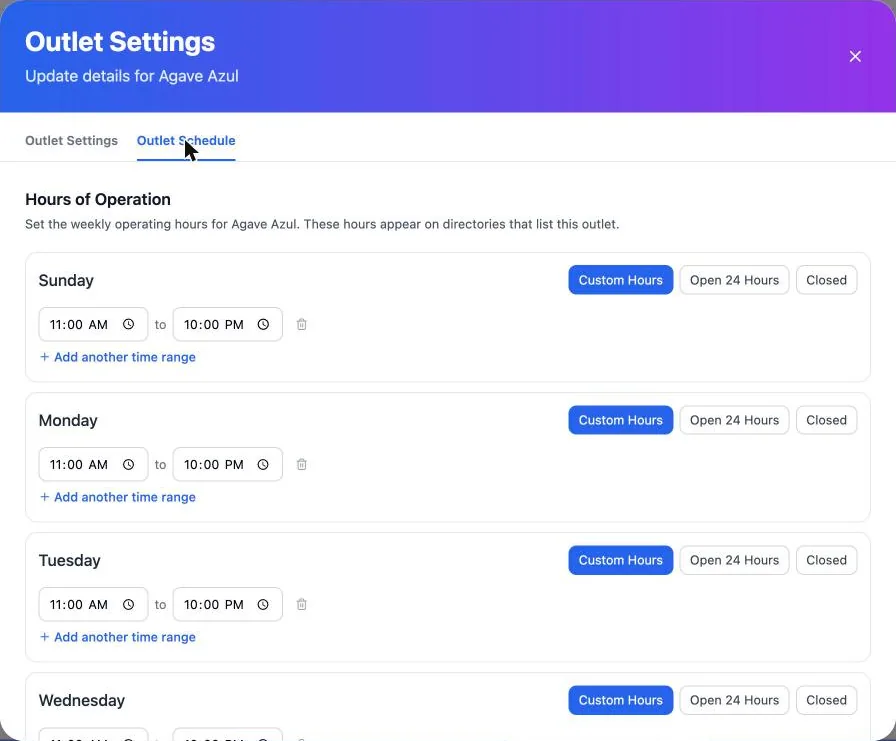
In the same window, open Outlet Schedule. For each day choose Custom Hours, Open 24 Hours or Closed. Split shifts? Click Add another time range.
Step 1.7
Find your way around
Click Manage Outlet to open a restaurant. The sidebar takes you to Menu Workspace, Digital Signage, QR Menu, Print Menu and Social Media. Back to Dashboard returns you to all your restaurants.
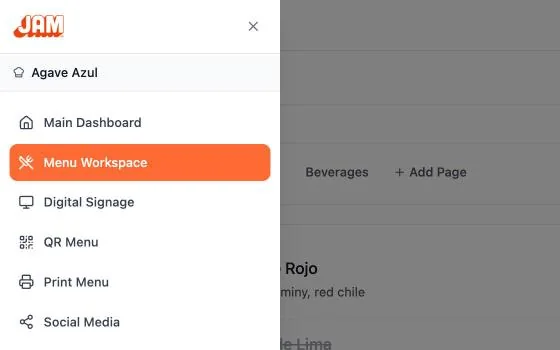
Done when Your restaurant card says Active.
Mark chapter doneChapter 2 · Import your menu
Turn the menu you have into a live menu.
Upload a photo or PDF of your current menu. The app reads every item and price, and you check them before anything changes.
Did Getting started? Your menu is already in. This chapter is the same two steps with more detail. Skip to Chapter 3 →
Where Sidebar → Menu Workspace
How do I get here from my dashboard?
1On your Main Dashboard, find your restaurant’s card and click Manage Outlet.
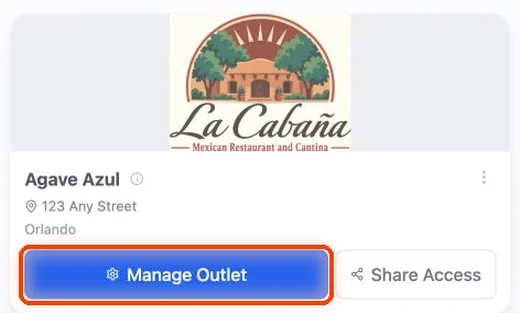
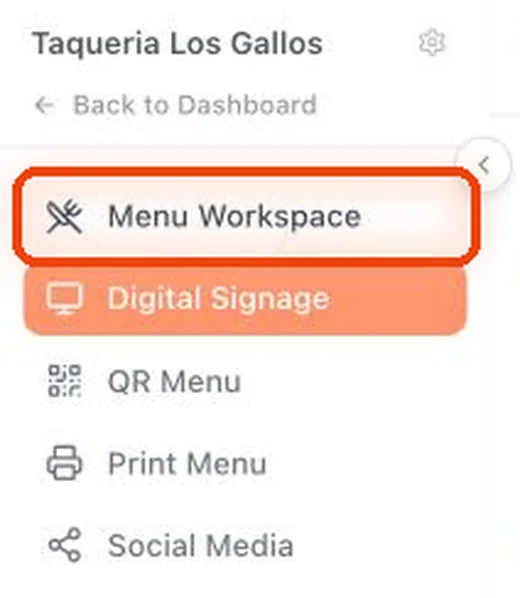
2In the menu on the left, click Menu Workspace. A new restaurant opens on an empty workspace with Upload Menu.
Step 2.1
Start from an empty workspace
A new restaurant opens on an empty Menu Workspace. Click Upload Menu to import a photo or PDF, or Add Category Manually to type it in. Pages sit across the top: Food, Beverages and + Add Page.
Step 2.2
Upload a photo or PDF
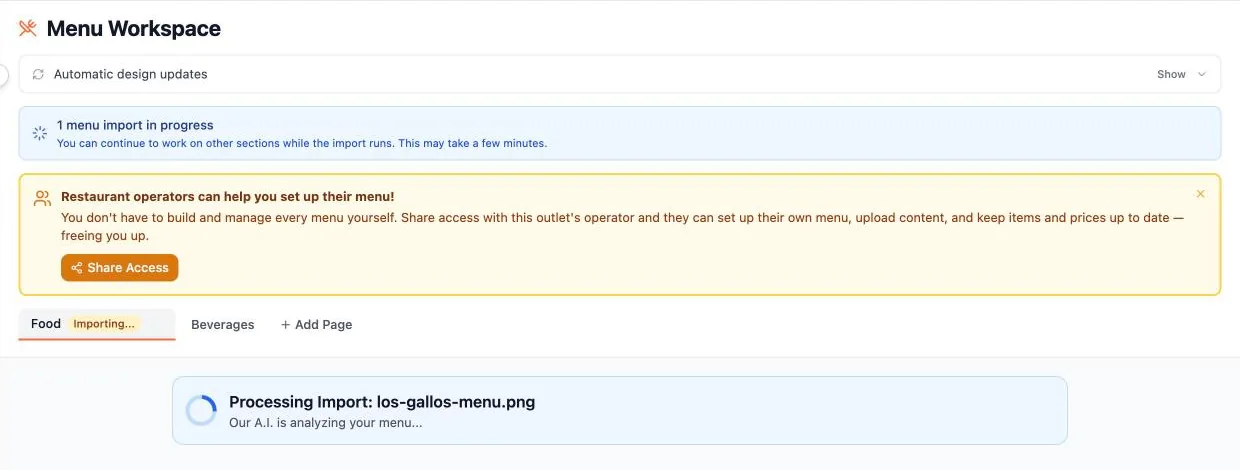
Pick the file. While it reads your menu you’ll see Processing Import, and the tab says Importing…. It takes a minute or two, and you can keep working on other pages in the meantime.
Step 2.3
Check it, then accept
When the tab says Needs Approval, open it. The preview shows every category, item and price it found. Click Accept Import, or Retry Import or Reject if the photo was hard to read. You can edit anything afterward.
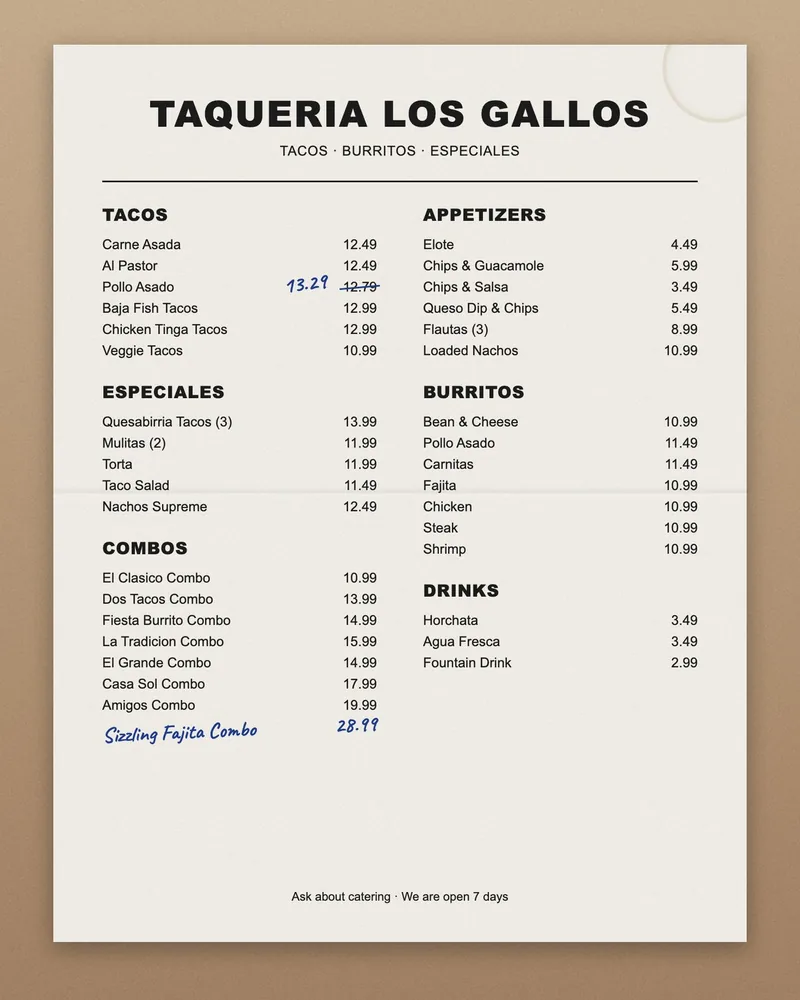
Tip Hand-written changes count. On our sample menu, a crossed-out 12.79 with 13.29 written next to it came in as $13.29.
Done when Your categories, items and prices show in Menu Workspace.
Mark chapter doneChapter 3 · Keep your menu right
Keep your menu right, every day.
Menu Workspace is the one place your dishes, prices and drinks live. Change something here and your TV boards, QR menu and print files follow.
Where Sidebar → Menu Workspace
How do I get here from my dashboard?
1On your Main Dashboard, find your restaurant’s card and click Manage Outlet.
2In the menu on the left, click Menu Workspace.
Step 3.1
Your menu, organized
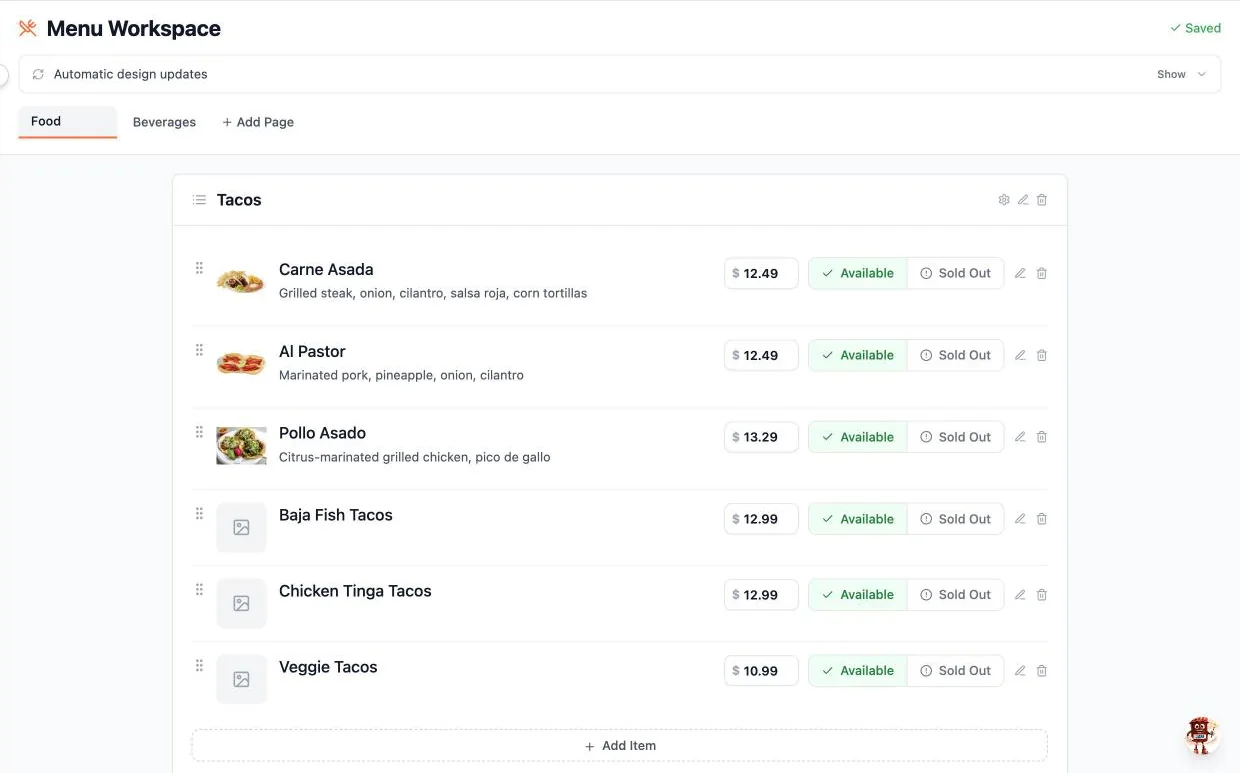
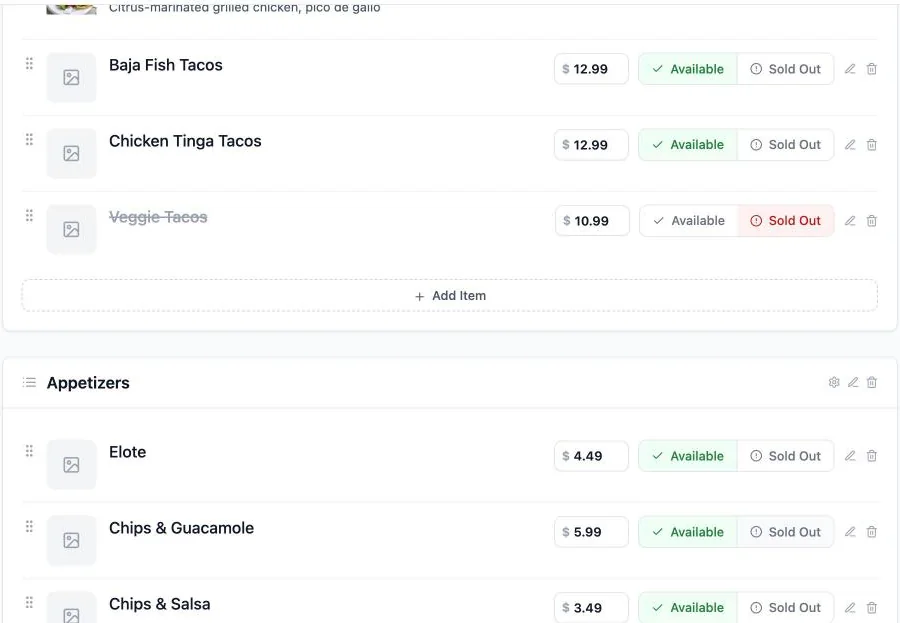
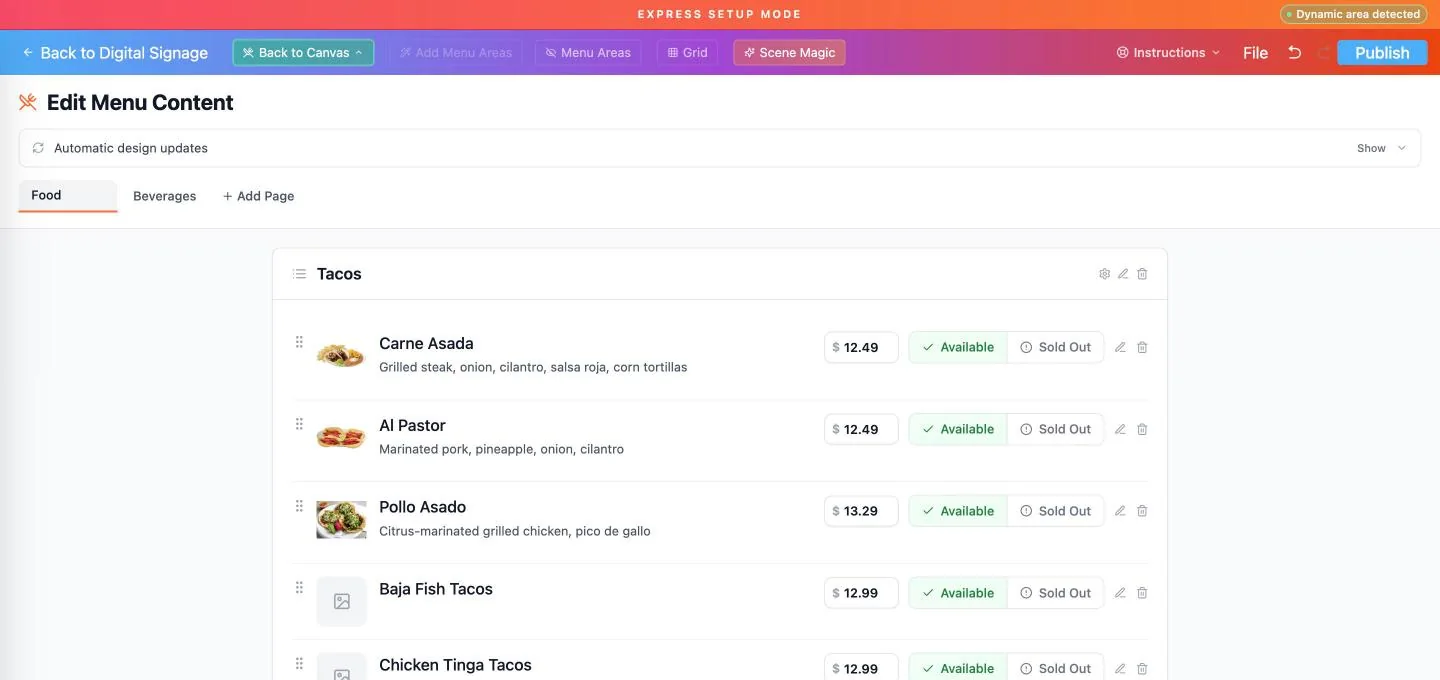
Categories hold items, and each item shows its price, an Available or Sold Out switch, a pencil to edit and a bin to delete. Drag the dots on the left to reorder.
Step 3.2
Add a photo and a description
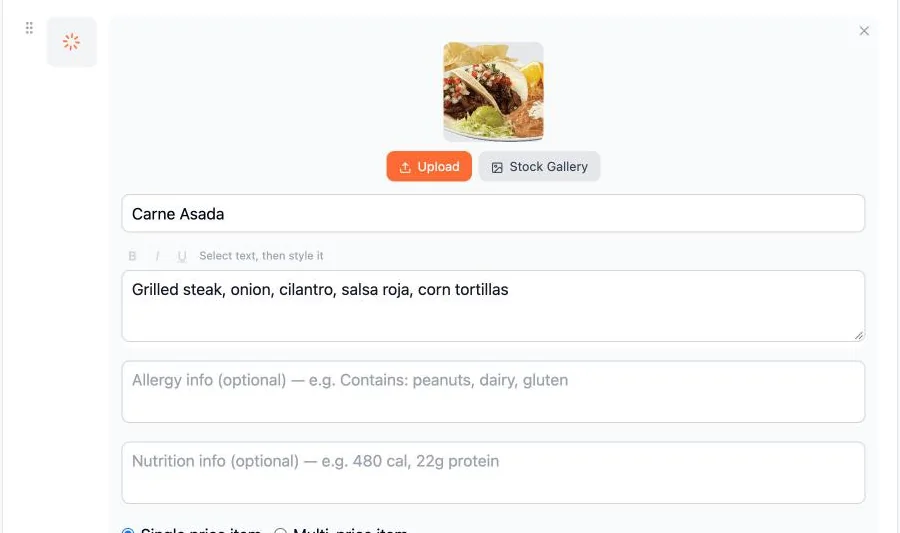
Click the pencil on an item. Write a short description, then add a photo with Upload or Stock Gallery. Below that are optional allergy and nutrition lines.
Step 3.3
Find a photo in seconds
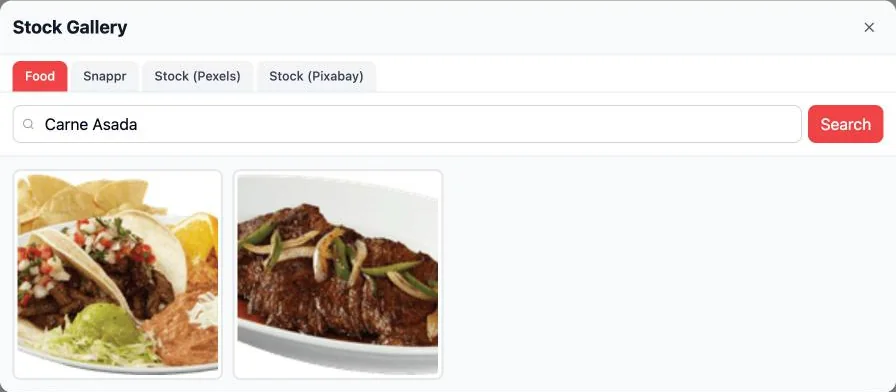
Stock Gallery already searches for your dish by name. Tap a photo to use it. The Pexels and Pixabay tabs have more.
Step 3.4
One price, or several sizes
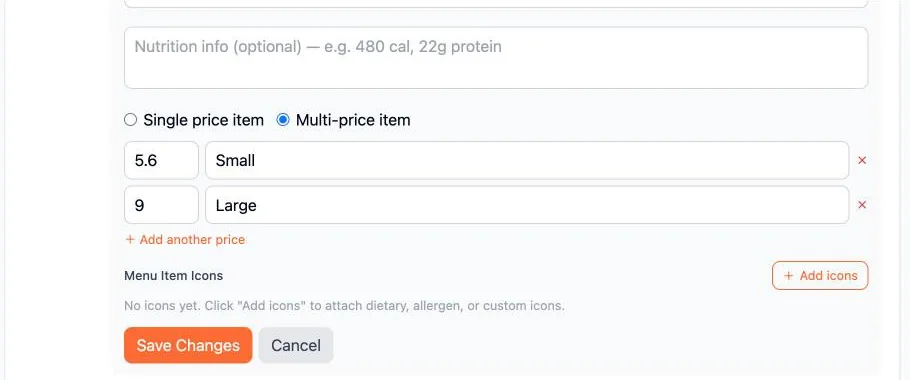
Choose Single price item or Multi-price item for sizes like Small and Large, and add more with + Add another price. Add icons attaches dietary and allergen icons. Click Save Changes.
Step 3.5
Sold out for the day
Tap Sold Out on any item. It’s crossed out here and shows “Sold Out” on your TV board straight away. Tap Available when it’s back. + Add Item adds a dish to a category.
Step 3.6
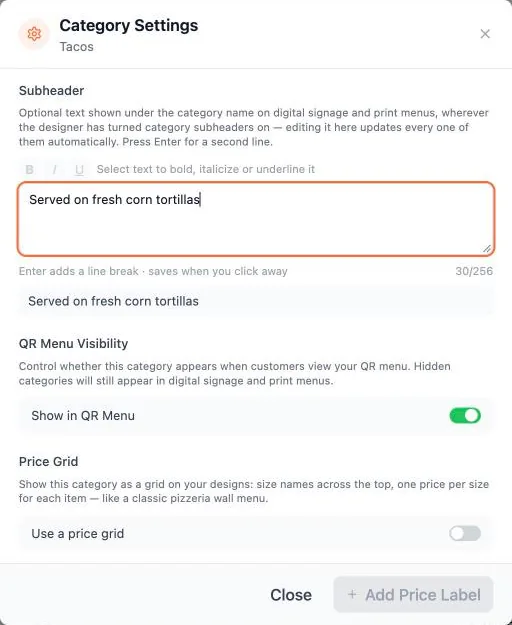
Category settings
The gear on a category opens its settings. Add a Subheader such as “Served on fresh corn tortillas”, hide the category from your QR menu, turn on a Price grid (sizes across the top, like a pizzeria wall) and set default price labels.
Step 3.7
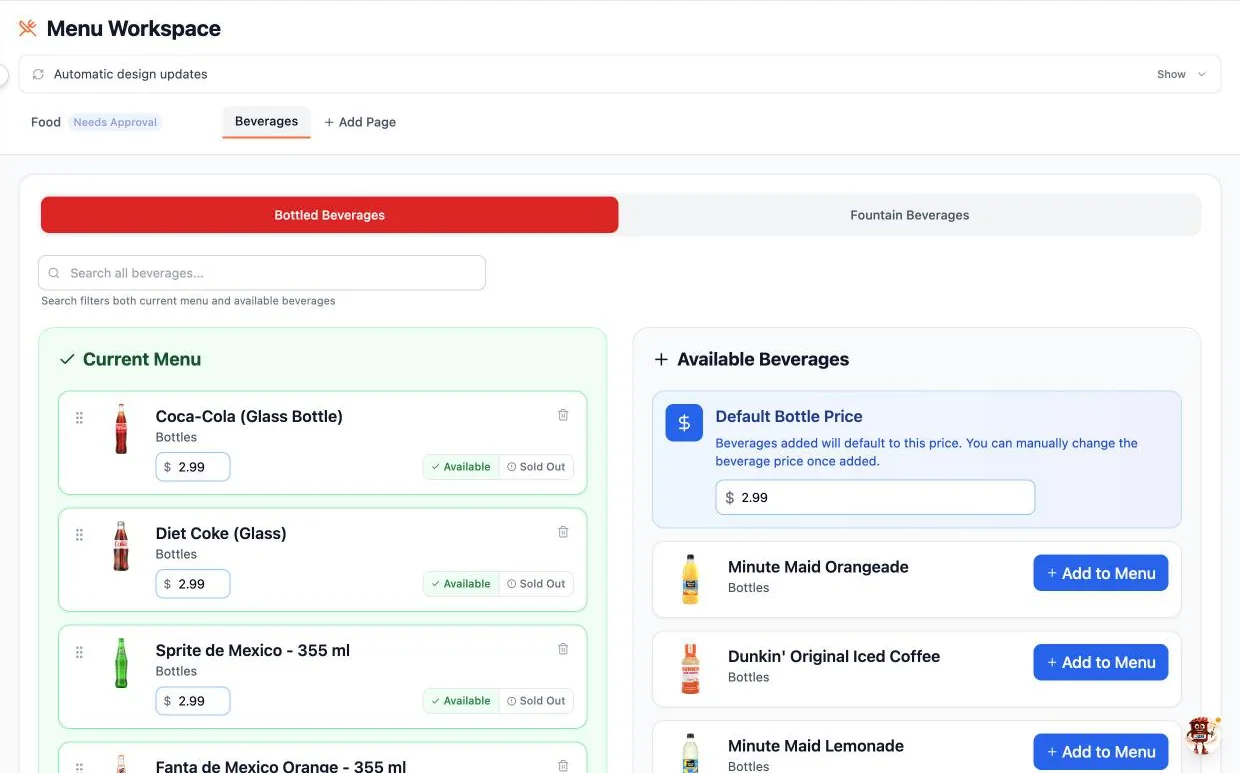
Add your drinks
Open Beverages, then Bottled Beverages or Fountain Beverages. Set a Default Bottle Price, search the catalog and click + Add to Menu. Drinks come with their photos, and each price can be changed.
Step 3.8
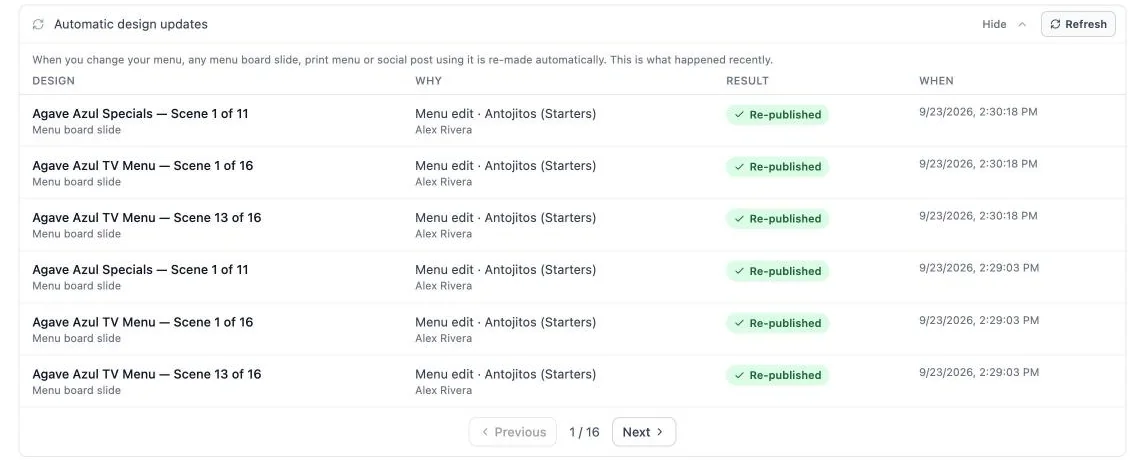
See what your changes updated
Click Show on Automatic design updates. Every menu board slide, print menu and social post that uses an item you changed is re-made for you, and this list shows what was re-published and when.
Done when Your best sellers have photos and your drinks are on the menu.
Mark chapter doneChapter 4 · Build your TV menu board
Build your TV menu board.
Make a layout that matches the TVs on your wall, pick a template, and a setup wizard places your whole menu for you.
Did Getting started? Your board is built and published. New here: ordering and resizing categories, and filling a featured special. Skip to step 7 →
Where Sidebar → Digital Signage
How do I get here from my dashboard?
1On your Main Dashboard, find your restaurant’s card and click Manage Outlet.
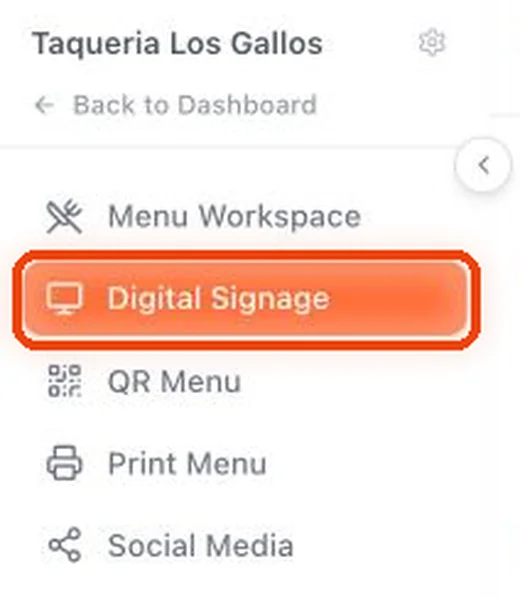
2In the menu on the left, click Digital Signage.
Step 4.1
Start in Digital Signage
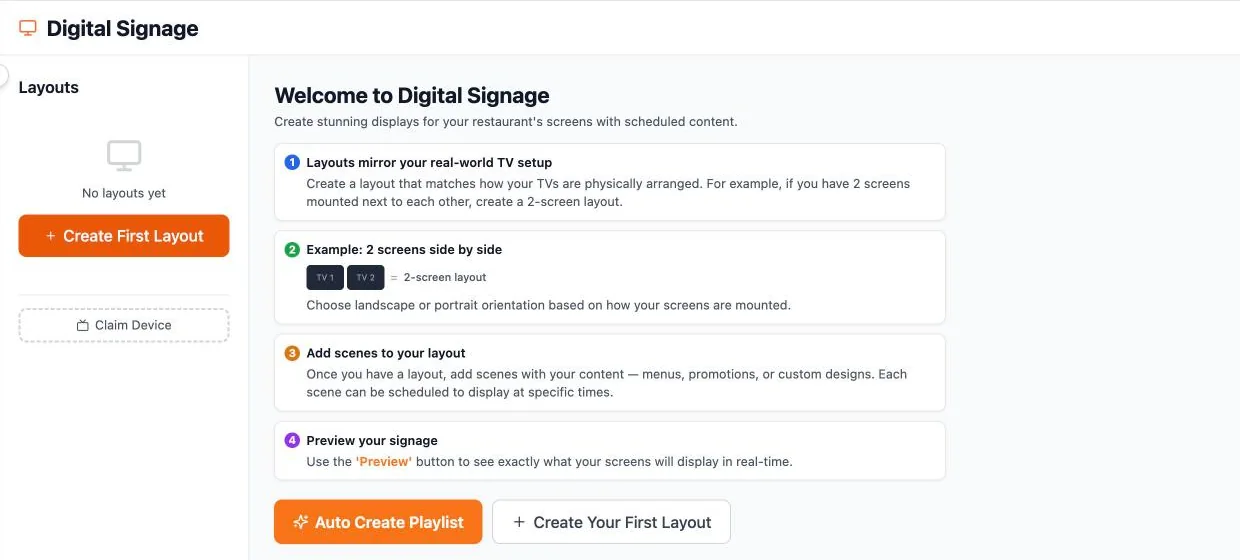
A layout mirrors your real TVs: two screens side by side make a 2-screen layout. Scenes are what plays on them. Add more than one (your menu, a special, an announcement) and the TVs take turns showing each, like a playlist. Click Create First Layout.
Step 4.2
Set up your layout
Pick how many displays, Landscape or Portrait. Name it after where the TVs hang, like “Counter TVs”, and click Continue.
Step 4.3
Pick a template that fits your menu
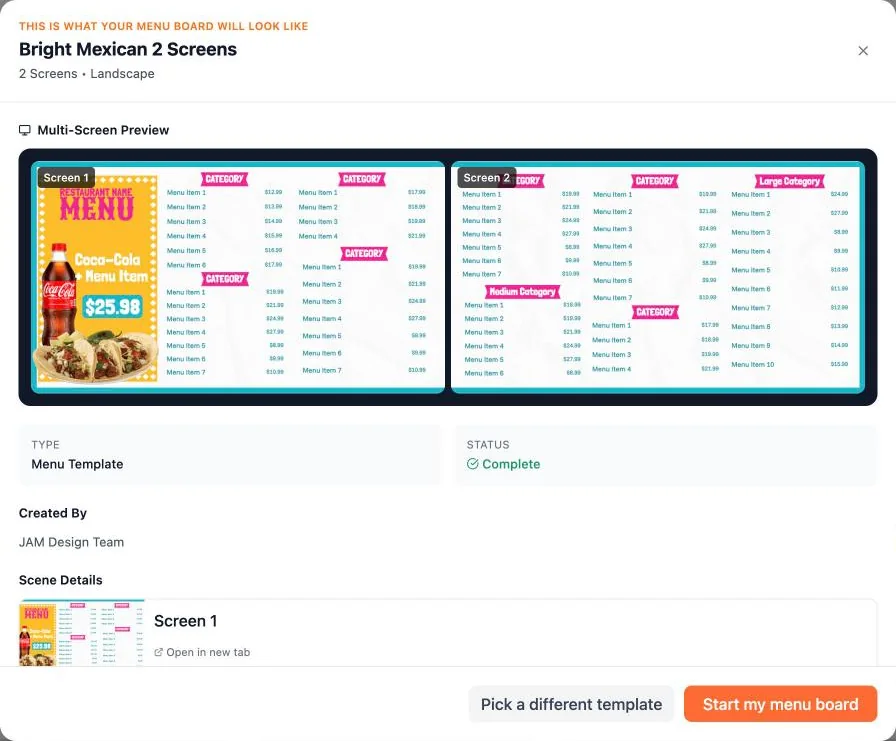
Click Create Your First Scene. Express Design matches templates to your menu (here: 6 categories, 35 items) and marks the best fits Good Match or Excellent Match. Scene Magic and Auto-generate menu scene sit first in the list.
Step 4.4
Preview it
Click a template to see it across all your screens, then Start my menu board.
Step 4.5
Add your categories
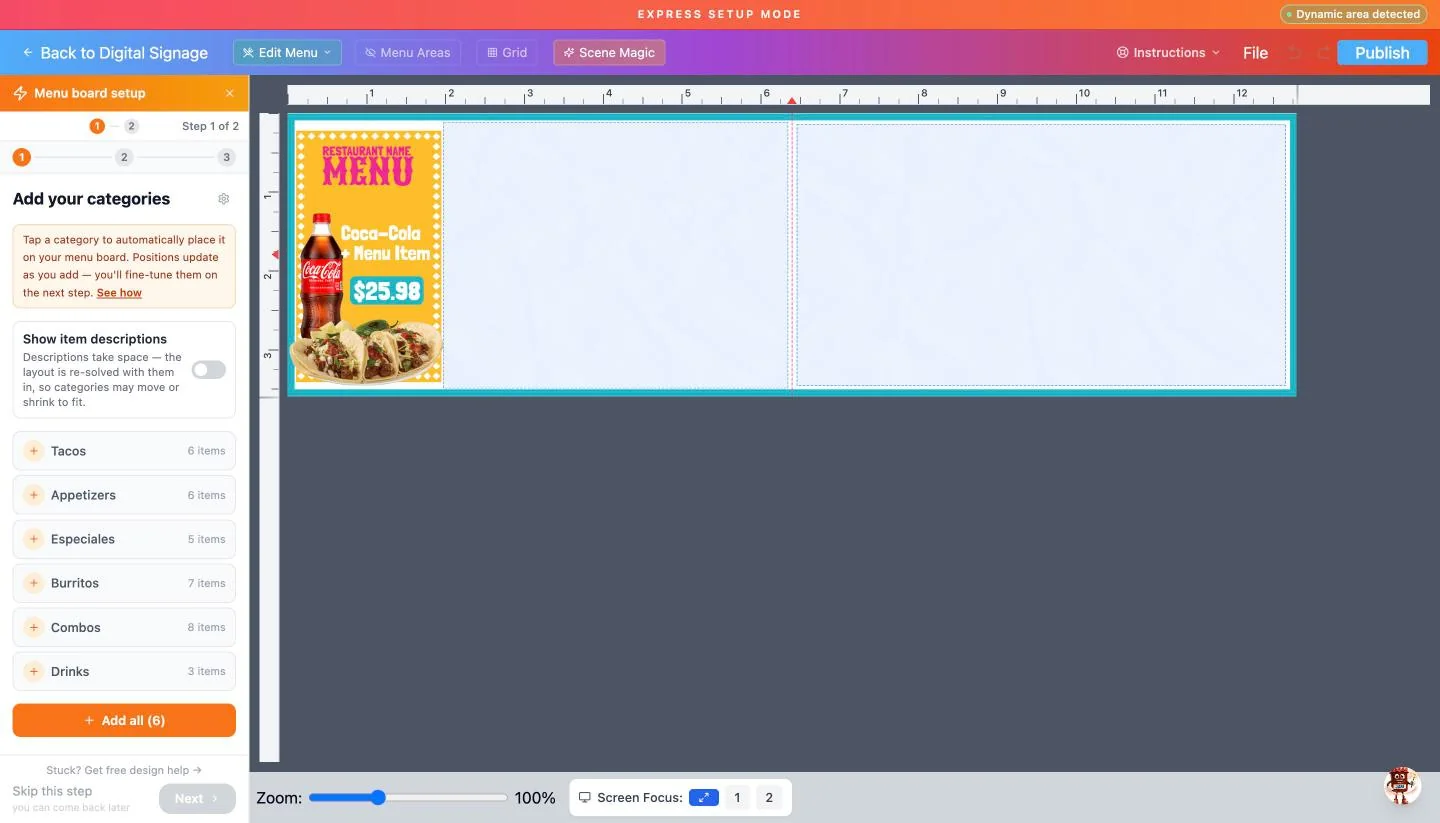
The setup wizard opens in Express Setup Mode. Tap a category to place it on the board, or Add all. Switch on Show item descriptions if you have room.
Step 4.6
Your menu lands on the board
Every category is placed with its live prices. Notice Veggie Tacos: we marked it sold out in Menu Workspace, and the board already says so.
Step 4.7
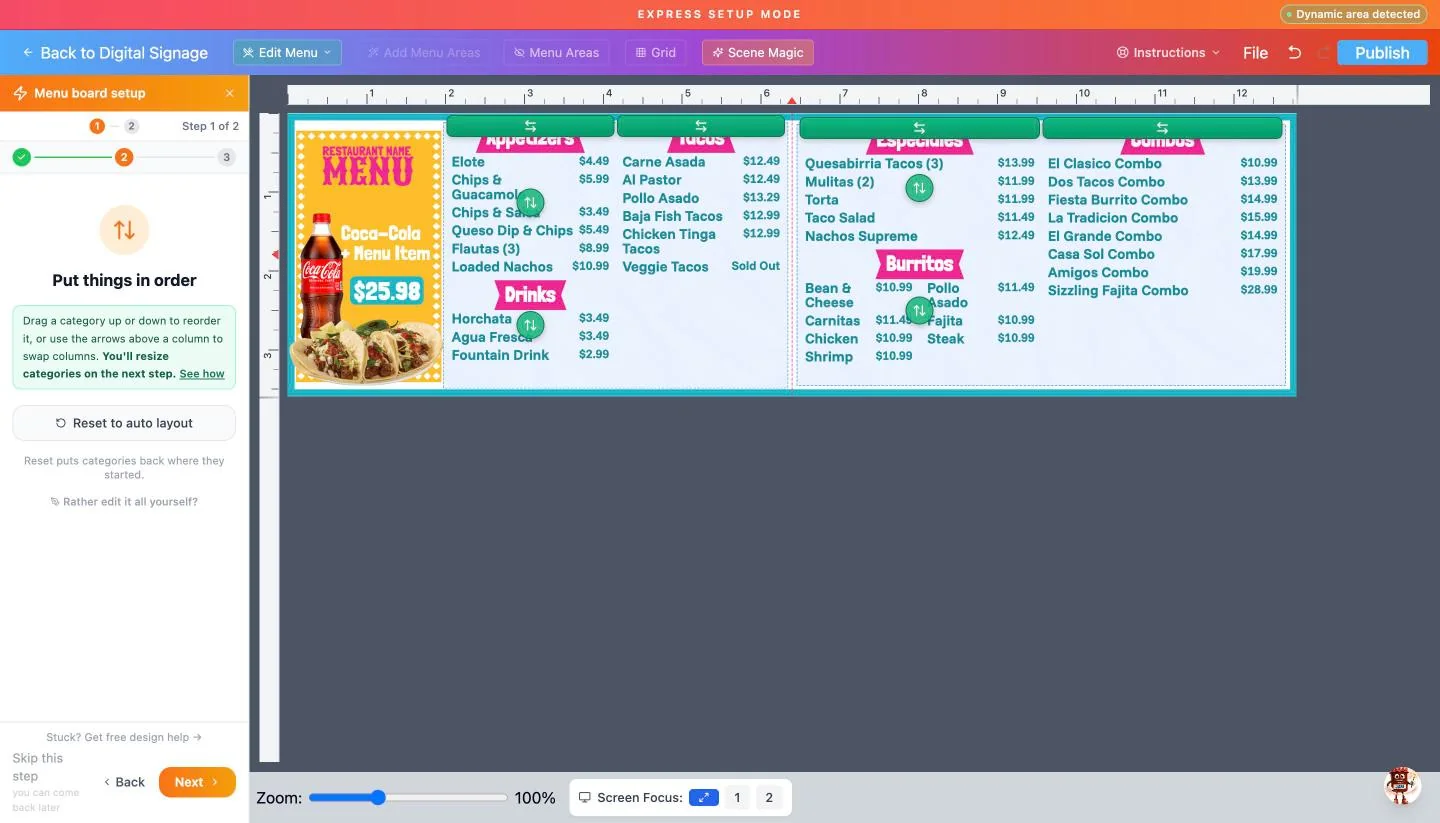
Put things in order
Drag a category up or down, or use the arrows above a column to swap columns. Reset to auto layout puts everything back. Click Next.
Step 4.8
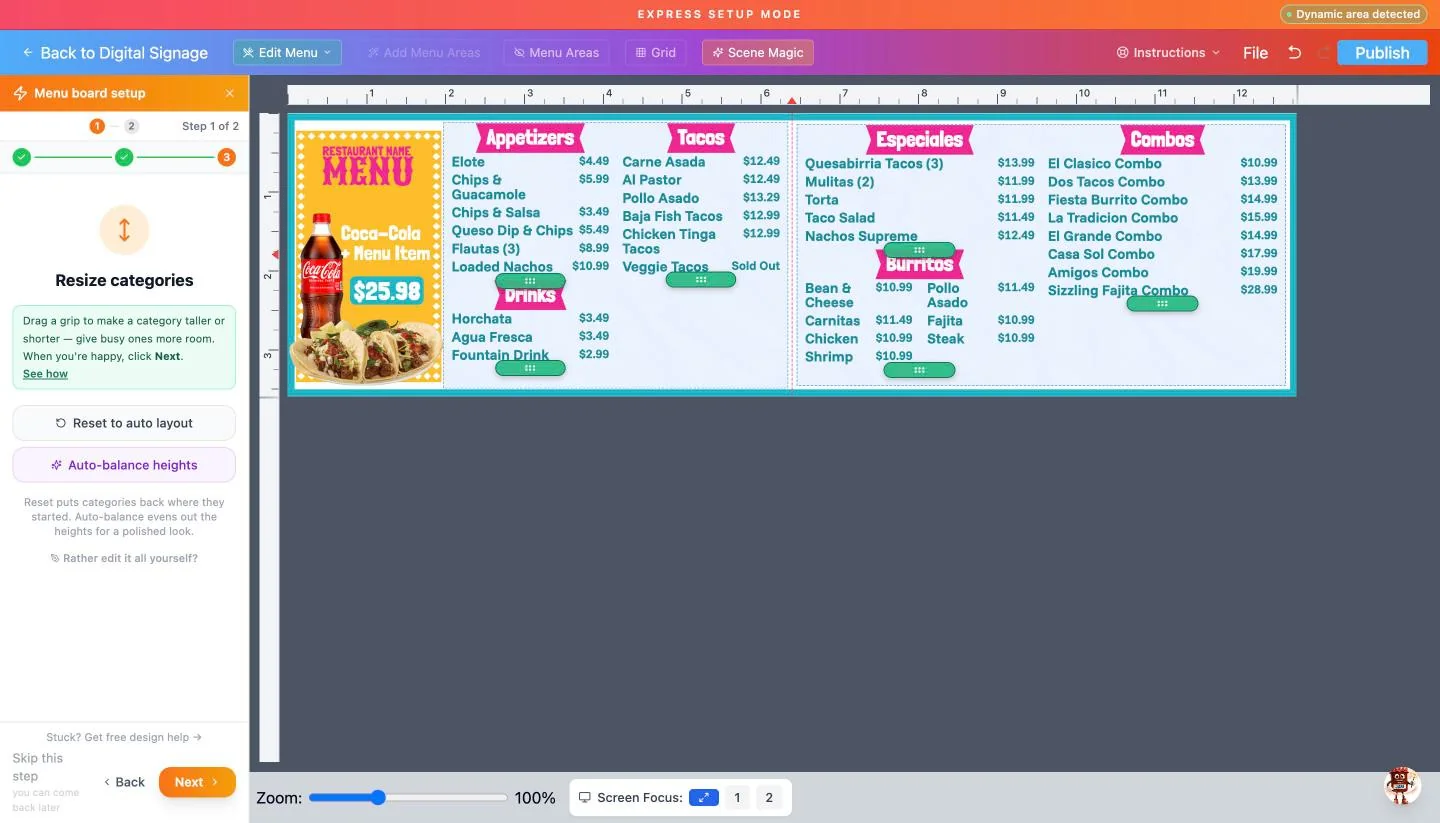
Resize categories
Drag the green grips to give busy categories more room, or click Auto-balance heights for an even look. Click Next.
Step 4.9
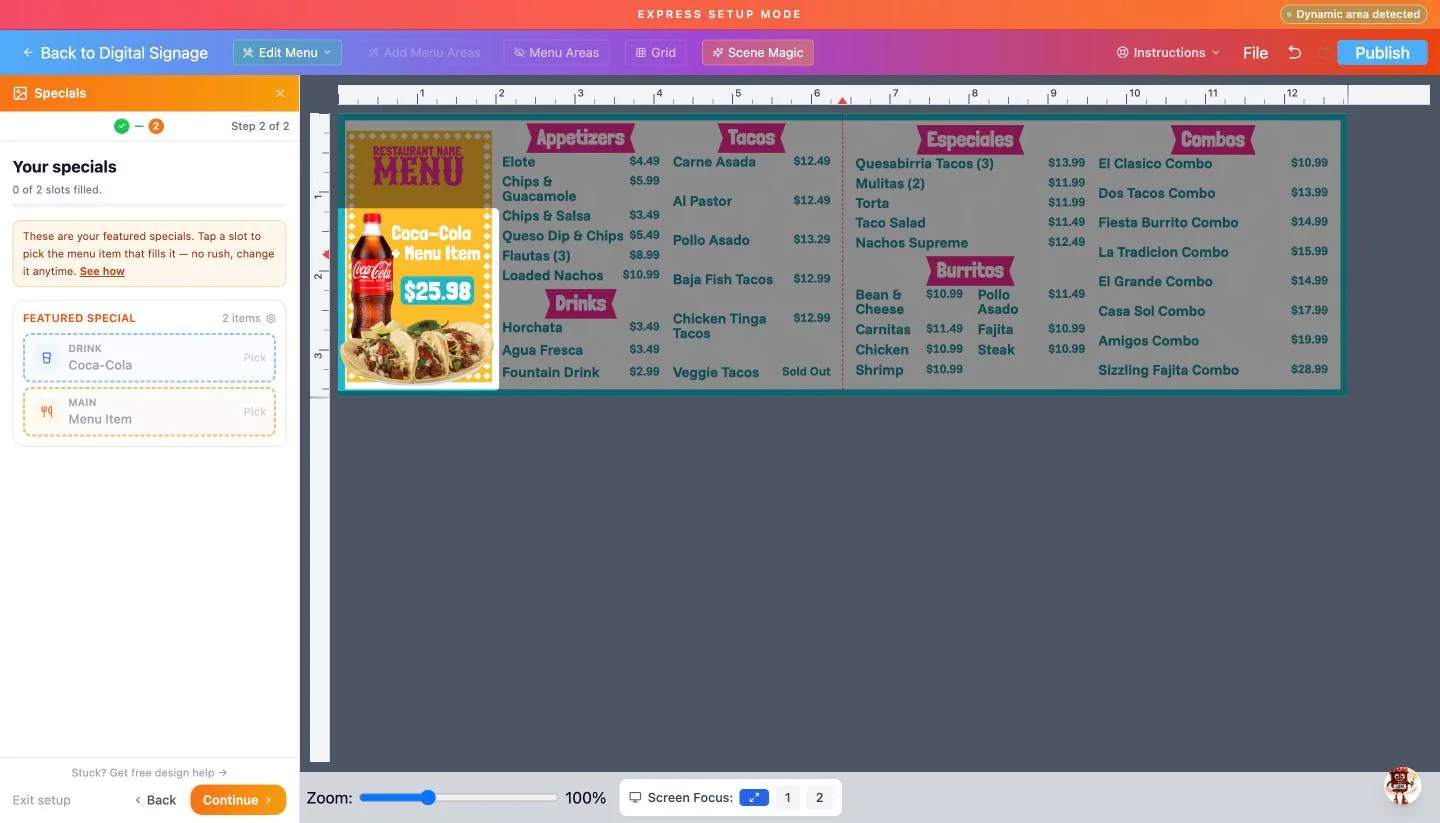
Fill your featured special
Templates with a feature spot ask what to show. Tap each slot (Drink, Main) and pick from your own menu.
Step 4.10
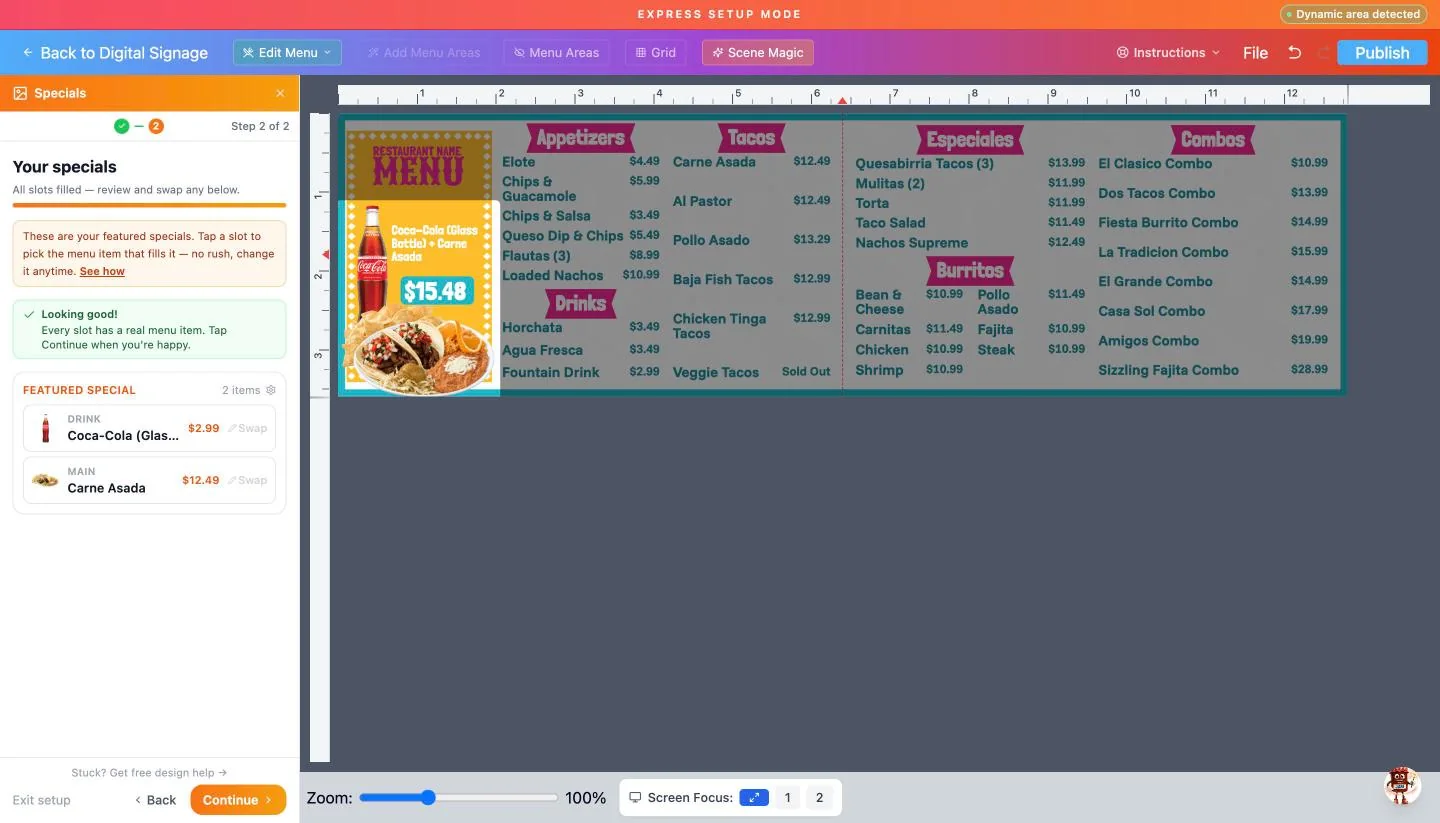
The special builds itself
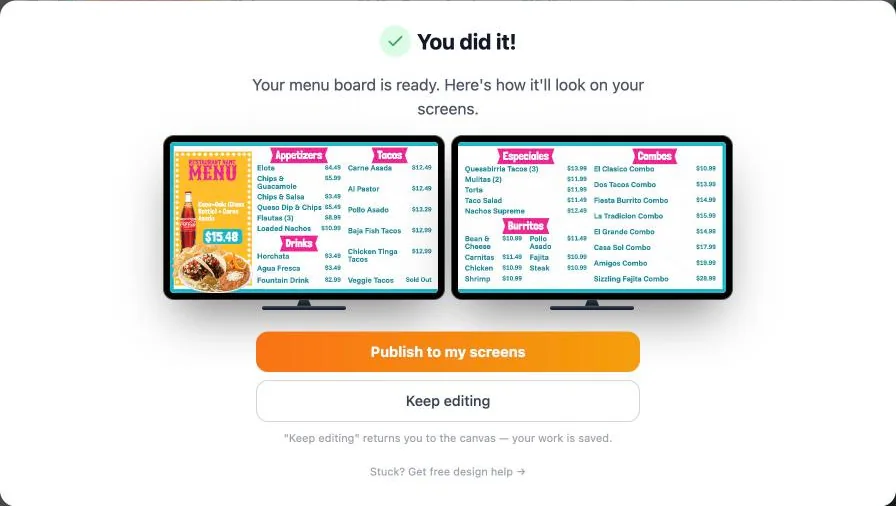
Pick a drink and a dish and the board adds up the combo price ($2.99 + $12.49 = $15.48) and creates the picture for it. Keep working while it finishes.
Step 4.11
You did it
The wizard shows exactly how it will look on your screens. Choose Publish to my screens, or Keep editing to fine-tune first (your work is saved).
Step 4.12
Publish
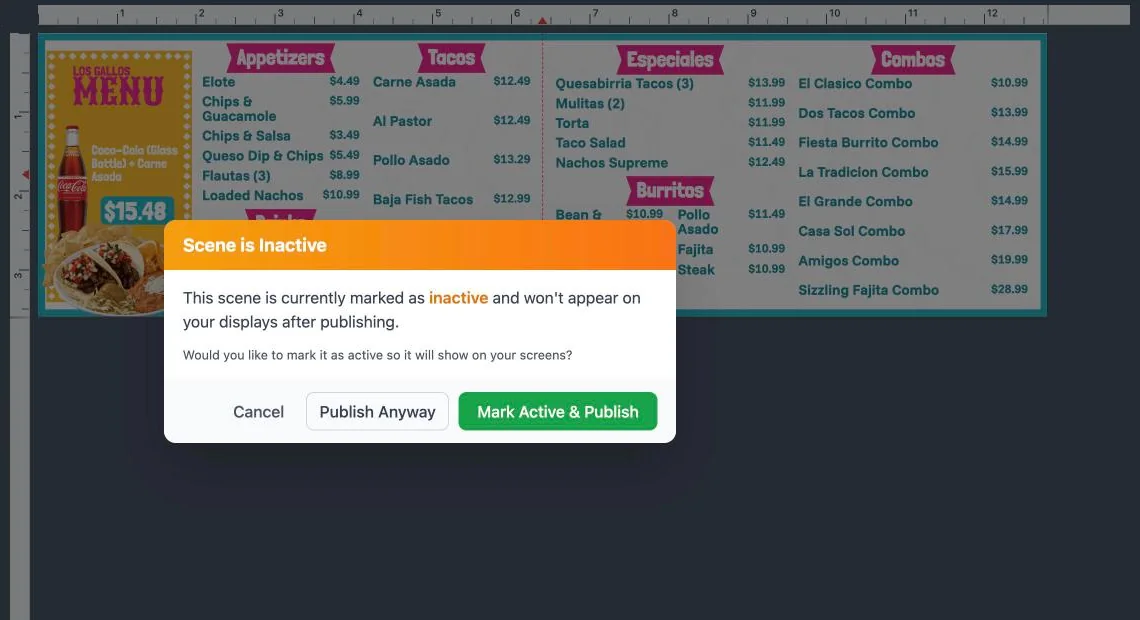
Click Publish at the top right. A new scene starts out inactive, so the app asks: choose Mark Active & Publish to put it on your screens.
Done when Your first scene is published and marked Active.
Mark chapter doneChapter 5 · Change any design
Change any design yourself.
Menu boards, print menus and social posts all open in JAM Canvas. Everyday changes take a click; the full toolkit is there when you want it.
Where Digital Signage → Edit on a scene
How do I get here from my dashboard?
1On your Main Dashboard, find your restaurant’s card and click Manage Outlet.
2In the menu on the left, click Digital Signage.
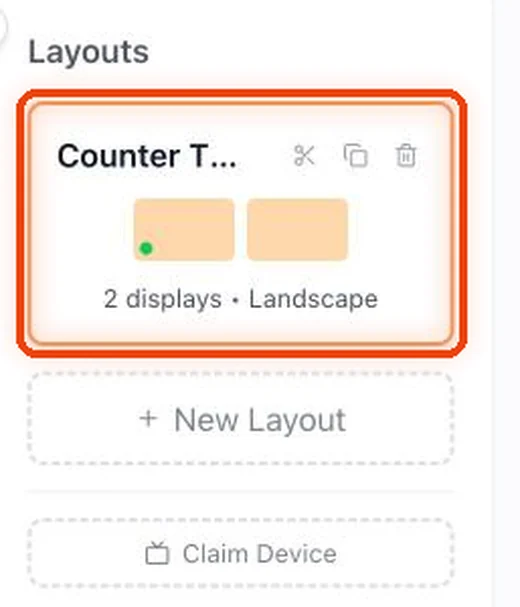
3On the left, click your layout: the group of TVs it plays on, like “Counter TVs”.
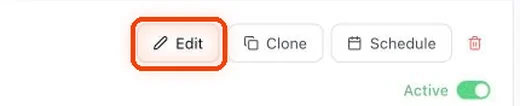
4Find the scene you want to change and click Edit on its row.
Step 5.1
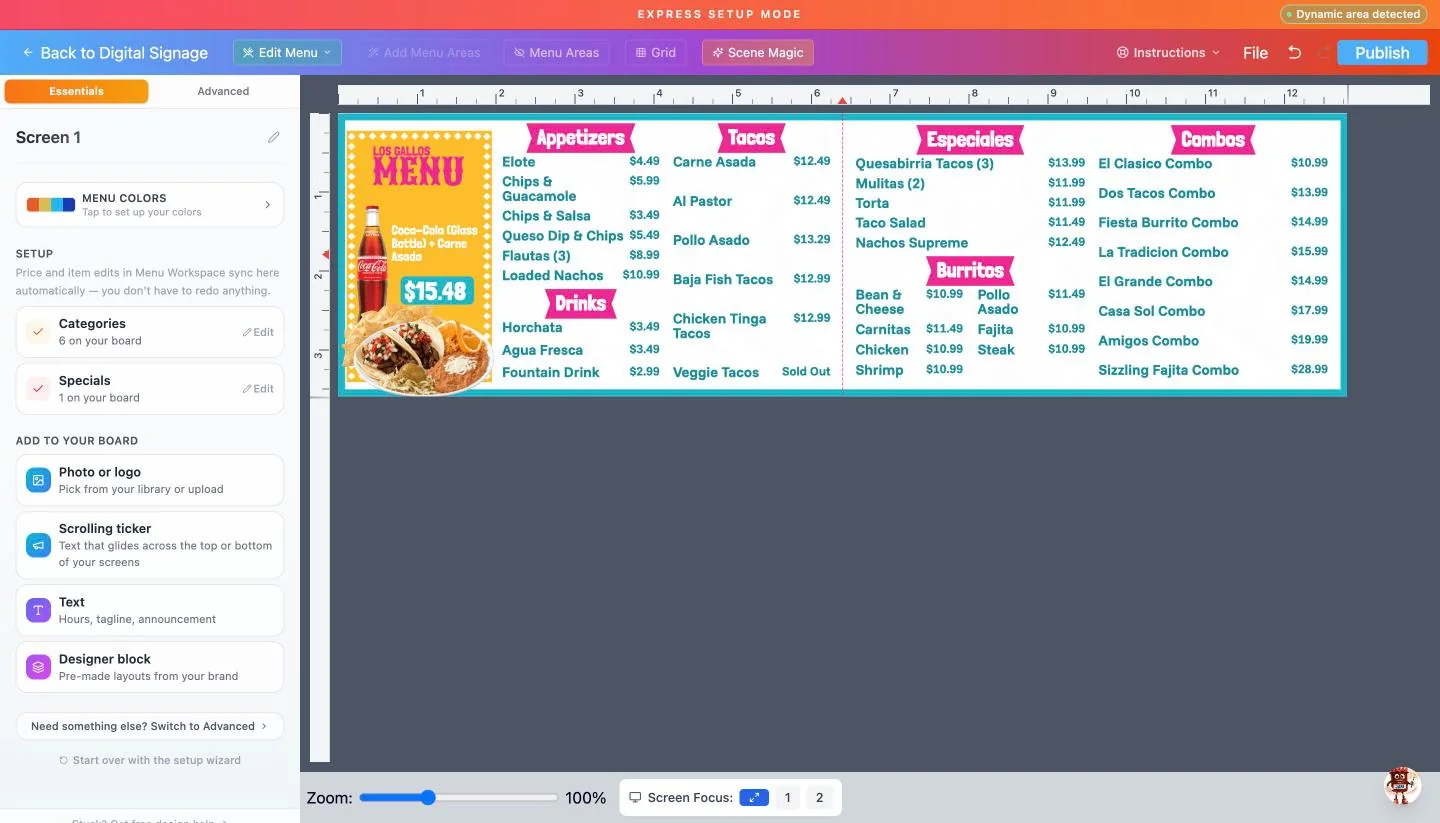
The Essentials view
The left panel shows your Menu Colors, the Categories and Specials on this board (each with Edit), and quick add-ons: Photo or logo, Scrolling ticker, Text and Designer block.
Step 5.2
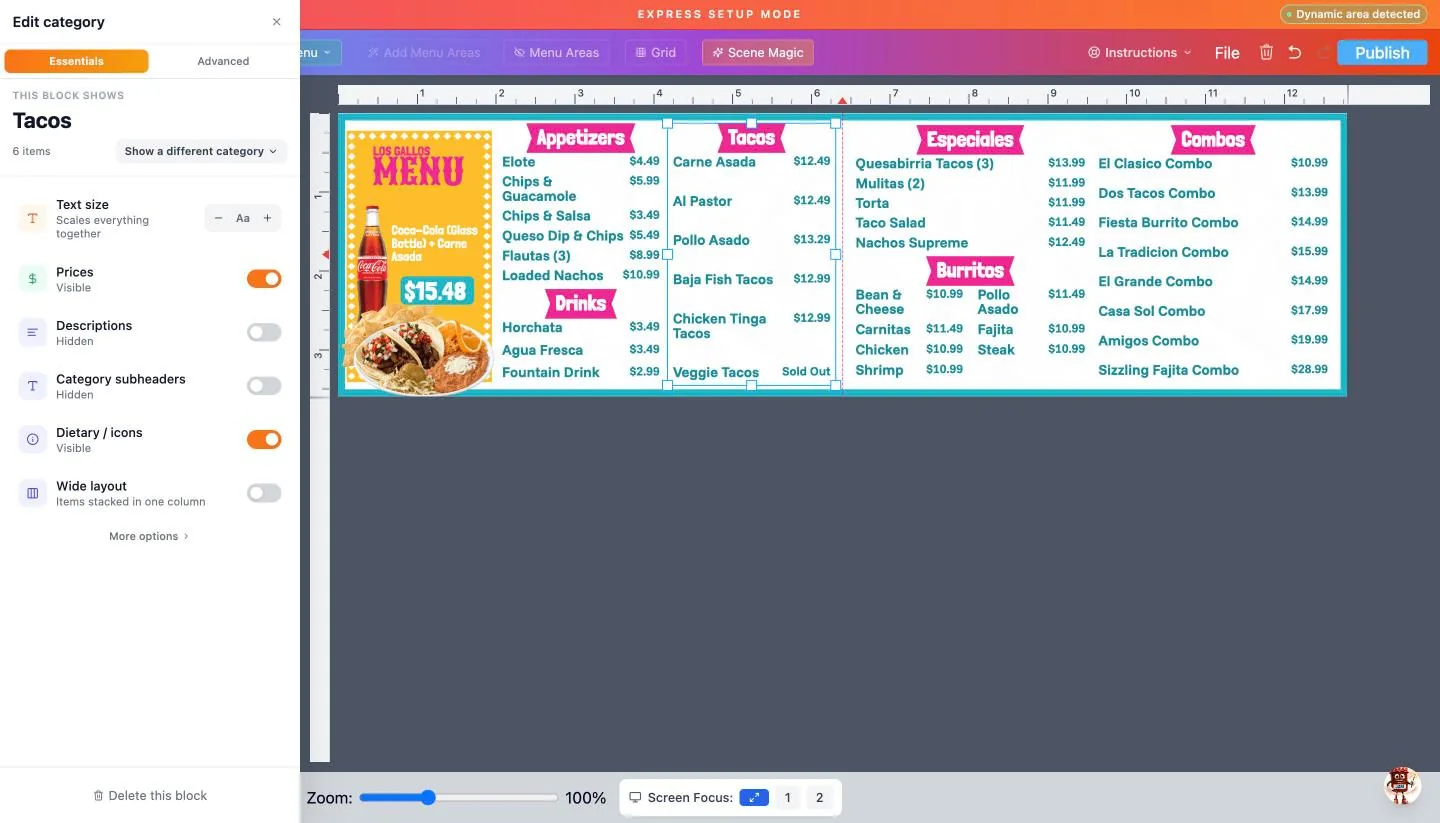
Click a menu block to change it
Click a category on the board. Show a different category, make the text bigger or smaller, and switch prices, descriptions, subheaders, dietary icons or a wide layout on and off.
Step 5.3
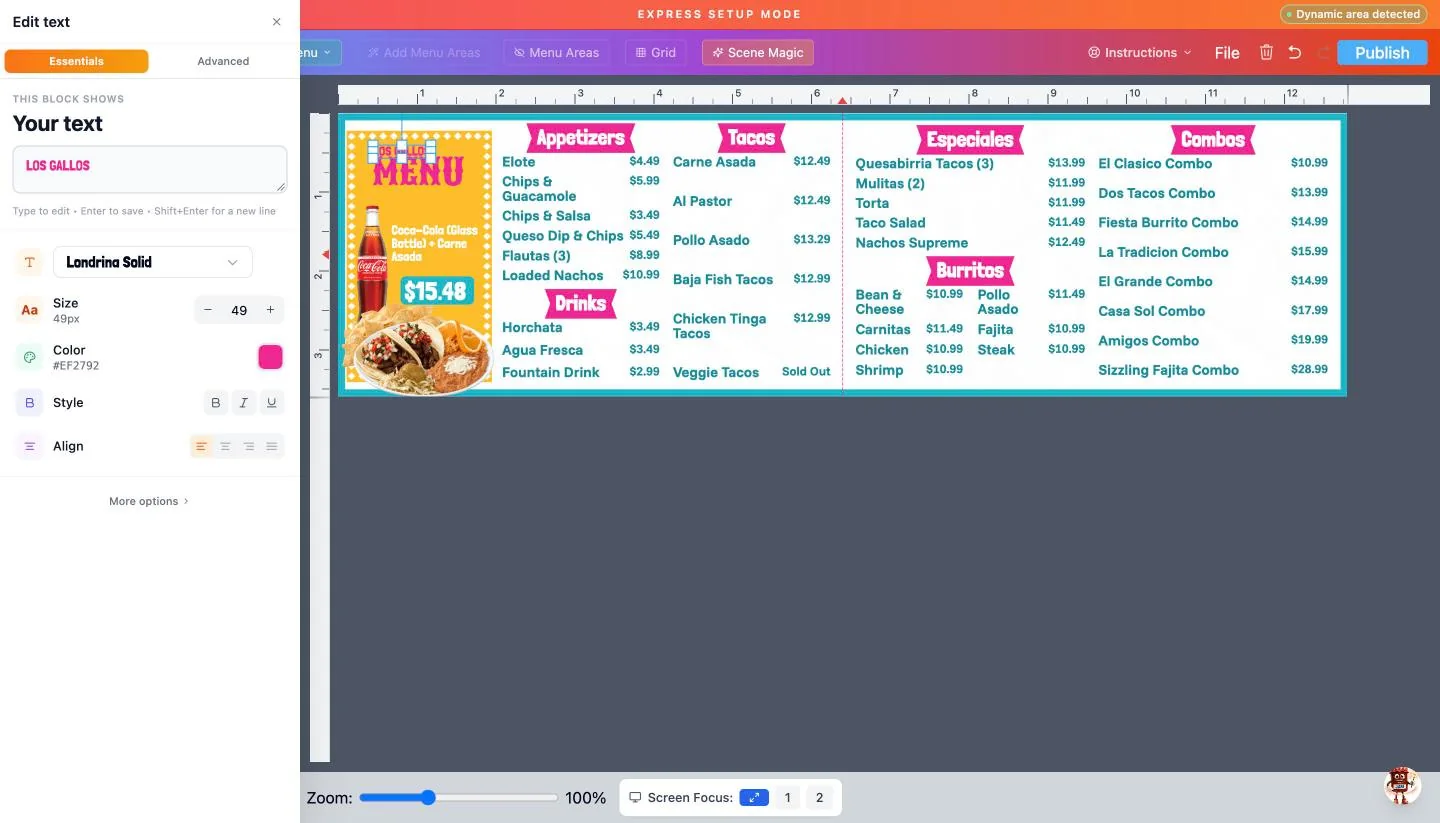
Change any text
Click text on the board, such as the “Restaurant name” header, and type in Your text. Pick the font, size, color, style and alignment. Press Enter to save.
Step 5.4
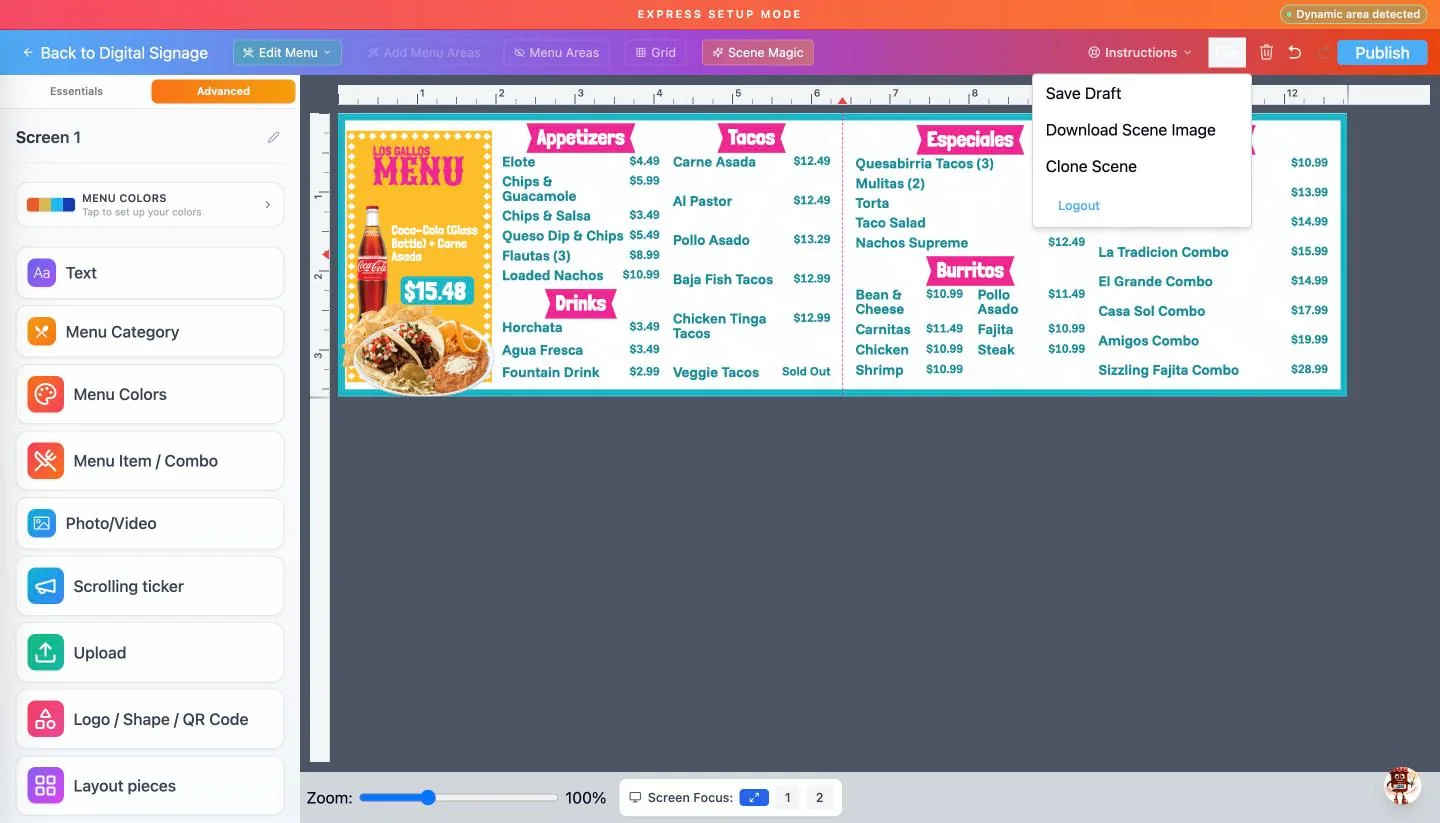
Advanced tools and the File menu
Advanced adds text, menu categories, items and combos, photos and video, uploads, shapes, QR codes and layout pieces. File has Save Draft, Download Scene Image and Clone Scene.
Step 5.5
Fix a price without leaving
Edit Menu opens your menu inside the editor. Change a price or mark something sold out, then click Back to Canvas.
Tip When it looks right, click Publish. Your screens update straight away.
Done when Your board shows your restaurant name and the categories you want.
Mark chapter doneChapter 6 · Specials with Scene Magic
Make a special in about a minute.
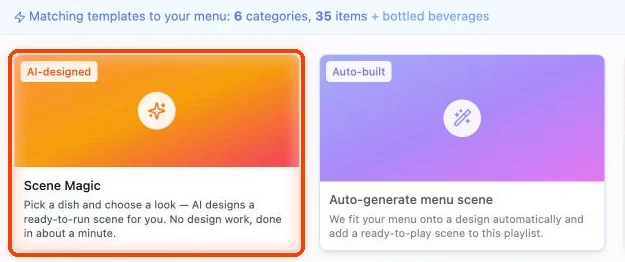
Scene Magic designs a finished slide for one dish, a meal and drink combo, or an announcement. It joins your TV playlist and takes turns with your menu. No design work.
Where Digital Signage → + Scene → Scene Magic
How do I get here from my dashboard?
1On your Main Dashboard, find your restaurant’s card and click Manage Outlet.
2In the menu on the left, click Digital Signage.
3On the left, click your layout: the group of TVs it plays on, like “Counter TVs”.
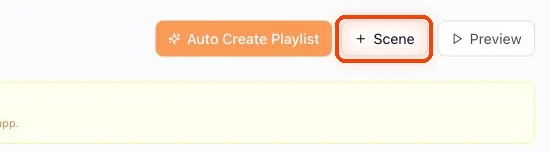
4Click + Scene at the top.
5Click Scene Magic, the first tile in the list.
Step 6.1
Choose the screens
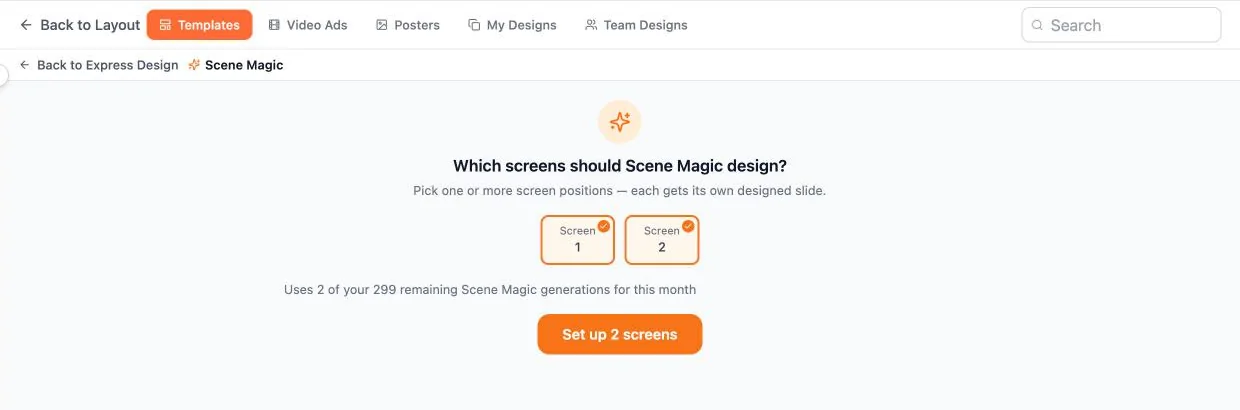
Click + Scene, then Scene Magic. Pick the screens to design; each gets its own slide. The page shows how many Scene Magic slides you have left this month.
Step 6.2
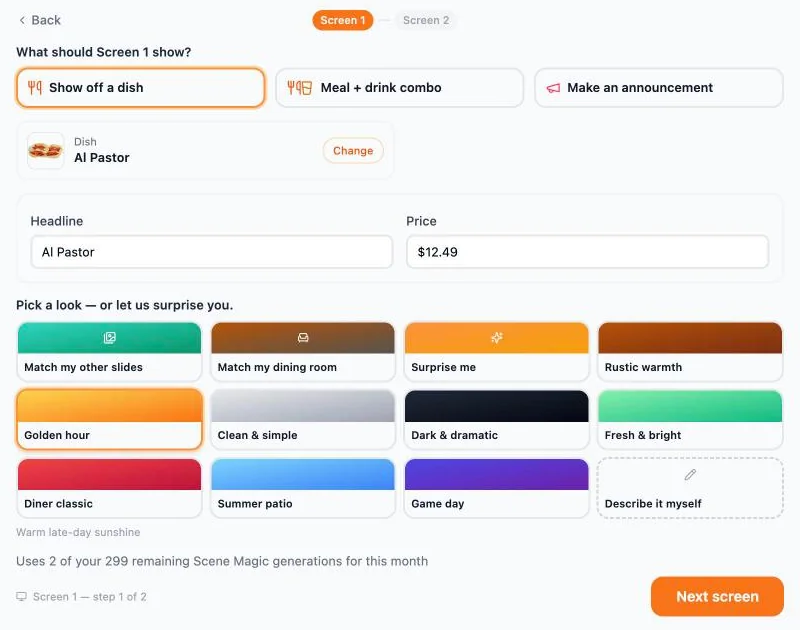
Show off a dish
For each screen choose Show off a dish, Meal + drink combo or Make an announcement. Pick the dish from your menu; the headline and price fill in. Then pick a look, such as Golden hour, or Surprise me.
Step 6.3
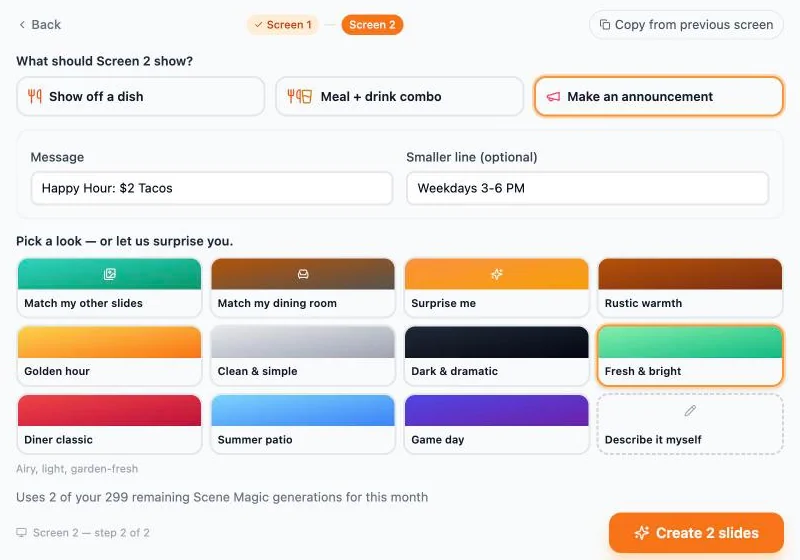
Make an announcement
Type the message and a smaller line, for example “Happy Hour: $2 Tacos” and “Weekdays 3-6 PM”, and pick a look. Copy from previous screen reuses your choices. Click Create 2 slides.
Step 6.4
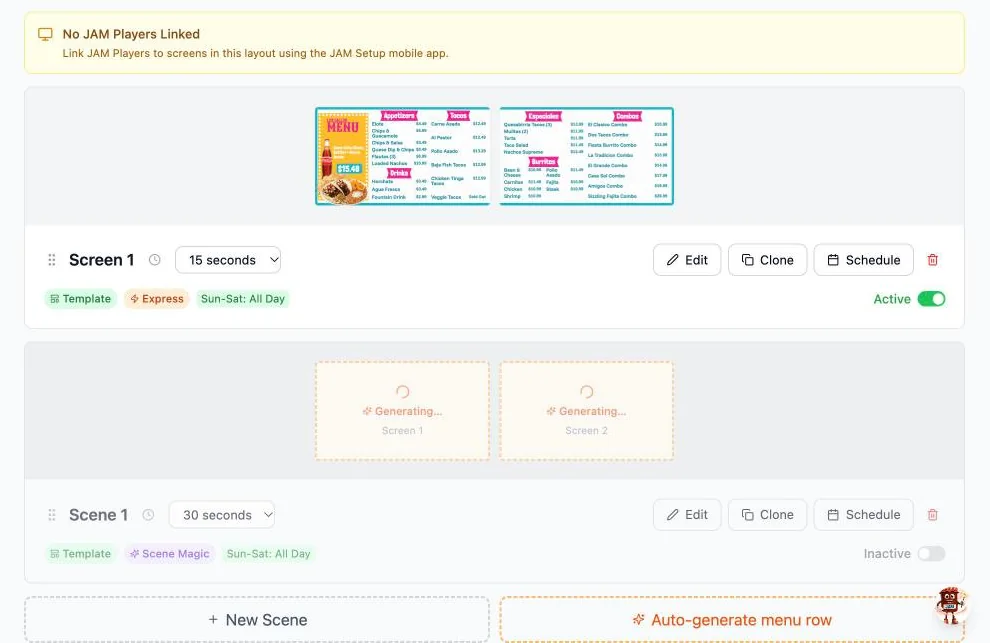
It designs while you work
The new scene appears in your playlist with Generating… on each screen. It takes about a minute, and you can carry on with anything else.
Step 6.5
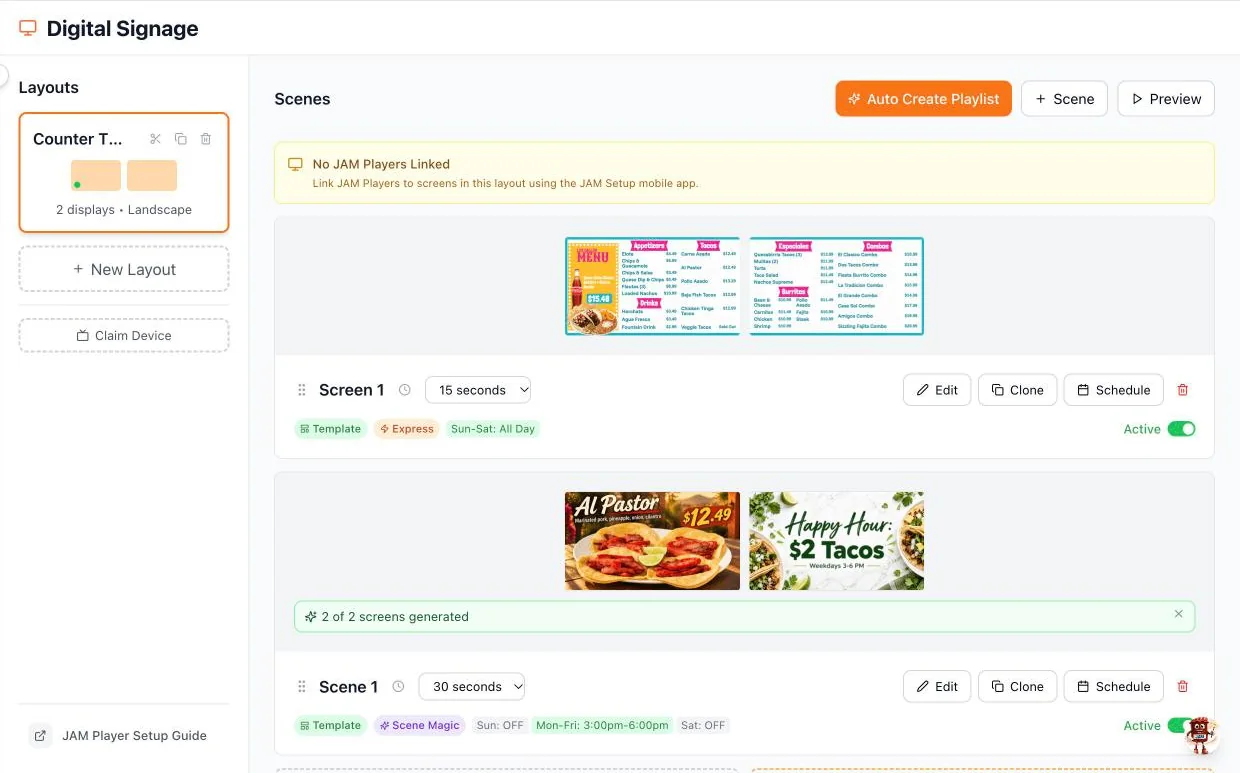
Your finished special
Both slides are ready, in their own scene, after your menu board. Your TVs now take turns: the menu board plays for its time (15 seconds here), then the special (30 seconds), then the menu again, on a loop. Change a scene’s time with the seconds menu next to it (5 to 60 seconds), and drag its handle to change the order. To show the special only while the deal is on, schedule it (next chapter).
Step 6.6
Or from inside the editor
Scene Magic is also in the editor’s toolbar. There it puts the new slide on the screen you choose in the scene you’re editing, so save or publish to keep it, or leave without saving to undo.
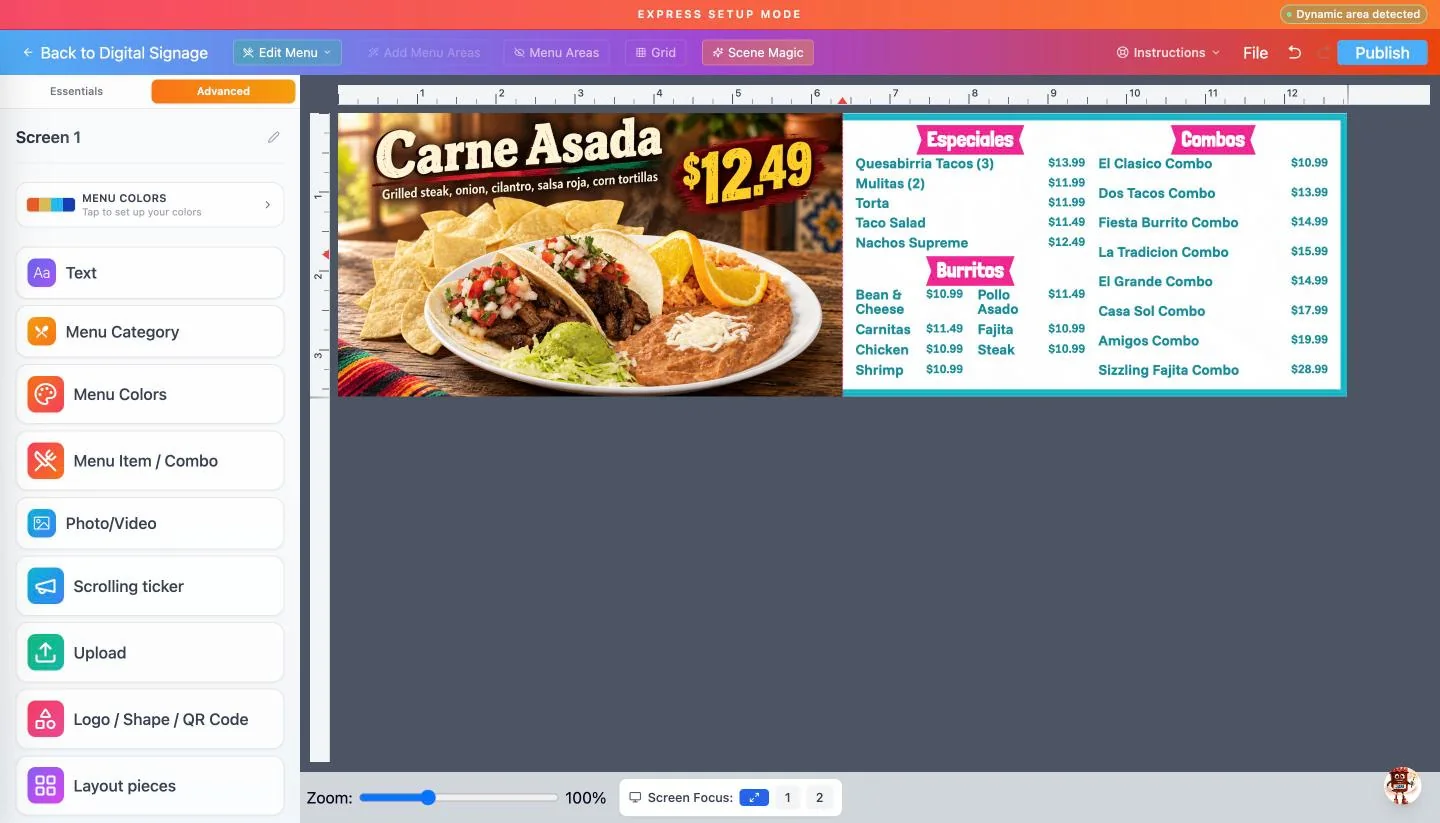
Done when A Scene Magic scene sits in your playlist.
Mark chapter doneChapter 7 · Schedule and preview
Schedule breakfast, lunch and happy hour.
Each scene can play on chosen days and hours. Preview shows exactly what plays when.
Where Digital Signage → Schedule on a scene
How do I get here from my dashboard?
1On your Main Dashboard, find your restaurant’s card and click Manage Outlet.
2In the menu on the left, click Digital Signage.
3On the left, click your layout: the group of TVs it plays on, like “Counter TVs”.
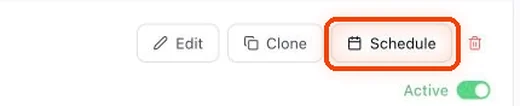
4Find the scene and click Schedule on its row.
Step 7.1
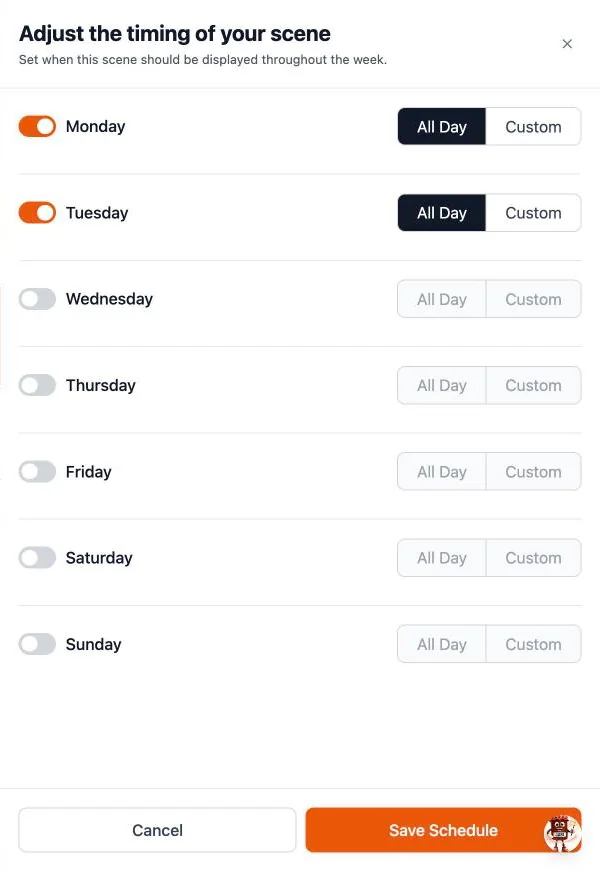
Choose the days
Click Schedule on a scene. Switch each day on or off, then choose All Day or Custom.
Step 7.2
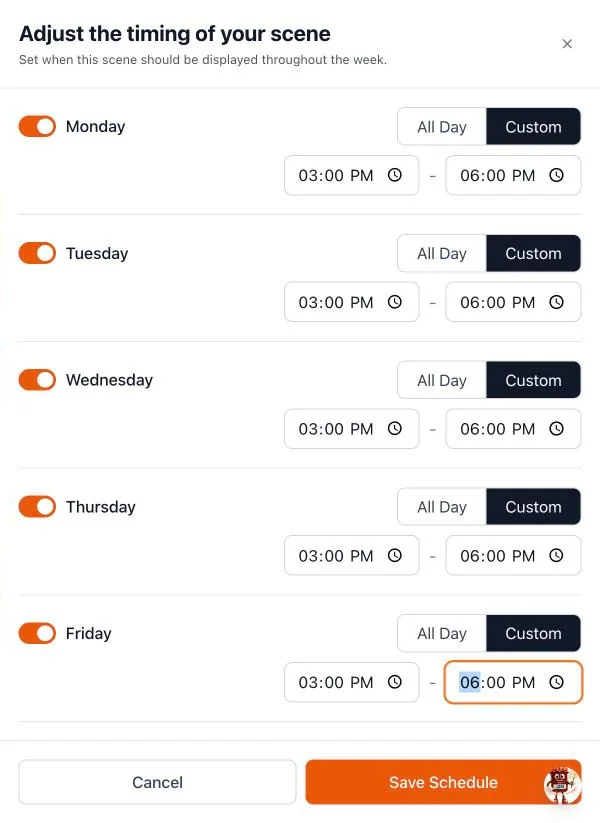
Set the hours
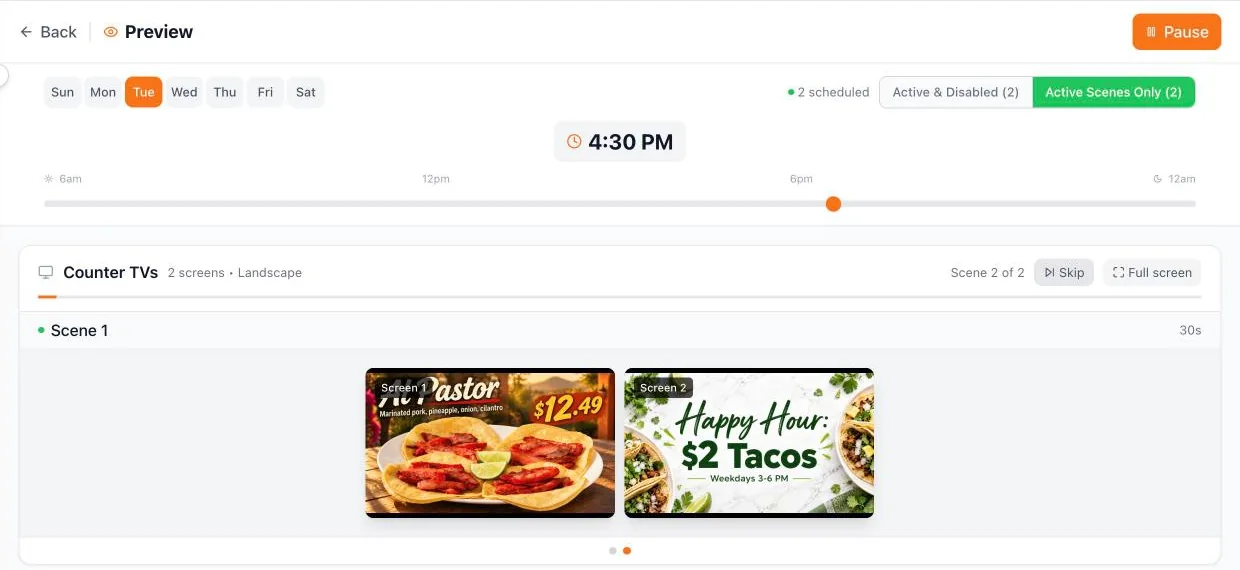
With Custom, set a start and end time. Our happy hour plays Monday to Friday, 3:00 to 6:00 PM. Click Save Schedule; the scene’s tags now read “Mon-Fri: 3:00pm-6:00pm”.
Step 7.3
Check it in Preview
Click Preview. Pick a day and drag the time: at 4:30 PM on a Tuesday both scenes play, the menu board and then the special. Skip jumps ahead and Full screen shows it TV-size.
Done when Preview shows the right scene at the right time.
Mark chapter doneChapter 8 · Connect your JAM Player
Connect your JAM Player.
Changed your Wi-Fi? Need help reconnecting? Go to step 8.11 →
A JAM Player is the small box that plugs into your TV. Set it up once with the JAM Setup app on your phone and it plays your layout from then on, updating by itself. Each TV gets its own player.
Did Getting started? Your TV is already connected. This chapter shows the JAM Setup app way, step by step. Skip to Chapter 9 →
Where The JAM Setup app on your phone (download it at setup.justamenu.com)
Step 8.1
Plug it in
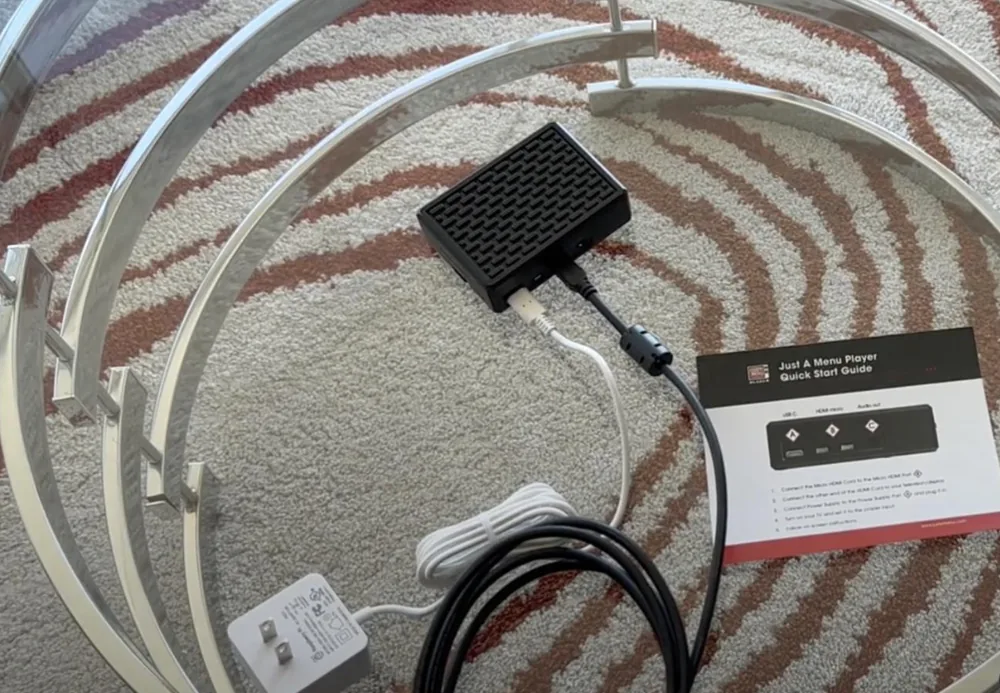
Connect the JAM Player to the TV with the HDMI cable, then plug the player into power. Turn the TV on and press Input or Source on the remote until you see the JAM Player’s setup screen.
Step 8.2
Get the app and sign in
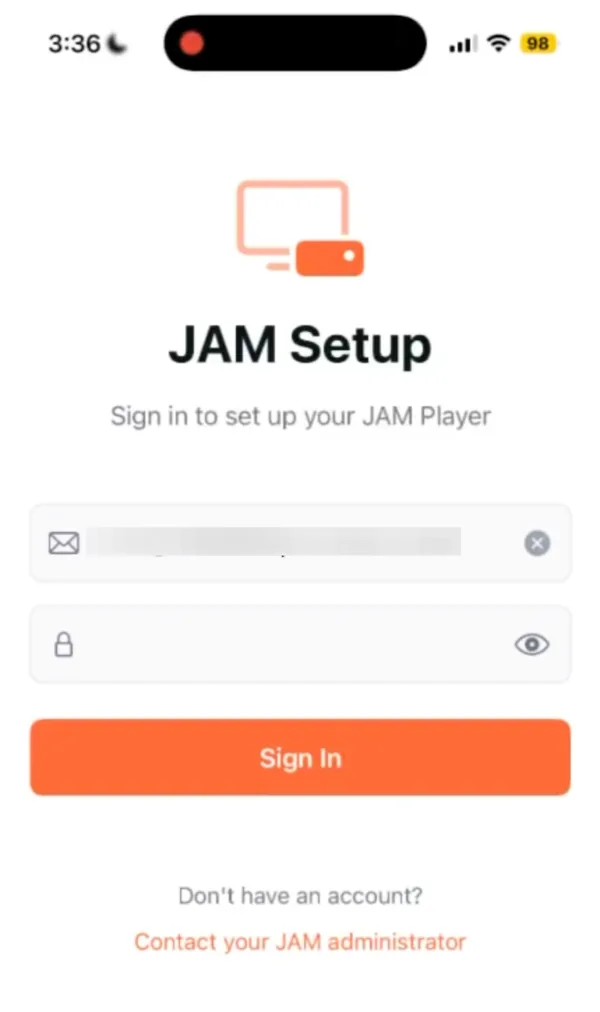
On your phone, go to setup.justamenu.com and download JAM Setup from the App Store or Google Play. Sign in with the same email and password you use for Just a Menu, and tap Sign In. On Android, tap Grant Permission so the app can use Bluetooth.
Step 8.3
Start setup and pick your restaurant
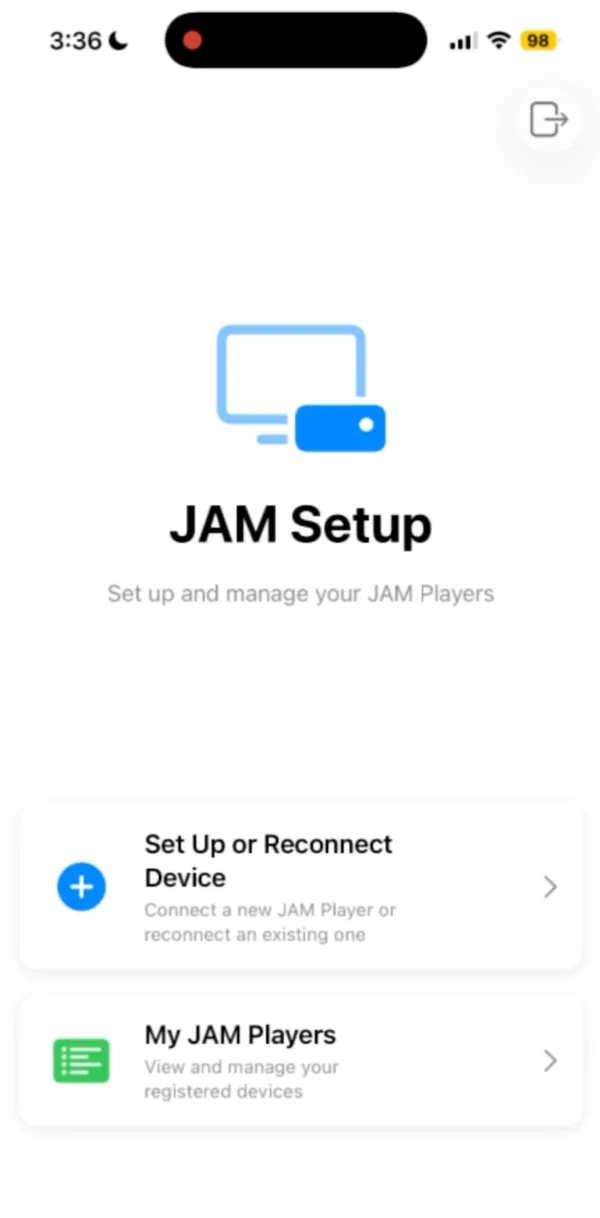
Tap Set Up or Reconnect Device, then tap the restaurant this TV is in. Run a lot of locations? Use the search box or the brand filter.
Step 8.4
Find your player
Stand within 2 feet of the JAM Player (first-time setup uses Bluetooth, which only works up close) and tap I’m within 2 feet. The app scans for players nearby. Tap yours: it’s named JAM-PLAYER and a short code.
Tip Nothing found? Check the TV shows the setup screen and tap Scan Again. If the app says “One quick fix needed”, your phone remembers an old pairing: forget the JAM Player in your phone’s Bluetooth settings, then tap Retry.
Step 8.5
Connect it to your Wi-Fi
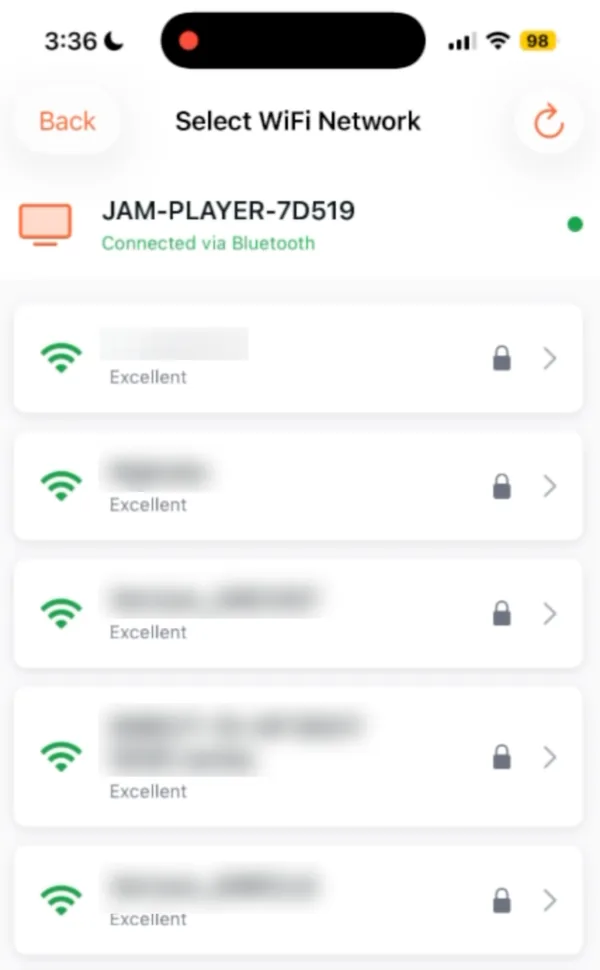
Pick your restaurant’s Wi-Fi network, type its password and tap Connect. If the network has no password, switch on This network has no password.
Tip Use your business network, not a guest network that needs a sign-in page. If your Wi-Fi name or password ever changes, you’ll need to reconnect each player: see step 11.
Step 8.6
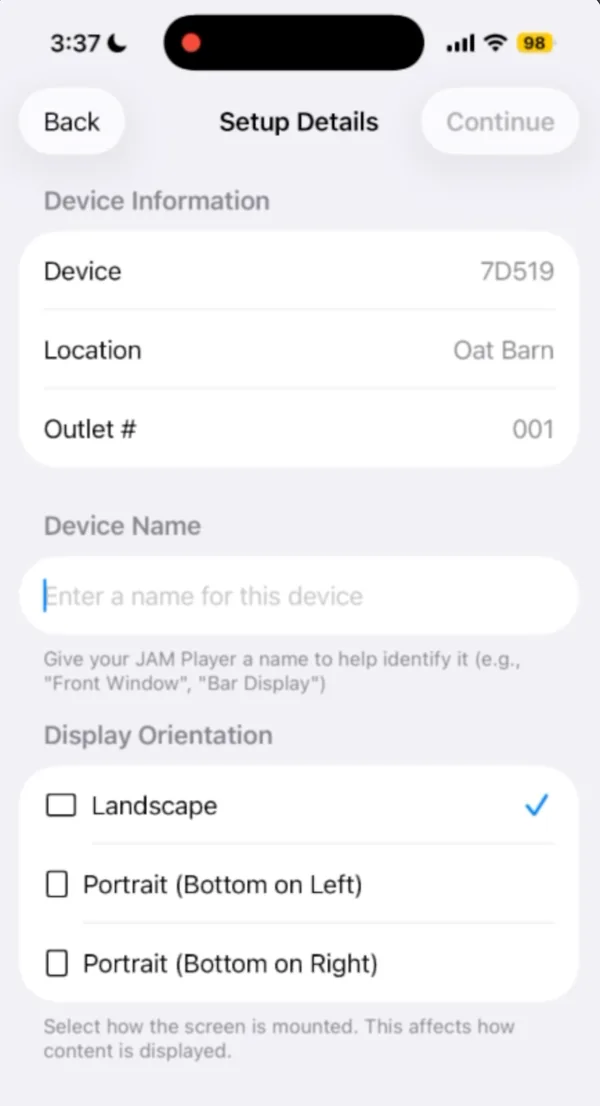
Name it and say which way the TV hangs
Give the player a name you’ll recognize, like “Bar TV” or “Front Window”. Under Display Orientation choose Landscape, Portrait (Bottom on Left) or Portrait (Bottom on Right) to match how the TV is mounted. Tap Continue.
Step 8.7
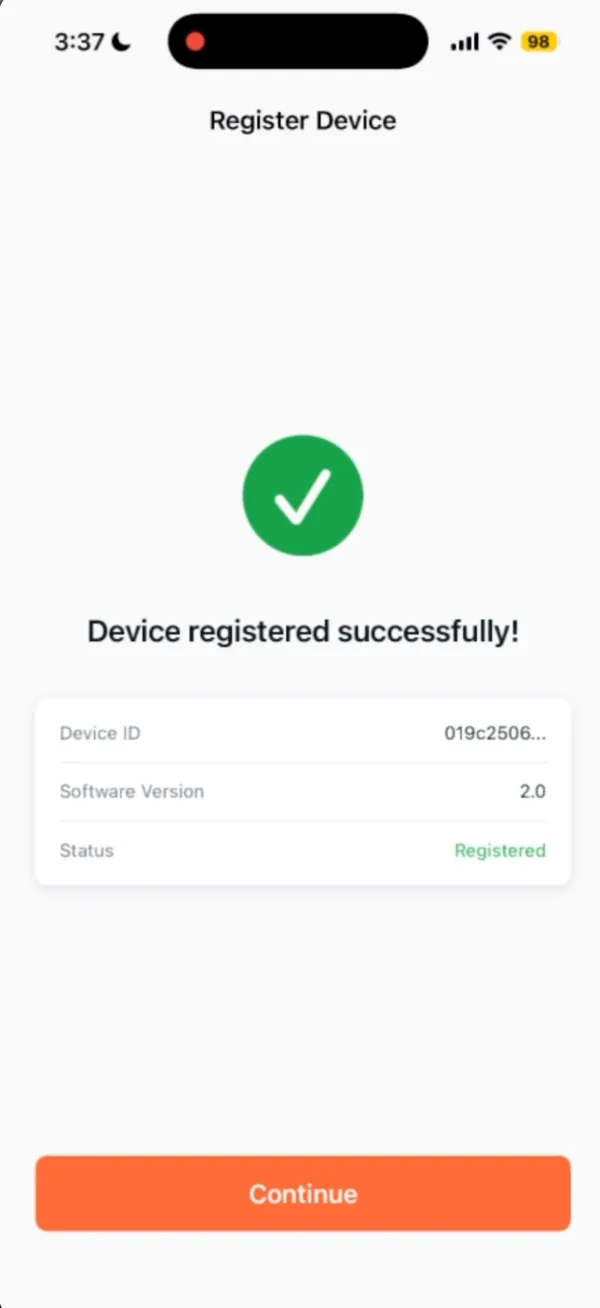
Let it register
The app registers the player with your account. When you see Device registered successfully!, tap Continue.
Tip If it can’t reach our servers, check the Wi-Fi and tap Try Again.
Step 8.8
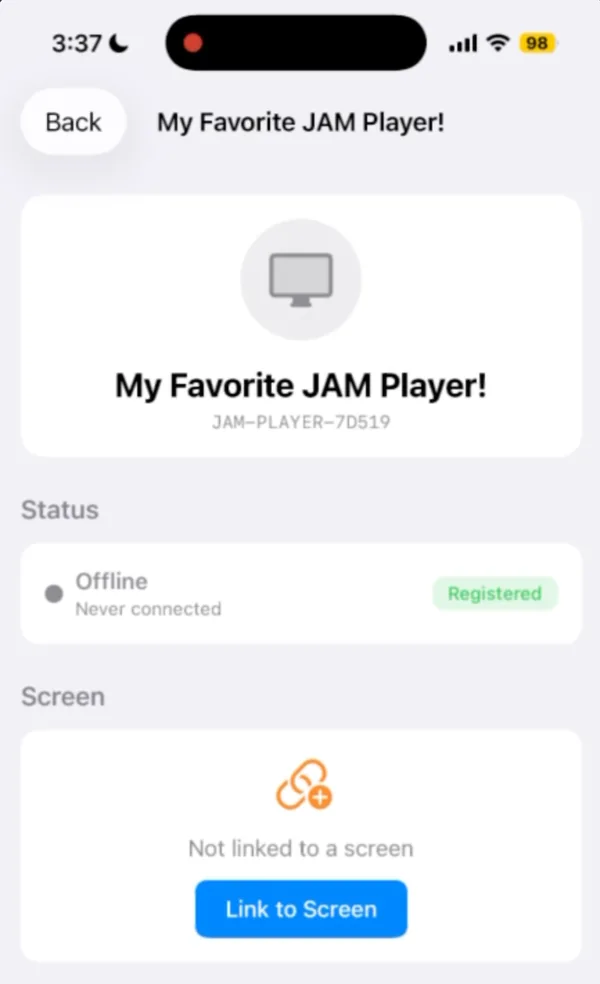
Link it to a screen
On the player’s page, tap Link to Screen.
Step 8.9
Choose the layout
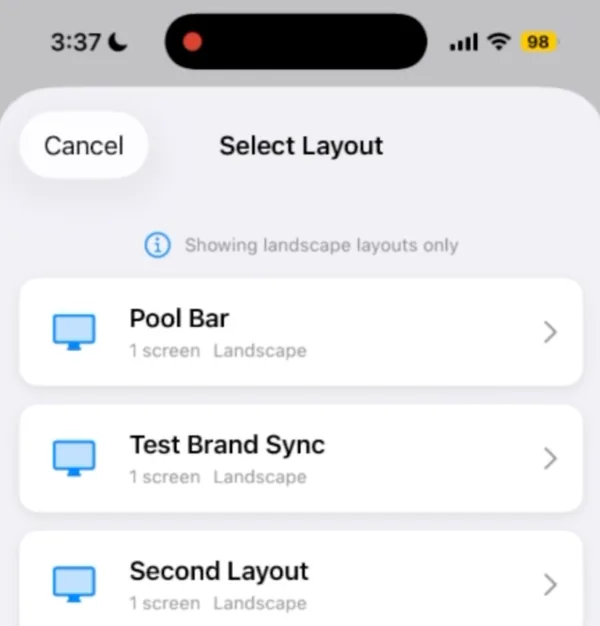
Tap the layout this TV belongs to. You only see layouts that face the same way as the TV. Don’t see any? Create a layout in Digital Signage first.
Step 8.10
Choose the screen, and you’re done
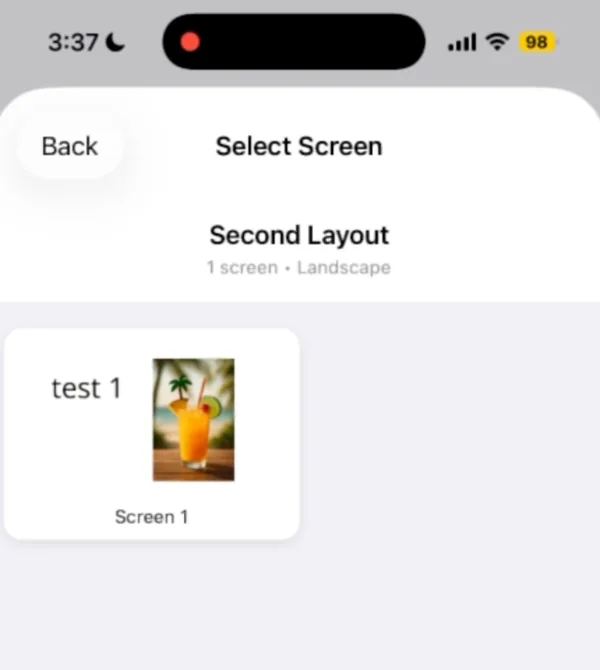
Tap the screen this TV shows (Screen 1, Screen 2…), then tap the Link to… button. Your menu appears on the TV. Setting up a second TV? Tap Set Up Another Device; otherwise tap Done.
Tip Two TVs side by side? Each one has its own player: link one to Screen 1 and the other to Screen 2.
Step 8.11
Changed your Wi-Fi? Reconnect your player
A JAM Player only knows the Wi-Fi it was set up on. If you change your network name or password, or get a new internet provider or router, your TVs stop getting your menu changes. Stand within 2 feet of each player, open JAM Setup, tap Set Up or Reconnect Device, pick your restaurant and your player, then choose the new network and type its password (steps 3 to 5). It remembers its name and screen, so that’s all.
Tip Changing your Wi-Fi soon? Plan a few minutes per TV to reconnect each JAM Player right after the switch.
Step 8.12
LG Professional monitors only: use the code on the screen
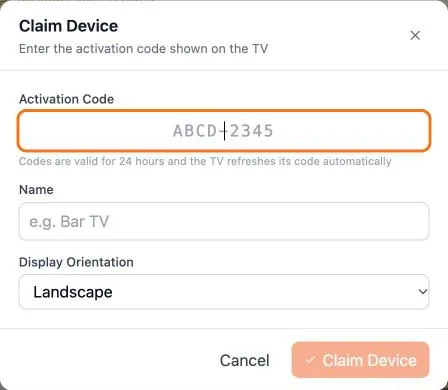
Skip this unless your screens are LG Professional monitors running the JAM Player app, with no JAM Player box. Those monitors show an activation code. In Digital Signage, click Claim Device, type the code, name the TV, choose landscape or portrait and click Claim Device.
Tip Codes last 24 hours, and the monitor shows a fresh one by itself.
Done when Your TV shows your menu board.
Mark chapter doneChapter 9 · Your QR menu
Turn on your QR menu.
Guests scan one code and see your menu on their phone, with the same items, prices and sold-out marks as your TVs. The code never changes, so print it once.
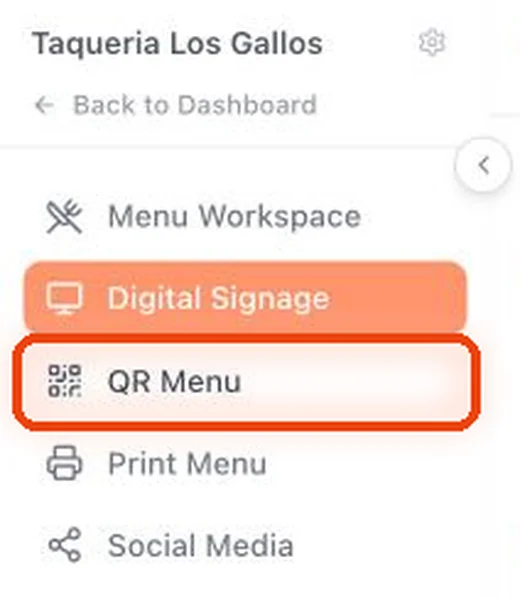
Where Sidebar → QR Menu
How do I get here from my dashboard?
1On your Main Dashboard, find your restaurant’s card and click Manage Outlet.
2In the menu on the left, click QR Menu.
Step 9.1
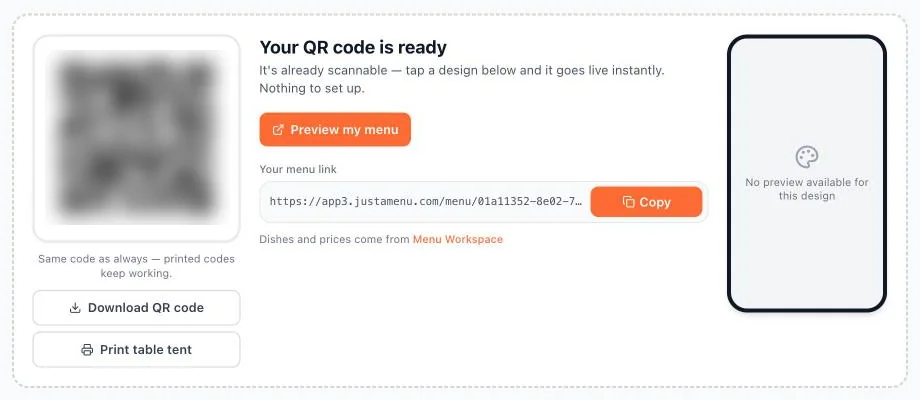
Your QR code is ready
Every restaurant gets its code straight away. It already scans; all that’s left is choosing how the menu looks.
Step 9.2
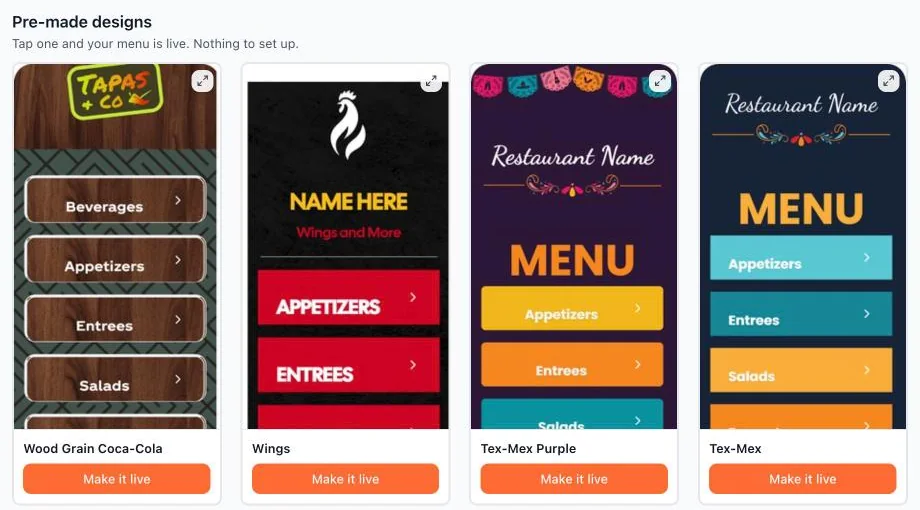
Pick a design
Scroll to Pre-made designs and click Make it live. The magnifier on a card shows the full design first.
Step 9.3
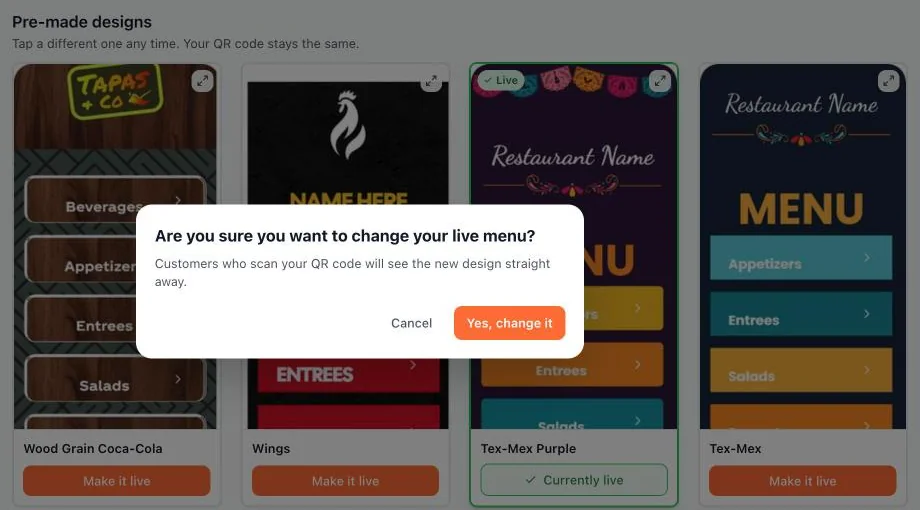
Confirm the change
Changing a live menu asks first, because guests who scan will see the new design straight away.
Step 9.4
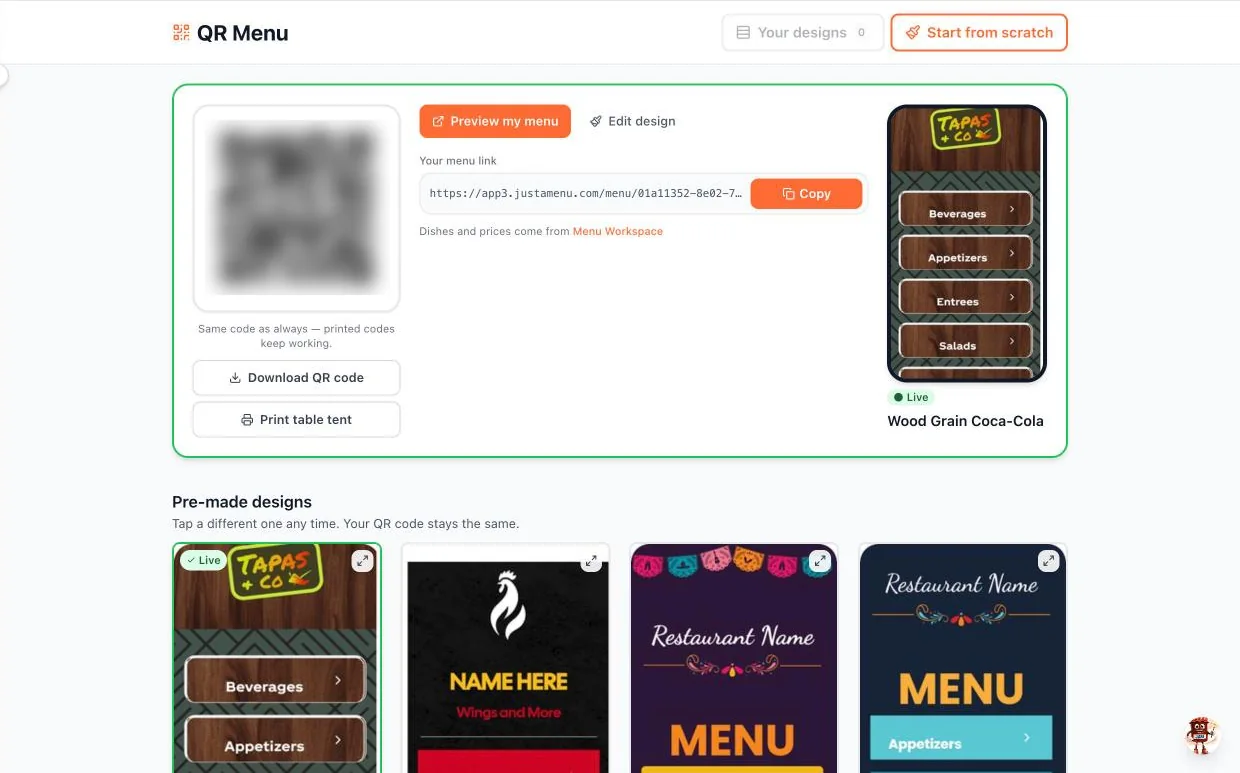
Download, print and share
The live design is marked Live. Download QR code gives you a file to print, Preview my menu opens it as guests see it, and Copy grabs the link for your website or social pages.
Step 9.5
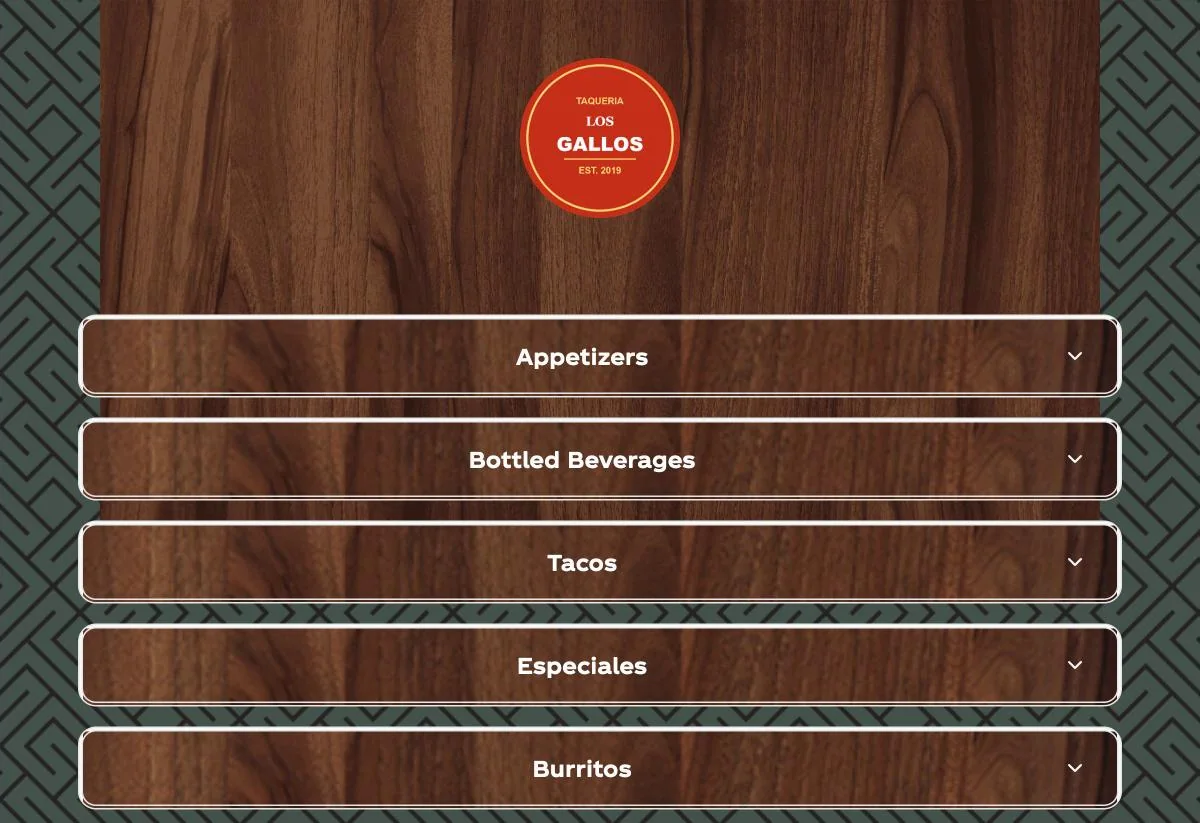
What guests see
Your logo and categories, in your design, ready to tap.
Step 9.6
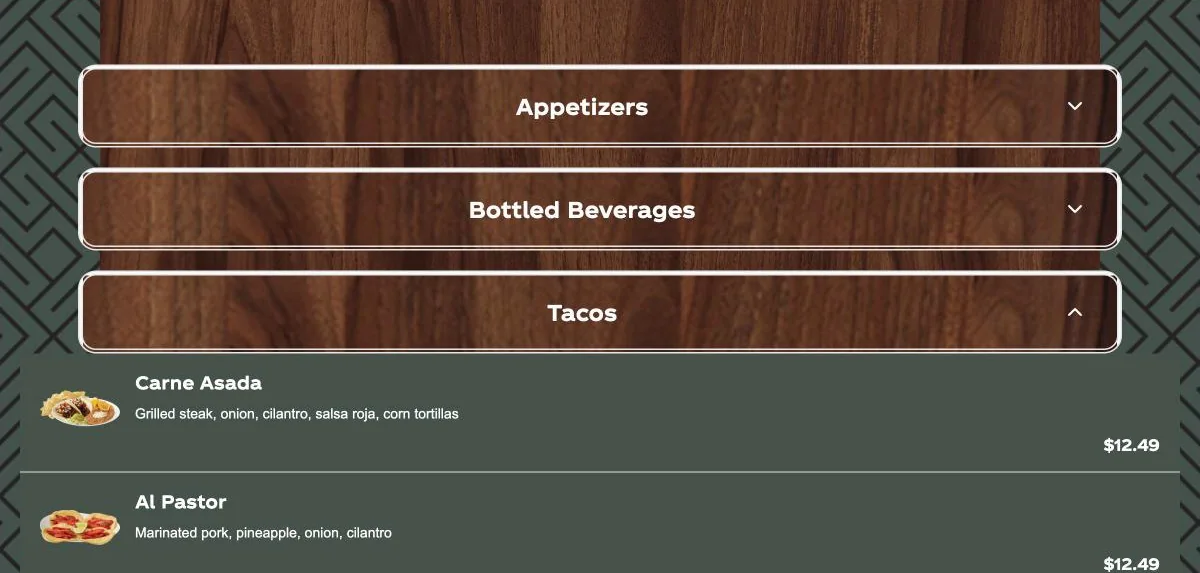
Items, photos and prices
Tapping a category opens its items with photos, descriptions and prices, all straight from Menu Workspace.
Step 9.7
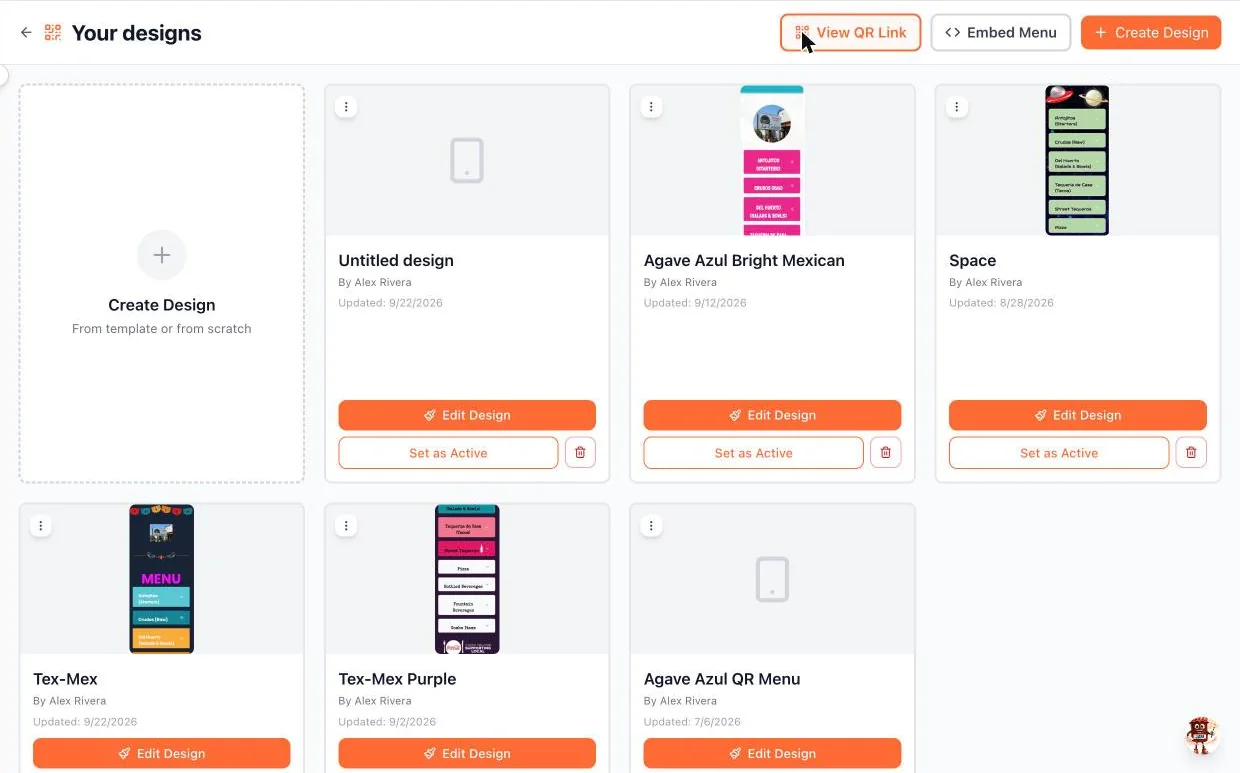
Your designs
Your designs keeps every look you’ve made. Set as Active switches what guests see, Edit Design changes it, and Embed Menu puts the same menu on your website.
Step 9.8
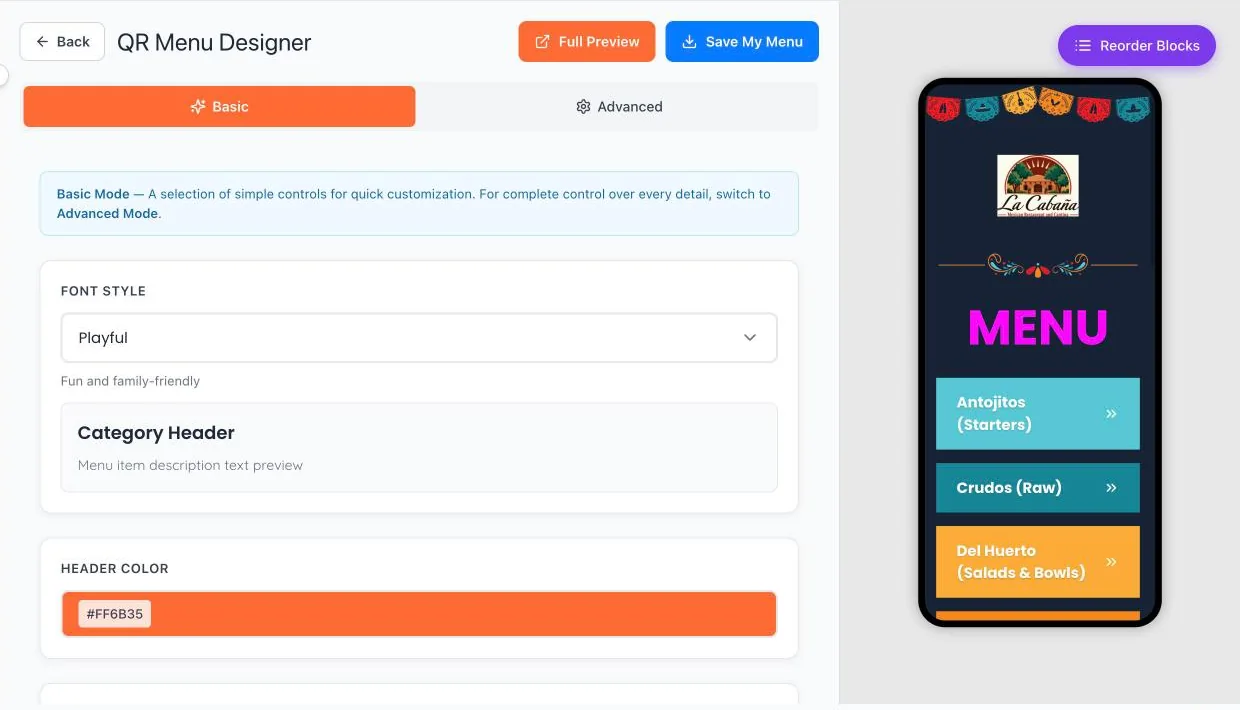
Change the look
In Basic, pick a font style and colors; the phone on the right shows every change. Click Save My Menu, or Full Preview to try it full size.
Step 9.9
Fine control
Advanced covers layout, Multi-Page Navigation, an Allergy & Nutrition Popup, category headers and items. Reorder Blocks changes what comes first.
QR menu guide: print it and go live →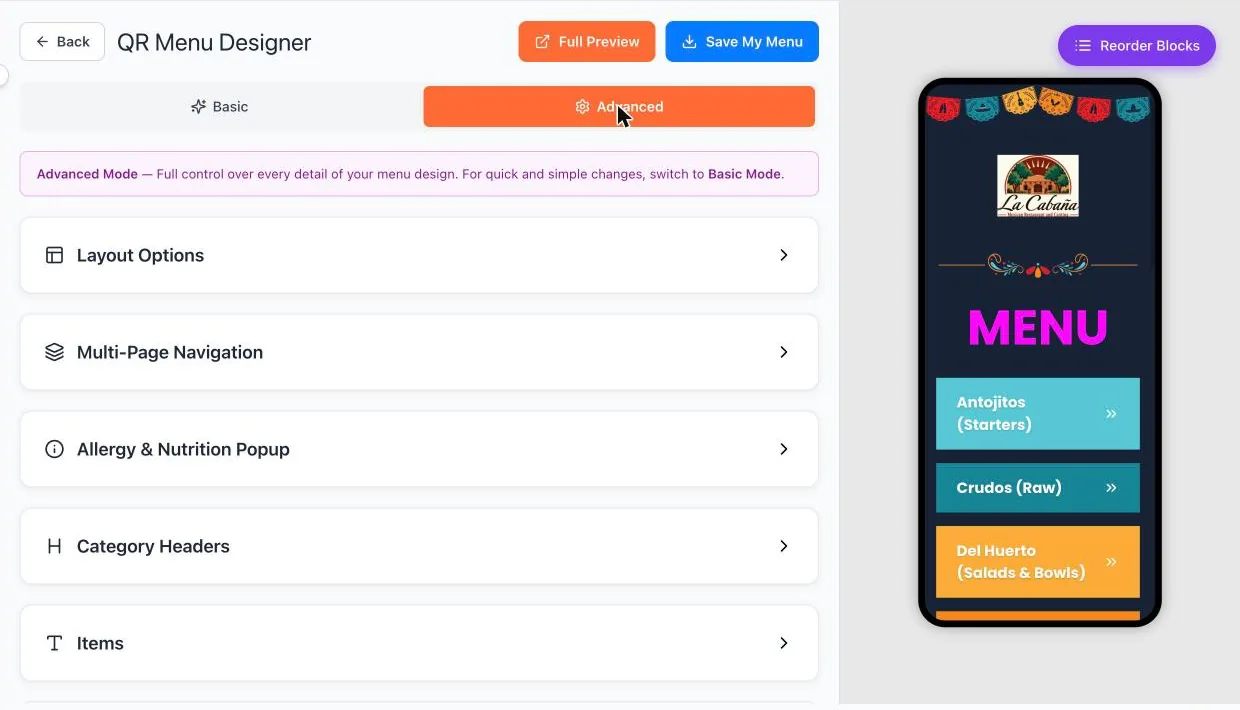
Done when Preview my menu opens your live design.
Mark chapter doneChapter 10 · Print and social
Print menus and social posts.
The same menu, as a print-ready PDF or a post sized for Instagram and Facebook. Both open in JAM Canvas.
Where Sidebar → Print Menu, or Social Media
How do I get here from my dashboard?
1On your Main Dashboard, find your restaurant’s card and click Manage Outlet.
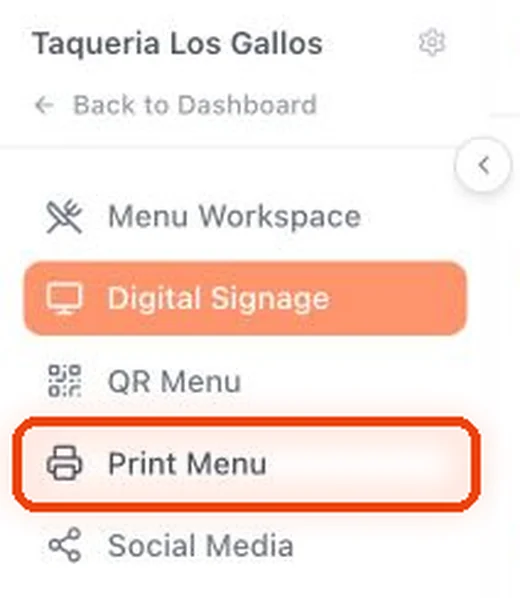
2In the menu on the left, click Print Menu. That’s for a printed menu.
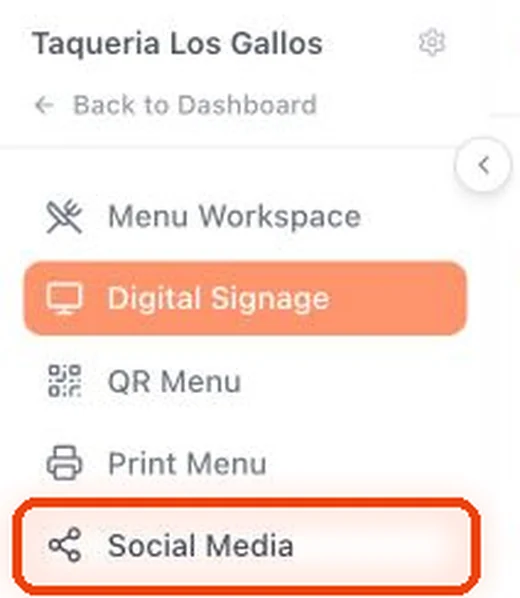
3For a post instead, click Social Media.
Step 10.1
Make a print menu
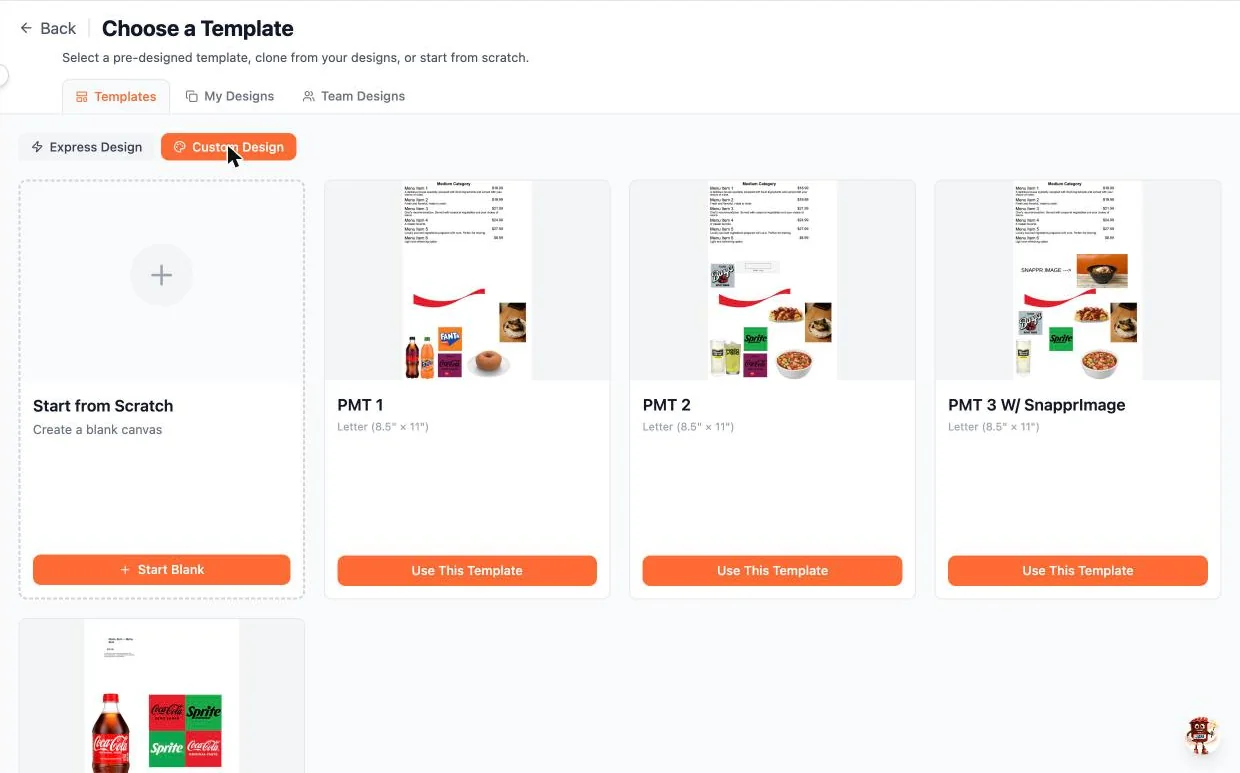
Go to Print Menu and click Create New. Express Design fills a template with your menu, Custom Design lets you build it, or choose Start from Scratch. When it’s ready, the download button on its card gives you a PDF for any print shop.
Step 10.2
Make a social post
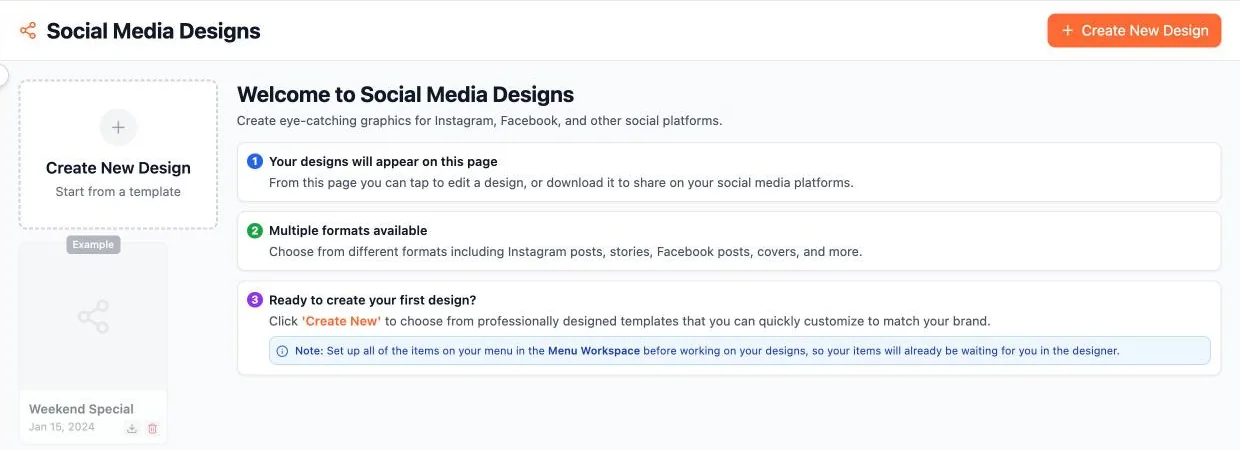
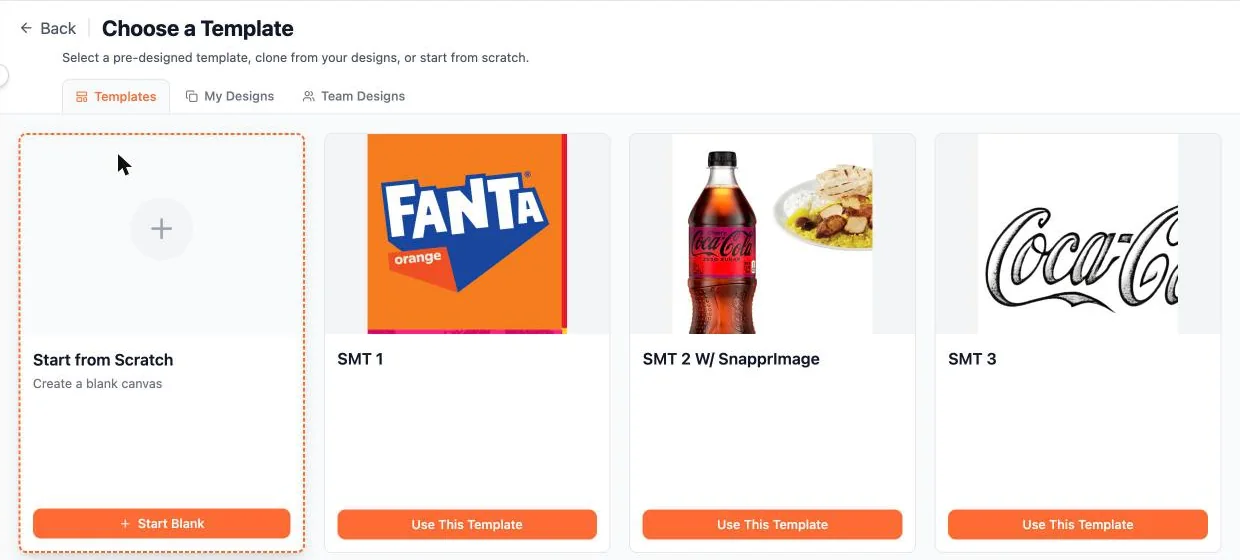
Go to Social Media and click Create New Design. Each format is sized for its platform: Instagram posts and stories, Facebook posts and covers.
Step 10.3
Pick a template, then download
Click Use This Template, put in your dish, photo and words, then download and post.
Tip Set up your menu first. Your items are then waiting for you in every template.
Done when You have downloaded a print menu or a post.
Mark chapter doneChapter 11 · Share with your team
Share access with your team.
Give a manager, co-owner or operator their own sign-in, so they can keep prices and sold-out items current.
Where Main Dashboard → Share Access
How do I get here from my dashboard?
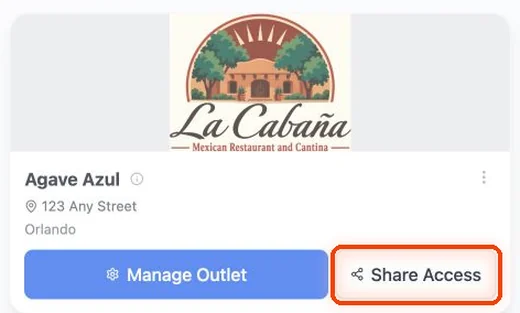
1On your Main Dashboard, find the restaurant’s card and click Share Access.
Step 11.1
Invite someone
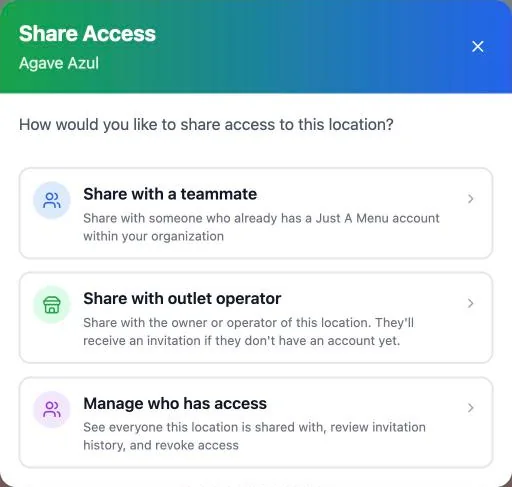
Click Share Access on a restaurant card. Share with a teammate is for someone who already has an account. Share with outlet operator sends an invitation to the owner or operator. Manage who has access shows everyone, with invitation history, and lets you take access away.
Done when They can sign in and see your restaurant.
Mark chapter doneChapter 12 · Help inside the app
Help on every page.
Stuck on a step? The app can walk you through the page you’re on, and a real person is a ticket away.
Where Top right of every page → Instructions
How do I get here from my dashboard?
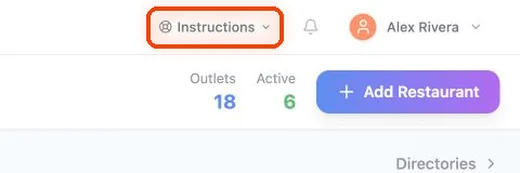
1On any page, click Instructions at the top right.
Step 12.1
Instructions
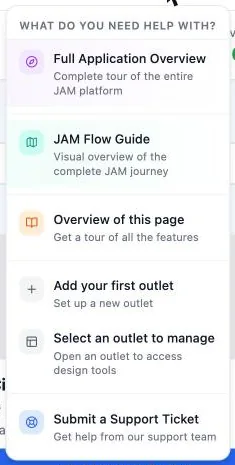
Click Instructions. Full Application Overview tours the whole app, JAM Flow Guide shows the journey on one page, and Overview of this page explains the screen you’re on. The list changes with the page. Submit a Support Ticket reaches a person.
Step 12.2
A guided tour in the editor
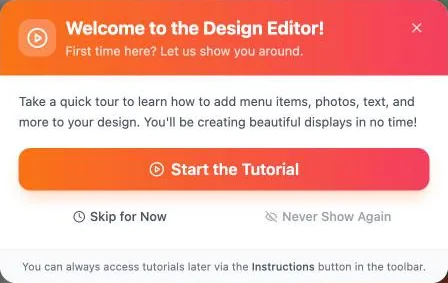
The first time you open JAM Canvas, Start the Tutorial walks you through adding menu items, photos and text. Replay it any time from Instructions.
Done when You know where Instructions and Submit a Support Ticket are.
Mark chapter doneTroubleshooting and FAQ
Something not working?
The questions restaurant teams ask most, each with the step that fixes it.
Screens
My TV stopped updating, or we changed our Wi-Fi.
Your JAM Player is probably offline. A player only knows the Wi-Fi it was set up on, so after a new network name, password or router, reconnect each one: in JAM Setup tap Set Up or Reconnect Device, pick the player and choose the new network.
See the step →How do I set up a new JAM Player?
Plug it into the TV with HDMI and into power, then use the JAM Setup app on your phone (setup.justamenu.com). It takes about 10 minutes per TV.
See the step →My LG monitor shows a code instead of my menu.
That’s only for LG Professional monitors running the JAM Player app. In Digital Signage click Claim Device and type the code on screen. Codes last 24 hours and the monitor shows a fresh one by itself.
See the step →A scene I made never plays.
New scenes start inactive, so publish with Mark Active & Publish. If the scene has a schedule it only plays in those hours.
See the step →Will a special replace my menu on the TV?
No. Your TVs rotate through your scenes like a playlist: each plays for the time you pick (5 to 60 seconds), then the next, and the loop starts again. Drag scenes to change the order, and schedule a special so it only joins the loop during the deal.
See the step →How do I check what plays at a certain time?
Click Preview in Digital Signage, pick the day and drag the time.
See the step →Menu
I changed a price. Do I have to fix every design?
No. Automatic design updates re-makes every board slide, print menu and social post that uses the item.
See the step →We ran out of something.
Tap Sold Out on the item in Menu Workspace. Your TV board shows it straight away.
See the step →The import read a price wrong.
Fix it in Menu Workspace after you accept, or use Retry Import or Reject before you do.
See the step →QR and print
If I change my QR design, do I need new codes?
No. The code stays the same; guests who scan simply see the new design.
See the step →Can I keep a category off the QR menu?
Yes. Open the gear on the category in Menu Workspace and hide it from the QR menu.
See the step →Where do I get the file for the print shop?
The download button on the print menu’s card gives you a PDF.
See the step →Account
My restaurant says Deactivated.
Every new location starts out deactivated, so you can set it up first. When it’s ready to use in your store, click Activate Outlet on its card and choose how it stays on. Activating starts billing.
See the step →I’m stuck on a screen.
Click Instructions, then Overview of this page, or Submit a Support Ticket to reach a person.
See the step →Menu board tips
A board people can read from the back of the line.
Plain advice on which TV to use, how to lay out a board, and how to photograph your menu.
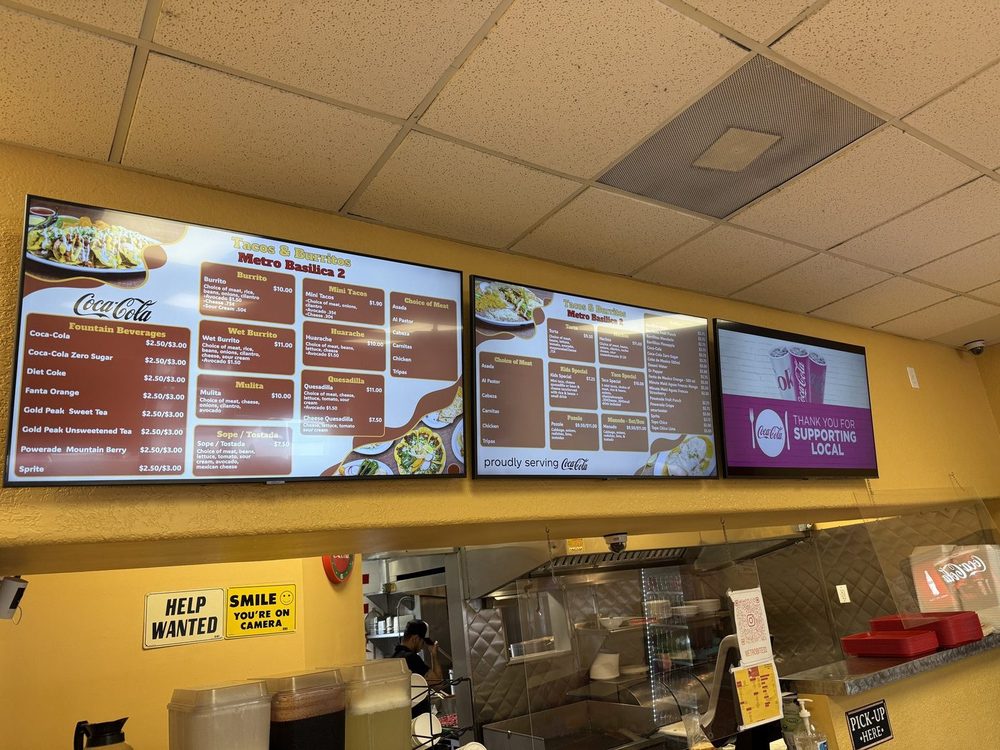
Tacos & Burritos Metro · Phoenix, AZ
Which TV should I use?
What matters: size for your room, brightness, a spare HDMI port and how it’s mounted.
Read the TV guide →
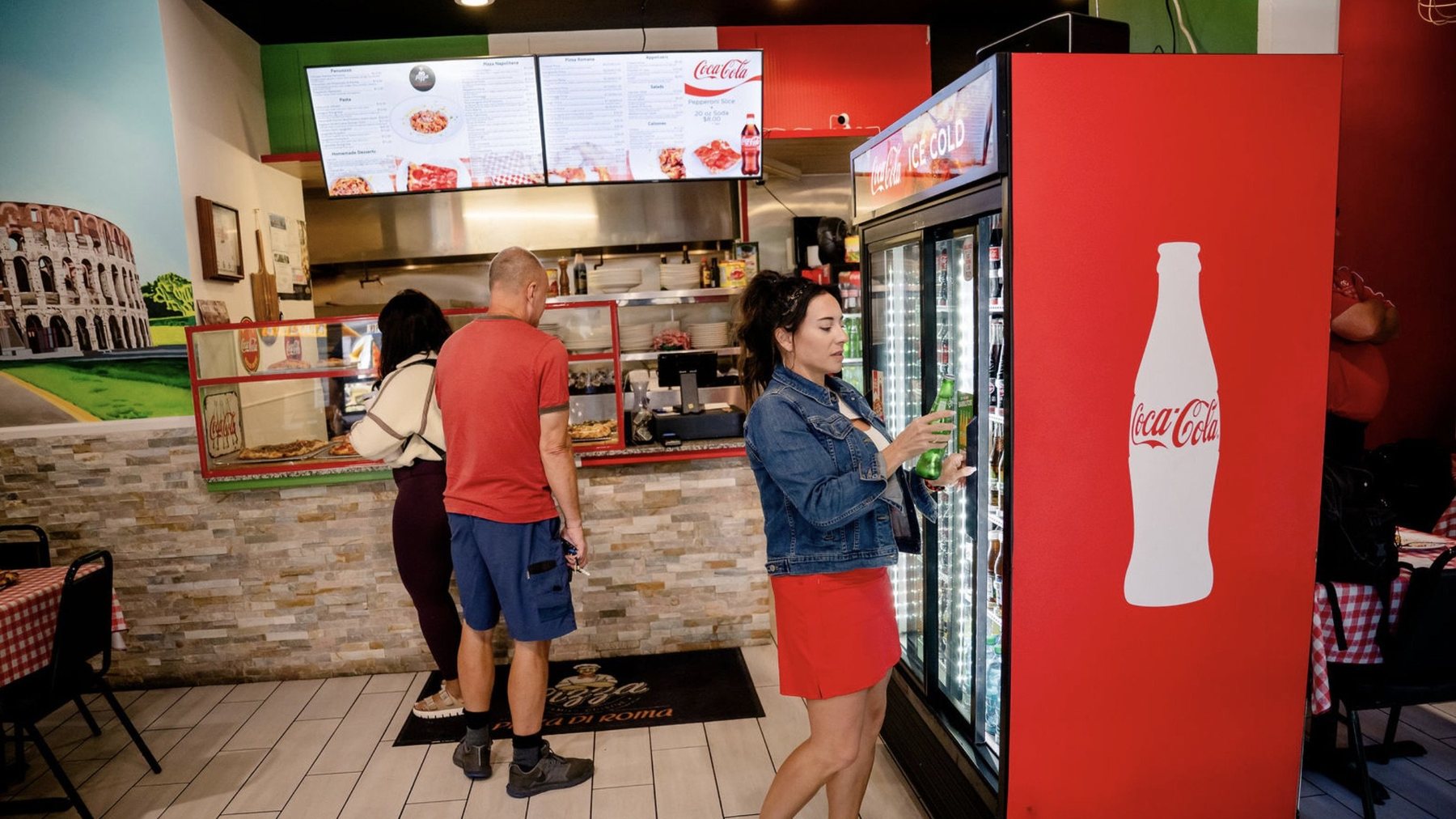
Pizza Di Roma · Austin, TX
Design a board people can read
Text size, how much fits on one screen, and where photos earn their place.
Read the design guide →
✓ Do
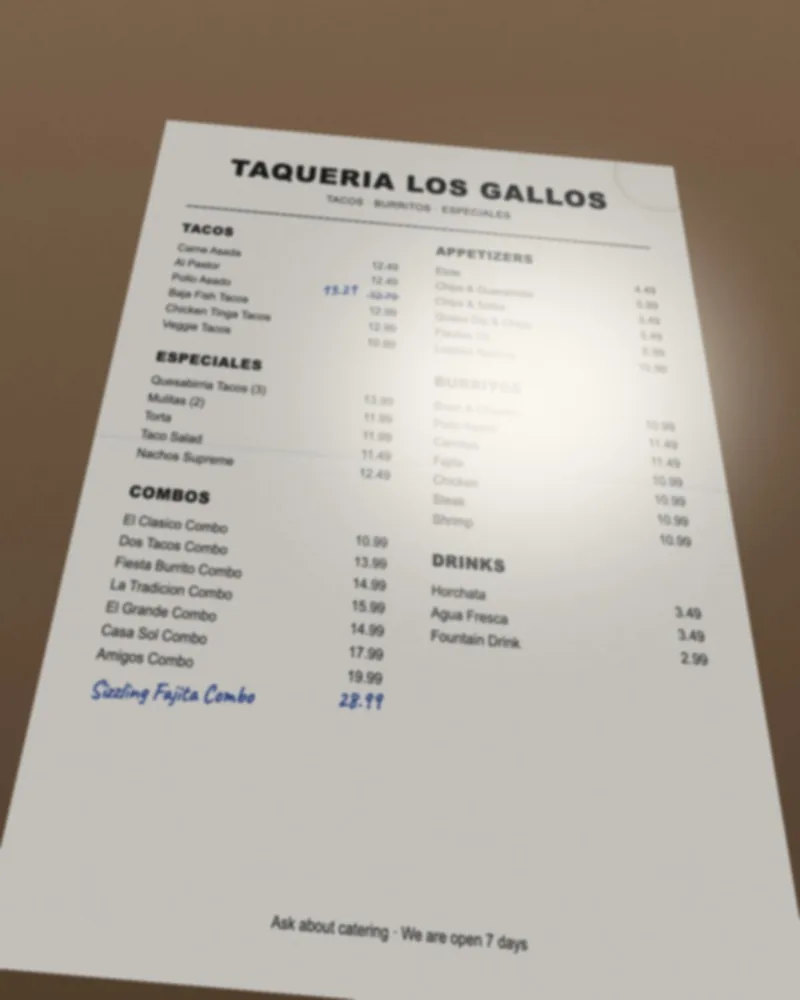
✗ Don’t
Our demo menu
What to photograph
Straight on, bright, one whole page per photo. Get a clean read of your menu the first time.
See the photo tips →
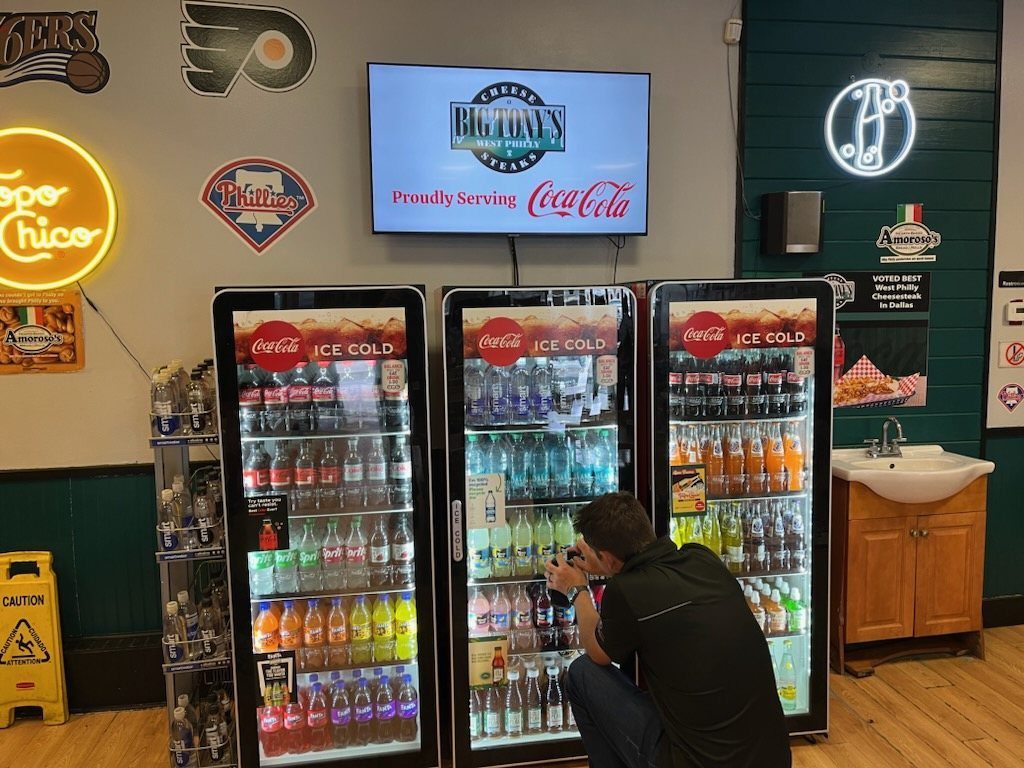
Big Tony’s · Dallas, TX
Coca-Cola bottler or rep?
Your accounts get finished menu boards, a QR menu and print menus. Your drinks sit on the board, right where guests decide what to order.
Need a hand?
Help on every page. And a real person.
Stuck on a step? The app can walk you through the page you’re on. Or ask us.
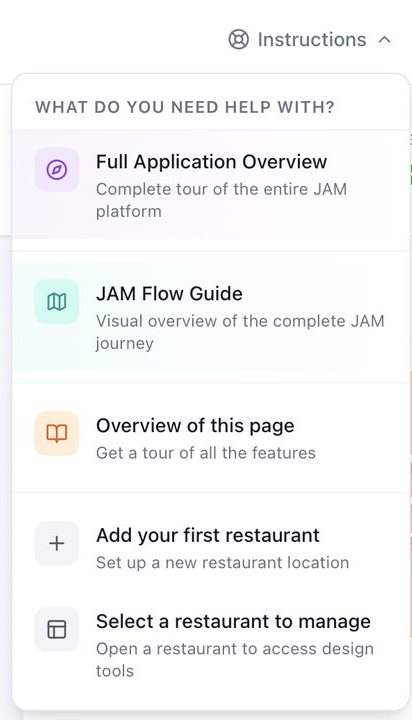
Help inside the app
- 1Sign in at app3.justamenu.com.
- 2Click Instructions at the top right of any page.
- 3Pick a tutorial. It changes to match the page you’re on.
New? Start with Full Application Overview, a tour of the whole app.
Talk to us
Ask a real person.
Write, call or open a ticket. Tell us your restaurant’s name and what you’re trying to do.
Email support
support@justamenu.comCall
(202) 886-2442Support ticket
Open a ticket →New to Just a Menu?
Let’s chat about your menu boards.
Not set up yet? Tell us about your restaurant and we’ll get back to you within one business day.
1
A photo or PDF of your menu
2
A photo of your space, if you like
3
How many TVs you have
Talk to a real person. We reply within one business day.