Beverage partner? Enroll a new account here →

Menu tips
Menu price increase notice: wording, examples and how to show it
A menu price increase notice is a short, honest note to your regulars: what’s changing, when it starts, and thanks for coming in. Post it where guests already look, before the new prices start. Then change every price at once, so the notice and every menu agree. With Just a Menu, you type each new price once: your menu boards, QR menu and website menu follow, and your next print PDF has it too.
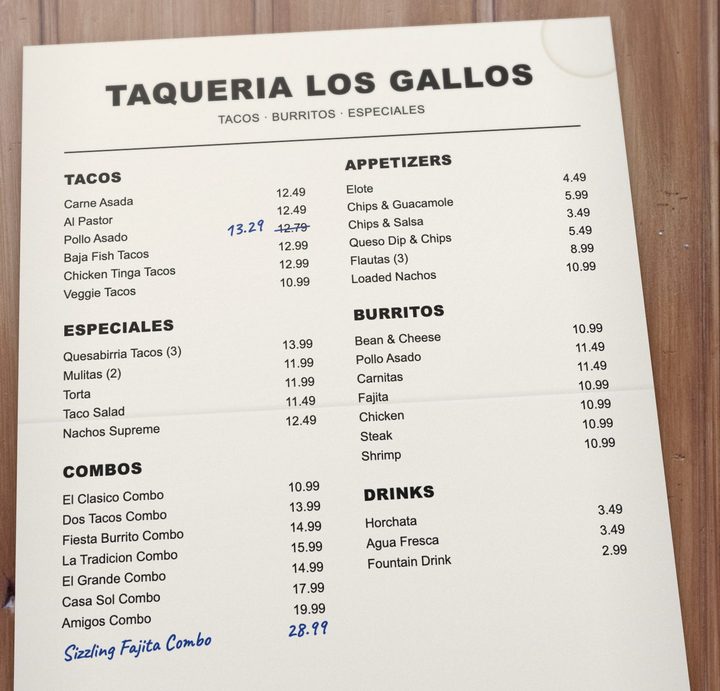
Sample
A price increase done in pen. It works for a day, but it looks temporary, and every other copy of the menu still shows the old price.
In this guide
Changing prices on your TVs? See menu boards →
The short list
What to say?
What’s changing, when it starts, one honest reason and a thank-you.
How long?
Two to four sentences. One line for a sign or a TV slide.
Where?
Wherever guests see a price: boards, QR menu, paper menus, the door, receipts, social and your website.
When?
There’s no set rule. Many restaurants post it a week or two ahead.
Price stickers?
Skip them. They peel, look temporary and never reach your QR menu.
The new prices?
Change them all on the start date, so every menu agrees with the notice.
Price increase notice wording in three tones
Keep it short and honest. Say what’s changing and when, give one plain reason, and thank people for coming in. You don’t need to list every new price or explain your food costs. Copy the one that sounds like you, fill in the brackets and make it yours.
Warm: a note to your regulars
For the counter, the menu or social
To our regulars: thank you for every visit, every order and every friend you’ve sent our way. Our costs for ingredients, supplies and rent have gone up, so starting [date], some of our prices will go up a little. The recipes, the portions and the faces behind the counter stay the same. We’re grateful you choose us.
[Your name] and the [restaurant] team
Plain: a short price update
For the register, the door or your website
Price update: starting [date], prices on some menu items will change. Our ingredient and supply costs have gone up, and this lets us keep the quality you come here for. Thank you for your support.
One-line price increase sign wording
For a door sign, a receipt or a TV slide
- ✓New prices start [date]. Same food, same people. Thanks for being here.
- ✓Heads up: some of our prices change on [date]. Thank you for supporting us.
- ✓Starting [date], our [coffee drinks] go up slightly. Everything else stays the same.
What every notice needs
- ✓The start date. “Monday” or “soon” isn’t clear on a sign that stays up for two weeks.
- ✓What’s changing. “Some prices” is fine. If it’s only coffee or only the combos, say so. Everyone else relaxes.
- ✓One honest reason. One sentence. “Our costs went up” is enough.
- ✓What stays the same. The recipes, the portions, the lunch deal. Only what’s true.
- ✓A thank-you and a name. “The [restaurant] team” sounds like people, not a policy.
Be straight about portions too. If a portion or a recipe changes along with the price, say so in the notice. Guests notice, and it’s better coming from you.
Where to show it
Put the notice everywhere guests see a price, so nobody finds out at the register.
Where
What to put there
Menu boards
A notice slide that takes turns with your menu, on the days you choose. How to make it
QR menu
The new prices, from the start date. It’s the same menu as your boards, so guests who scan always see your current prices.
Printed menus
A fresh print for the start date. Put your QR code on it, so guests can check today’s prices between print runs.
The door
The one-line sign, at eye level, on the door or next to the register.
Receipts
A one-line note at the bottom, if your POS lets you add a receipt message. Your QR code fits there too.
Social
The warm version, when the notice goes up, with a photo of a dish people love. Your social posts open in JAM Canvas, so the graphic can match your boards. Download it and post it yourself.
Your website
A line near your Menu button. If your website shows your Just a Menu menu, its prices change with everything else.
When to post it
There’s no set rule. Many restaurants post the notice a week or two ahead, so regulars hear it from you before they see it on the bill. Leave it up for a week or two after the change too: some regulars only come in once a week.
- Pick the start date. A quiet weekday is easier than a Friday night.
- Post the notice a week or two ahead: on your boards, the door, the register and social.
- Brief your staff. Tell them what’s changing, and give them one friendly sentence for when a guest asks why.
- Change every price on the start date, before you open.
- Take the notice down a week or two later.
Skip the price stickers
A menu price change sticker is quick: peel, stick, done. But guests notice. Stickers lift at the corners, catch grease and make the whole menu look temporary. And they only fix the paper in your hand. Your QR menu, your website and every menu you didn’t sticker still show the old price.
Quick fix
Price stickers
Looks
Temporary
Lasts
Until it peels or gets wiped off
QR menu
Still the old price
Website menu
Still the old price
Next price change
Another round of stickers
Change it once
One menu, in Just a Menu
Looks
Like your menu, because it is
Lasts
Until you change it again
QR menu
New price, on its own
Website menu
New price, on its own
Next price change
One price box per item
Printed menus are still worth having for tables and takeout. When prices change, download a fresh PDF from the same menu and reprint, with your QR code on it so guests can check today’s prices between print runs. Print menus from the same menu
Change every price at once
Your notice names a start date. On that date, every menu should agree: the boards, the QR menu, the paper menus, the website and the register. One old price left behind, and a guest gets charged more than the menu said. Still setting the new prices? Work them out with the menu price calculator.
With Just a Menu, your menu lives in one place: Menu Workspace. Every item has one price box (or one for each size), and everything made from your menu uses it. Sold-out items work the same way: 86 an item everywhere at once.
- Open Menu Workspace on your phone or computer.
- Type the new price in each item’s price box. Items with sizes, like Small and Large, have a price for each size.
- That’s it for your screens. Every board that shows the item, your QR menu and your website menu show the new price on their own.
- When you’re ready to reprint, download a fresh PDF. Print menus that use an item you changed are re-made for you, so the new price is already in it.
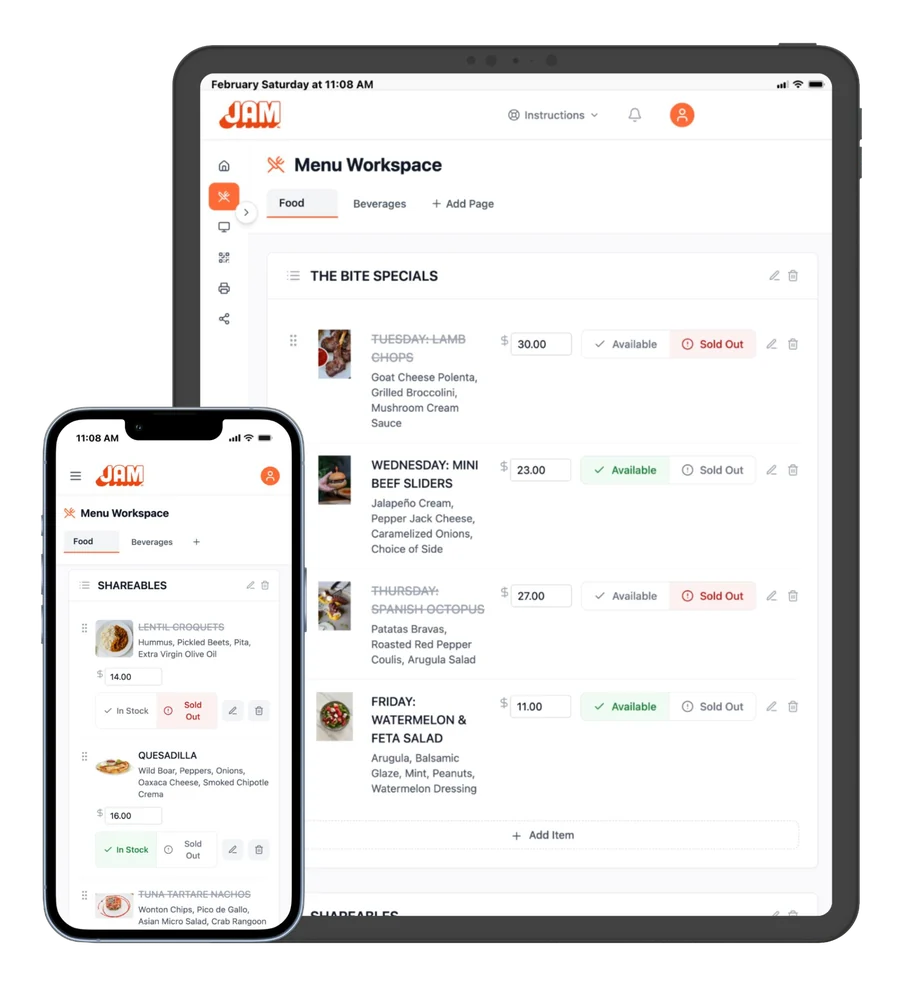
Real screen · sample menu
Menu Workspace. One price box per item: change it once, and every screen that shows it follows.

On Square, Toast, Clover or Oracle? Change the price in your POS instead. Your boards follow on their own, so the register and the menu agree. How menu boards follow your prices

Our demo menu
A print menu made in Just a Menu from our demo taqueria’s menu. After a price change, the next PDF already has the new price.
Not on Just a Menu yet? Start with a photo of the menu you have, pen marks and all. Hand-written changes count: on the sample menu at the top of this page, the crossed-out 12.79 with 13.29 written next to it came in as 13.29. Just a Menu builds your boards, QR menu and print menus from it. Menu from a photo
Put the notice on your TVs for the days you choose
Your menu boards are where everyone in line looks, including guests who walk right past the sign on the door. Give the notice its own slide. Your TVs take turns showing it and your menu, so it never covers your prices.
Make it in JAM Canvas, the full editor. Start from a blank screen and add your one-line notice as text. Or clone one of your boards (File → Clone Scene) and swap the menu for your notice, so it matches your colors and fonts. You can add a photo, shapes or your QR code too.
- When the slide looks right, click Publish. A new slide starts out inactive, so choose Mark Active & Publish.
- In Digital Signage, find the notice slide (the app calls a slide a scene) and click Schedule.
- For each day, choose All Day, OFF or Custom. With Custom, set a start and end time, like your lunch rush. Then click Save Schedule.
- Set how long it stays up each time it plays, from 5 to 60 seconds, with the seconds menu next to the slide.
- When the notice has done its job, set its days to OFF.
- ✓One line, big. Use your one-line sign wording. If the back of the line can’t read it, make it bigger.
- ✓Long enough to read twice. A notice that flashes past doesn’t get read.
- ✓Prices stay on the menu. The notice says what’s changing. Your menu slides show the new prices.
Check what plays when with Preview: pick a day and drag the time. Step by step: set the times
Questions
How do I tell customers about a price increase?
Briefly, honestly and before it happens. Post a short notice where guests already look: your menu boards, the door, the register, your social pages and your website. Say what’s changing and when, and thank them. Then change every price on the start date, so all your menus agree.
What should a price increase notice say?
What’s changing, when it starts, one honest reason and a thank-you. Two to four sentences is plenty. For a sign, one line works: “New prices start [date]. Same food, same people. Thanks for being here.”
Should I use price stickers on my menu?
Try not to. Stickers peel, look temporary and only fix the paper in your hand, so your QR menu and website still show the old price. Change the price once in Just a Menu instead, and reprint from the same menu when you’re ready.
How far ahead should I post it?
There’s no set rule. Many restaurants post it a week or two ahead and leave it up for a week or two after, so regulars who come in once a week see it at least once.
How do I change prices on my menu board?
With Just a Menu, type the new price in Menu Workspace, from your phone or computer. Every board that shows the item changes on its own, and so does your QR menu. On Square, Toast, Clover or Oracle, change it in your POS and your boards follow automatically. See menu boards
Put your menu on your TV
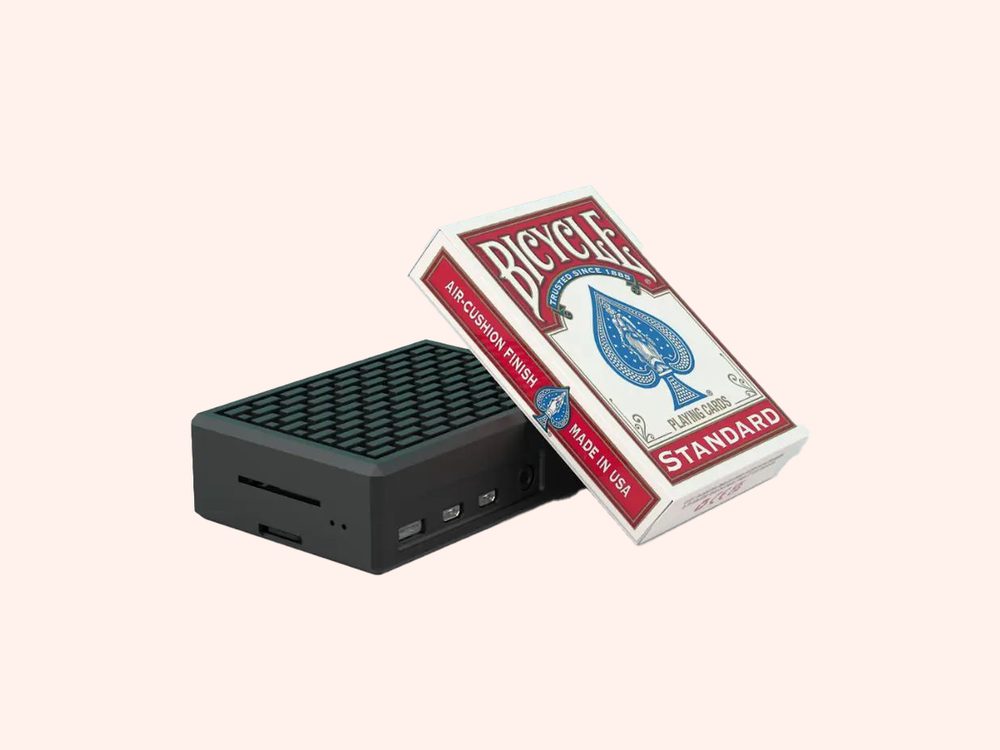
Plug in the JAM Player, link it to a screen and set the times each slide plays.
Read the guide →
POS integrations
On Square, Toast, Clover or Oracle? Change a price in your POS, and your boards follow on their own.
See POS integrations →
Getting started
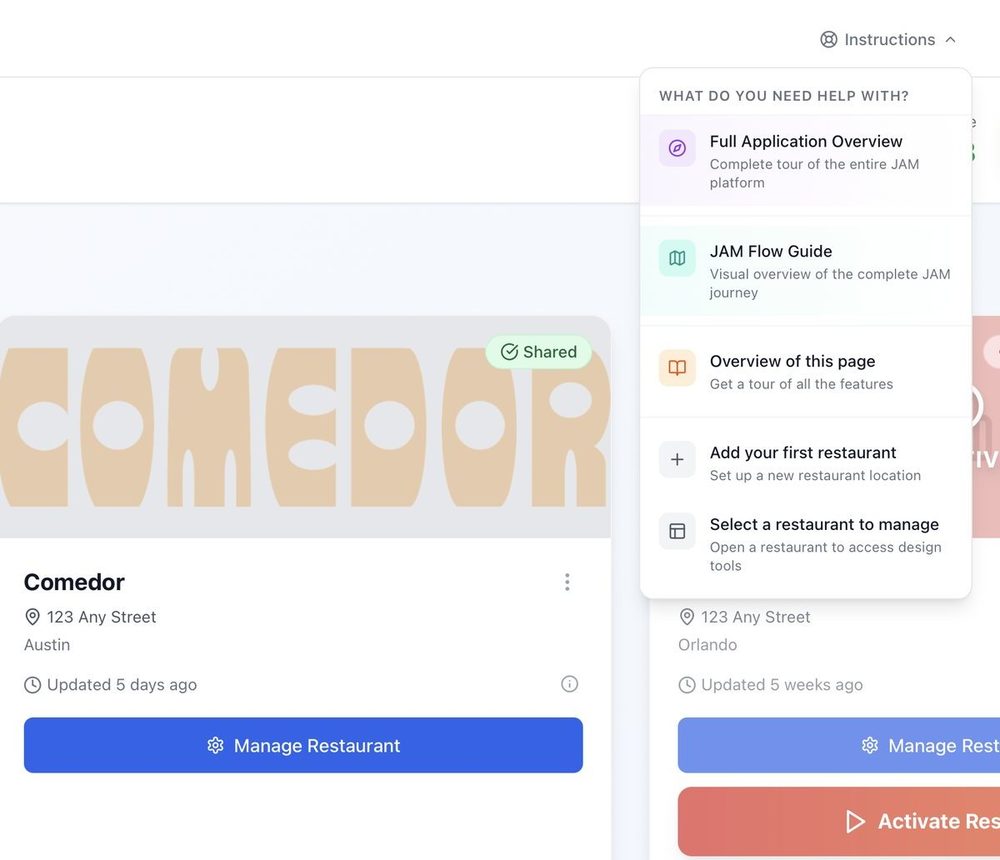
From a photo of your menu to your TV, in four steps.
Read the guide →
Raising prices? Change them once.
Once you’re set up, every price lives in one place. Change it once, and your menu boards, QR menu and website menu follow, with your next print PDF ready to download. Tell us a little about your restaurant to get started.
Talk to a real person. We reply within one business day.
Illustration
Questions about changing your prices? Email support@justamenu.com or call (202) 886-2442.