Beverage partner? Enroll a new account here →

Set up
How to add your menu to your website: Squarespace, Wix, WordPress, Canva, Square Online and Shopify
To add your menu to your website, click Embed Menu in Just a Menu. It copies a short piece of embed code (an iframe), so your menu works on any website builder: paste it into an embed or HTML block. Or make your menu link your website’s Menu button. Either way, it’s the same live menu your QR code opens and your menu boards are made from.
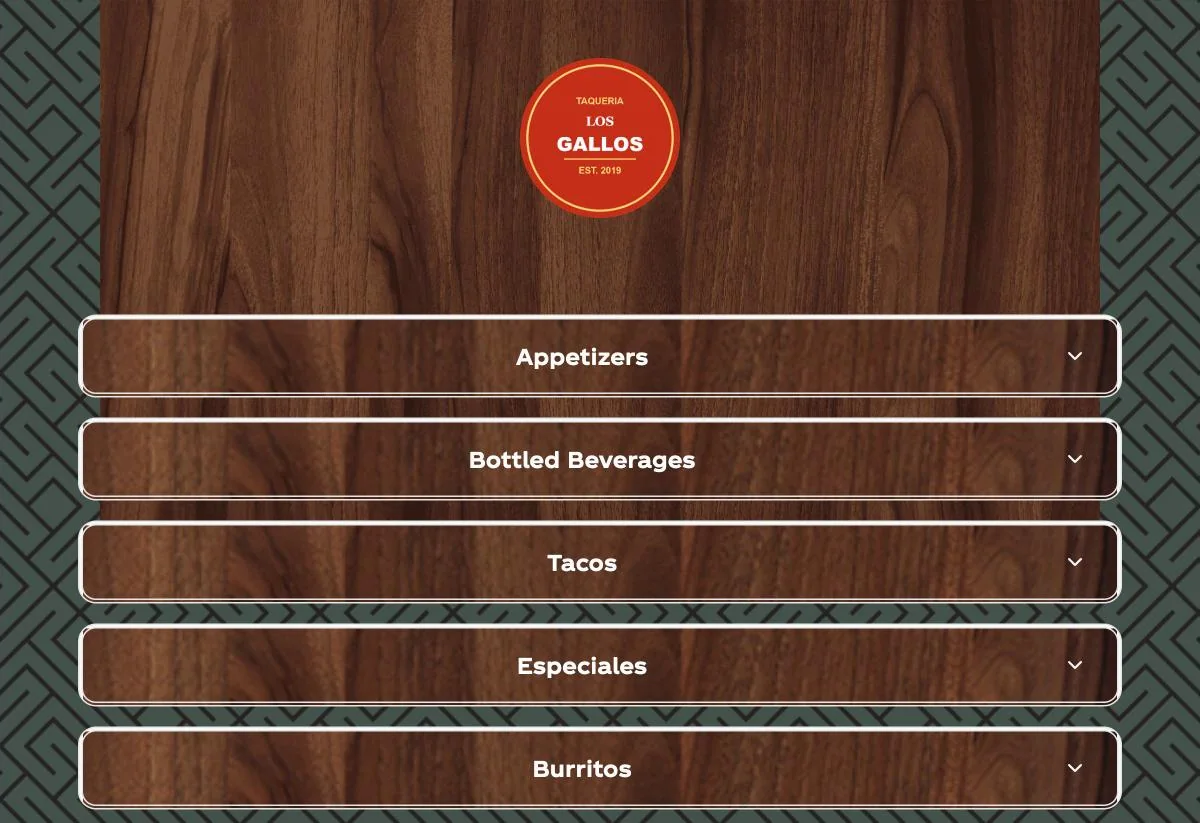
Our demo menu
Our demo taqueria’s live menu on a web page. Guests tap a section to open it, the same as on its QR menu.
The short list
Copy your Embed Menu code in Just a Menu, then paste it into this spot on your builder.
Squarespace
A Code block. Iframes need the Core, Plus or Advanced plan.
Wix
Add Elements → Embed Code → Embed HTML.
WordPress
A Custom HTML block. No menu plugin needed.
Canva
The Embeds app. Paste your menu link, not the code.
Square Online
An Embed code section, on Square Online Plus and Premium.
Shopify
A Custom Liquid section in the theme editor.
Your own HTML site? Paste the code where the menu goes. No embed block on your plan? Link your Menu button instead.
0
Copy your menu from Just a Menu
To put the menu right on your page, copy the embed code:
- In Just a Menu, go to QR Menu and open Your designs.
- Click Embed Menu. The code is copied for you.
In the app
QR Menu → Your designs → Embed Menu
To link a Menu button (and for Canva), copy your menu link:
In the app
QR Menu → Your menu link → Copy
✓ Your website shows the design that’s live on your QR code.
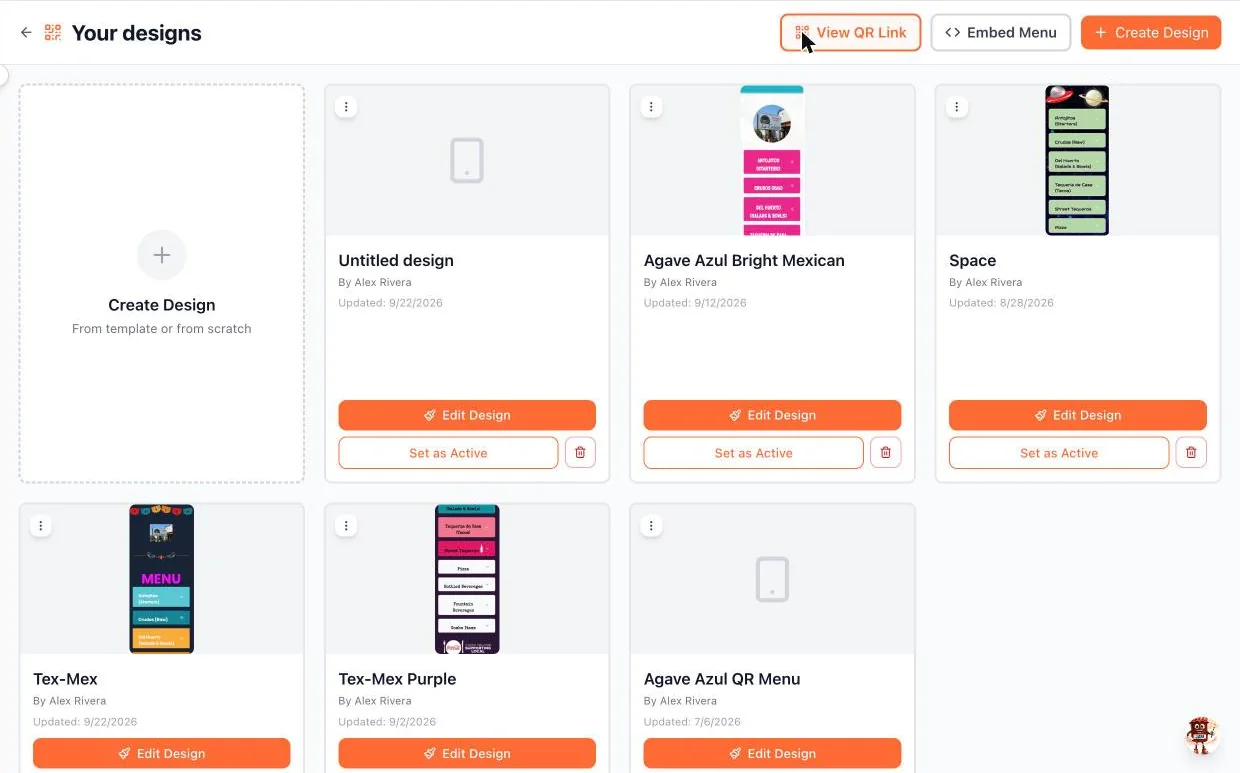
Real screen · sample menu
Shown: Your designs. Embed Menu is the middle button at the top right, between View QR Link and Create Design.
Your designs grayed out? Use your menu link instead, or make a QR menu design live first. Step by step: How to make a QR code menu
Keep it narrow. The menu is made for phones, so put it in a column 480px wide or less. On a computer, it looks best that way.
1
Add your menu to Squarespace
Use a Code block.
- Edit your menu page. Click Add block (or +), then choose Code.
- Click the pencil icon on the block and paste your Embed Menu code.
- Resize the block so the menu sits in a narrow column, then save the page.
Plan check: Squarespace shows iframes in a Code block on its Core, Plus and Advanced plans. On another plan, link your Menu button instead.
2
Add your menu to Wix
Use an Embed HTML element.
- In the Wix Editor, click Add Elements, then Embed Code, then Embed HTML.
- Click Enter Code on the new element, paste your Embed Menu code and click Apply.
- Drag the element’s handles to make it narrow and tall, then click Publish.
Using Wix Studio? Add the Embed code element from the Add panel, then paste the code the same way.
3
Add your menu to WordPress
Use a Custom HTML block. You don’t need a menu plugin.
- Open your menu page in the block editor. Click + and search for Custom HTML.
- Paste your Embed Menu code into the block. Click Preview to check it.
- Save or publish the page.
Plan check: on WordPress.com, iframe code needs a paid plan with hosting features turned on. Otherwise WordPress removes it when you save. Self-hosted WordPress sites usually take it as it is.
4
Add your menu to your Canva website
Canva websites take a link, not code, so use your menu link.
- Open your Canva website design. Click Apps in the side panel, search for Embeds and open it.
- Paste your menu link and click Add to design.
- Drag the corners to size it, then publish your site.
Canva shows a link card instead of your menu? Link a Menu button instead: select the button or text, click the link icon and paste your menu link.
5
Add your menu to Square Online
Use an Embed code section.
- Open your Square Online site editor (Edit site) and go to your menu page.
- Click + Add, choose Section, then Embed code.
- In the editing panel, select Embed code, paste your Embed Menu code and publish your site.
Plan check: Square Online offers the Embed code section on its Plus and Premium plans. On another plan, link your Menu button instead.
Run Square at the register too? Just a Menu syncs with Square, so a price you change there shows on this menu on its own. See the Square integration
6
Add your menu to Shopify
Use a Custom Liquid section in the theme editor.
- In your Shopify admin, go to Online Store → Themes and click Edit theme.
- From the drop-down at the top, open the page template your menu page uses. Want the menu on one page only? Create a new page template and assign it to that page.
- Click Add section, choose Custom Liquid and paste your Embed Menu code into the Liquid code box.
- Click Save.
No Custom Liquid section? Most current Shopify themes have one. If yours doesn’t, link your Menu button instead.
7
Add your menu to your own HTML site
Paste the code. That’s it.
- Open the page where your menu goes, or send the code to whoever runs your site.
- Paste your Embed Menu code where the menu should appear, inside a container 480px wide or less.
- Save and upload the page.
✓ Check it on your phone: scroll the menu and tap a section to open it.
Using another builder? Look for a block called Embed, Code, HTML or Custom code. The code is a standard iframe, so any builder that takes one can show your menu.
No embed block on your plan? Link your Menu button.
Some builders only offer an embed block on paid plans. You don’t need one. Make your menu link the link on your website’s Menu button, and guests get the same live menu, full screen on their phone.
- In Just a Menu, go to QR Menu and click Copy under Your menu link.
- In your builder, edit your Menu button, or the Menu item in your site’s navigation.
- Paste the link and publish.
It works on any website, and it never changes, even when you change your design. No website at all? Use the same link on your Google Business Profile, Instagram and Facebook.
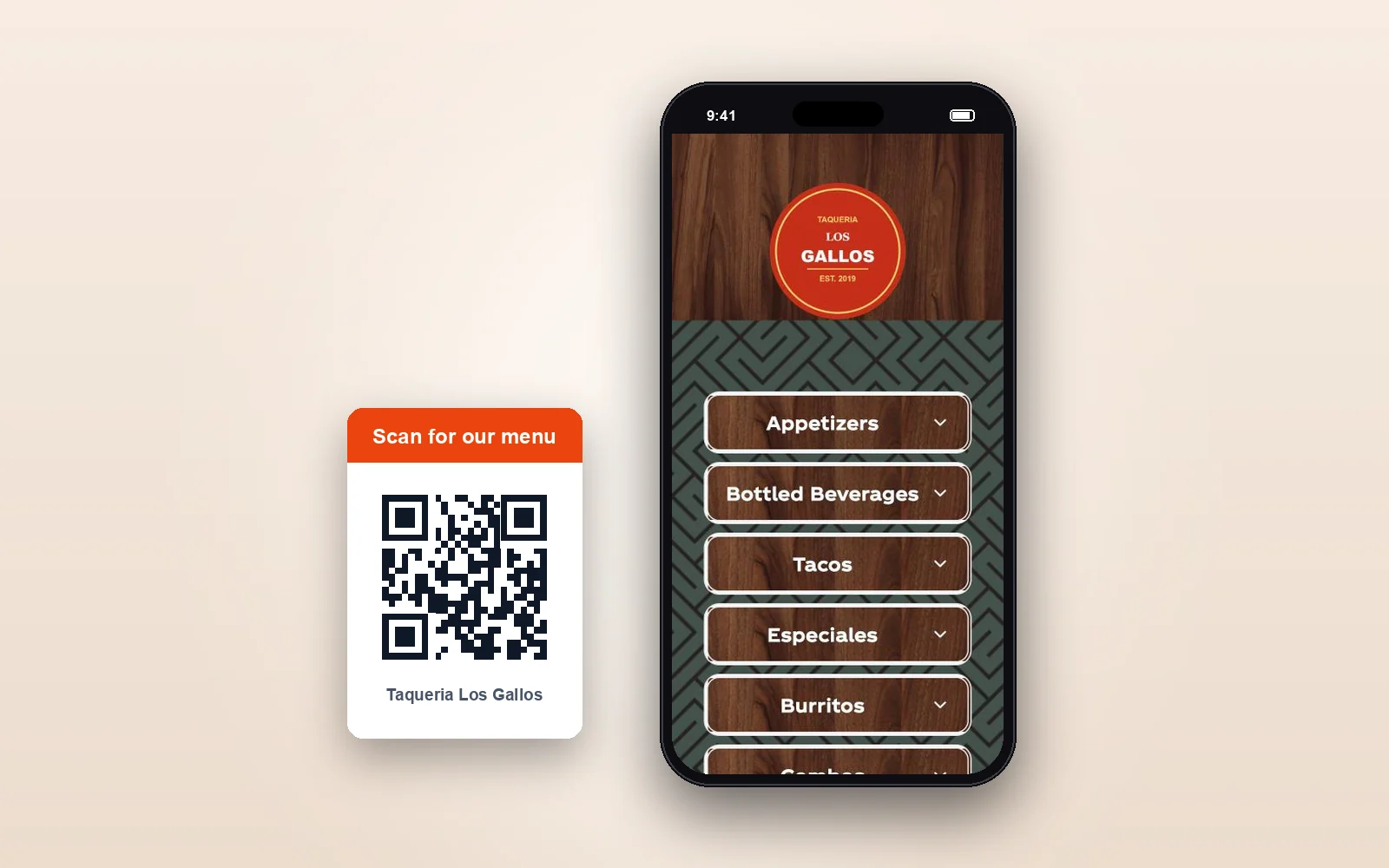
Our demo menu
Your website and your QR code open the same menu, in the same design.
Good to know
- ✓Change it once. Your website shows the same menu as your QR menu and your menu boards. It loads fresh every time it’s opened, so guests always get your latest menu.
- ✓Sold out, handled. Hide the item or gray it out. Your choice.
- ✓Found on Google. Menus hosted by Just a Menu get found on Google. Paste the same menu link into your Google Business Profile’s menu link field too. Step by step: add your menu to Google
- ✓Made for phones. No app, no pinching, no zooming, no PDF.
- ✓Not an ordering page. If you take orders online, put your ordering link next to it.
- ✓Someone else runs your website? Send them the code or your menu link.
Want to see it on a page first? The website menus page has a real café’s menu, live, on a sample web page. See website menus
Questions
How do I add a menu to my Squarespace website?
In Just a Menu, go to QR Menu, open Your designs and click Embed Menu. In Squarespace, edit your menu page, add a Code block, paste the code and save. Squarespace shows iframes in Code blocks on its Core, Plus and Advanced plans. On another plan, make your menu link the link on your Menu button.
How do I add a menu to my Wix website?
Copy your Embed Menu code in Just a Menu. In the Wix Editor, click Add Elements, then Embed Code, then Embed HTML. Click Enter Code, paste the code and click Apply. Make the element narrow, then publish.
Can I add a menu to my Canva website?
Yes. Canva websites take a link instead of code. Copy your menu link in Just a Menu (QR Menu → Your menu link → Copy), open Canva’s Embeds app, paste the link and click Add to design. You can also link a Menu button to it.
Do I need a WordPress menu plugin?
No. Paste your Embed Menu code into a Custom HTML block on your menu page. Your menu lives in Just a Menu, so there’s nothing to keep up to date in WordPress. On WordPress.com, iframe code needs a paid plan with hosting features turned on.
Will it update when I change prices?
Yes. It’s the same live menu as your QR code and your menu boards. Change a price from your phone, and the next guest who opens your menu sees it. Change it in Square, Toast, Clover or Oracle, and your menu follows automatically. You never paste the code again.
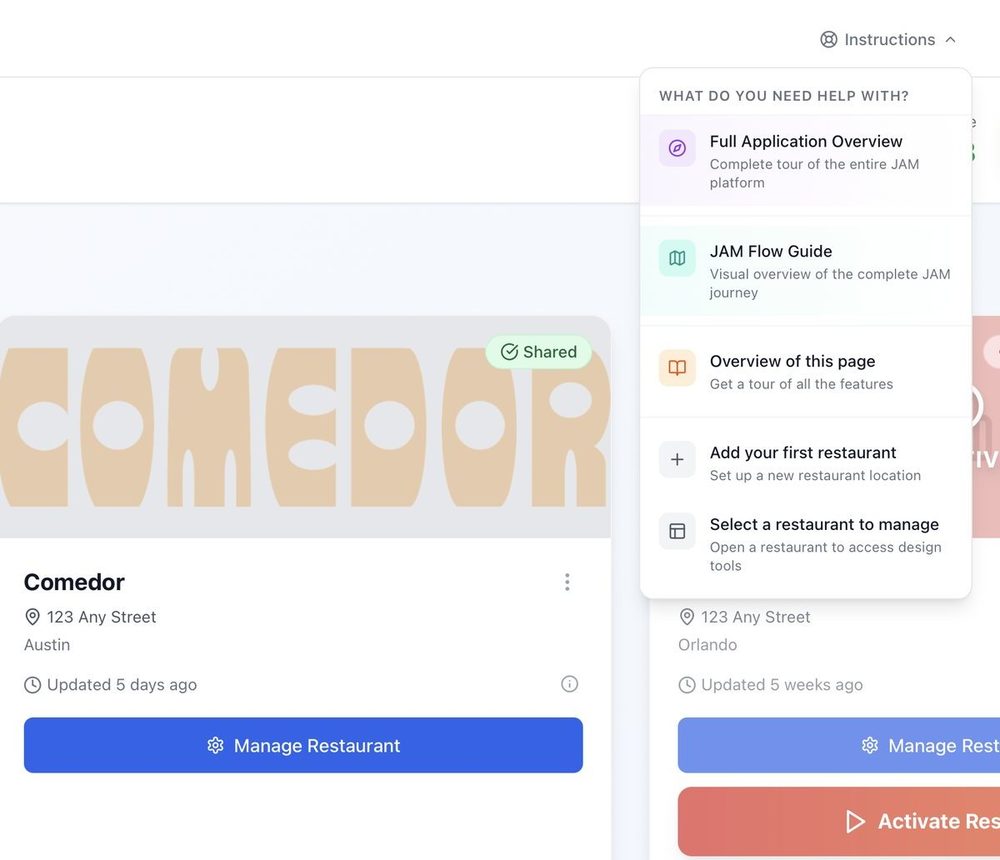
Getting started
From a photo of your menu to your TV, in four steps.
Read the guide →
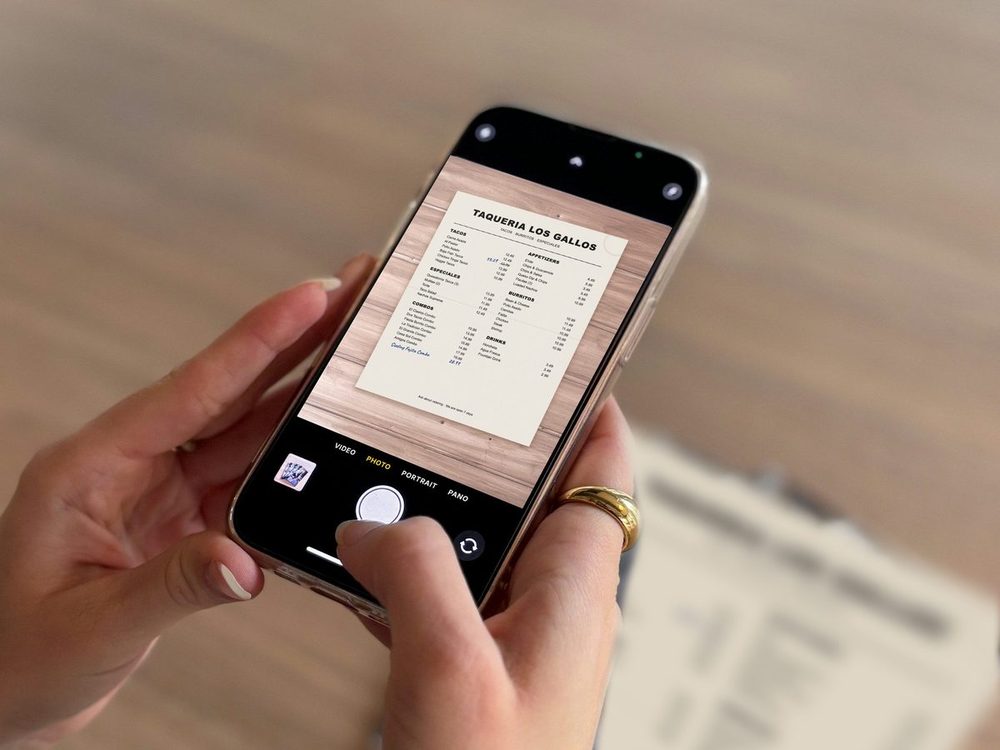
Menu photo to menu board
Upload a photo of the menu you have, check the items and prices, and get custom menu boards.
Read the guide →
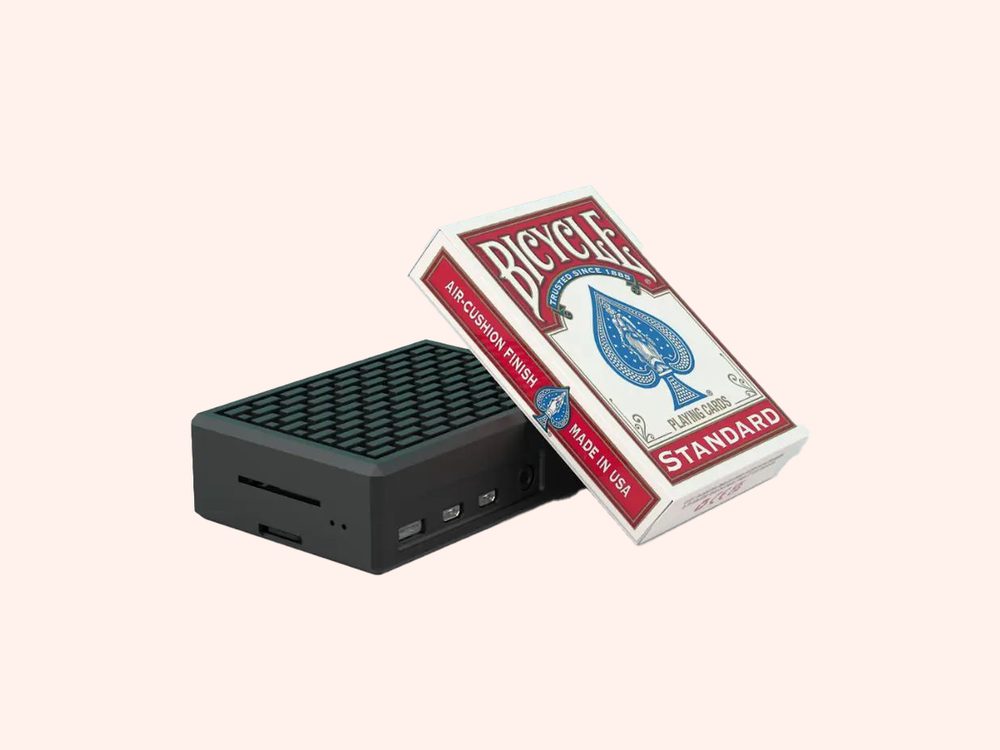
Put your menu on your TV
Plug in the JAM Player, connect it with your phone and choose what it shows.
Read the guide →
New here? Let’s put your live menu online.
Once you’re set up, a photo of your menu becomes your QR menu and your menu boards, and your website menu is one paste away. Tell us a little about your restaurant to get started.
Talk to a real person. We reply within one business day.
Illustration
Questions about your website menu? Email support@justamenu.com or call (202) 886-2442.